
Docs
Get started with the phone app
Install DeepSeek Harness and DeepSeekBot, connect over Tailscale and pair your phone.
The DeepSeekBot phone app is a remote for DeepSeek Harness (DSH) running on your own computer. Your Bots, chats and approvals stay on the computer; the phone shows them and lets you chat and approve from anywhere. This guide goes from a clean computer to a paired phone in about 20 minutes.
The software is free. DSH and DeepSeekBot are open source and need no account. The phone reaches the computer over your own Tailscale network, which is free for personal use but needs a Tailscale account. The only possible cost is your model provider: DeepSeek and most others bill API usage by token.
Watch the whole flow first: 1-minute video.
Version scope: checked against DeepSeek Harness desktop 0.2.1-rc.2, the DeepSeekBot plugin 1.4.1 and the iOS beta on TestFlight (October 21, 2026).
What you need
- A Mac with Apple silicon (macOS 13 or later) or a Windows 10 or later x64 computer that stays on while you use the phone. Intel Macs and Linux work with the command-line install.
- An iPhone with the DeepSeekBot beta from TestFlight, or an Android phone with the Google Play internal test. Both are invitation-only for now: open the invitation link you received and install the app from there.
- A DeepSeek API key, or a DeepSeek account to sign in with, so your Bots can reply.
- A Tailscale account. You can sign up with Google, Microsoft, GitHub, Apple and others.
The steps:
- Install DeepSeek Harness on the computer.
- Install the DeepSeekBot plugin and create a Bot.
- Sign the computer and the phone in to the same Tailscale account.
- Publish DSH on your tailnet with
tailscale serve. - Pair the phone by scanning a QR code.
1. Install DeepSeek Harness
DeepSeek Harness (DSH) is DeepSeek's open-source desktop app for AI agents. DeepSeekBot runs inside it as a plugin. This guide uses version 0.2.1-rc.2.
Download. Open the DeepSeek Harness download page and click Download for macOS or Download for Windows, or download the installer directly:
| Computer | Installer |
|---|---|
| Mac with Apple silicon, macOS 13 or later | dsh-latest-macos-arm64.dmg |
| Windows 10 or later (64-bit) | dsh-latest-windows-x64.exe |
The desktop app does not support Intel Macs yet; use the command-line install below. To check your Mac's chip, open the Apple menu → About This Mac.
Install on macOS. Open the .dmg, drag DeepSeek Harness into Applications, then open it from Applications or Launchpad. The app is signed and notarized by DeepSeek, so macOS opens it normally.
Install on Windows. Run the .exe, follow the installer and click Finish to launch it. When you close the window later, DSH keeps running in the system tray; quit it from the tray icon.
First launch. The welcome window asks how to use DeepSeek models:
- Add API Key: paste your DeepSeek API key and click Save and continue.
- Sign in: sign in with your DeepSeek account in the browser.
You can also click Set up later and add a model provider in settings afterwards. To check the installed version, open the app menu → About DeepSeek Harness. DeepSeekBot 1.4.1 works with DSH 0.2.0-rc.2 and later 0.2.x releases, so a newer 0.2.x download also works.
Command line (Intel Mac, Linux, or if you prefer it). With Node 22 or later:
npm i -g @deepseek-ai/dsh@0.2.1-rc.2
dsh web
dsh web opens DSH in your browser at http://127.0.0.1:3080. The rest of this guide is the same in the browser and in the desktop app.
2. Install DeepSeekBot and create a Bot
In DeepSeek Harness, click Plugins in the left sidebar, then Add plugin.
In Package name or address, enter this exact value, keep npm official registry, and click Install:
deepseekbot@1.4.1When the task shows Installed, click Enable now. If DSH asks for a restart, restart it.
Click Bot mode in the sidebar. Follow the Home onboarding to choose a model, then ask Tob, the built-in helper, to create your first Bot.
Send the new Bot a short message on the computer. A reply means the model works.
Screenshots and fixes for each step are in Install DeepSeekBot and API and Bot models. Bot mode also needs Git; if it is missing, click Install Git in the notice.
3. Sign in to Tailscale on both devices
| Device | Download |
|---|---|
| iPhone | App Store: Tailscale |
| Android | Google Play: Tailscale |
| Desktop | tailscale.com/download (macOS, Windows, Linux). On macOS, the standalone download is easiest because it includes the tailscale command. |
Sign in on the computer and on the phone with the same account, and keep Tailscale connected on both. On the phone, allow the VPN configuration the first time.
Then open the DNS page of the Tailscale admin console and check that MagicDNS and HTTPS Certificates are both on. The phone only connects over HTTPS.
4. Publish DSH with tailscale serve
On the computer, open Bot mode, click the gear at the bottom left to open Bot settings, and choose Devices.
If Tailscale is not publishing DSH yet, the page shows a yellow notice with a command:
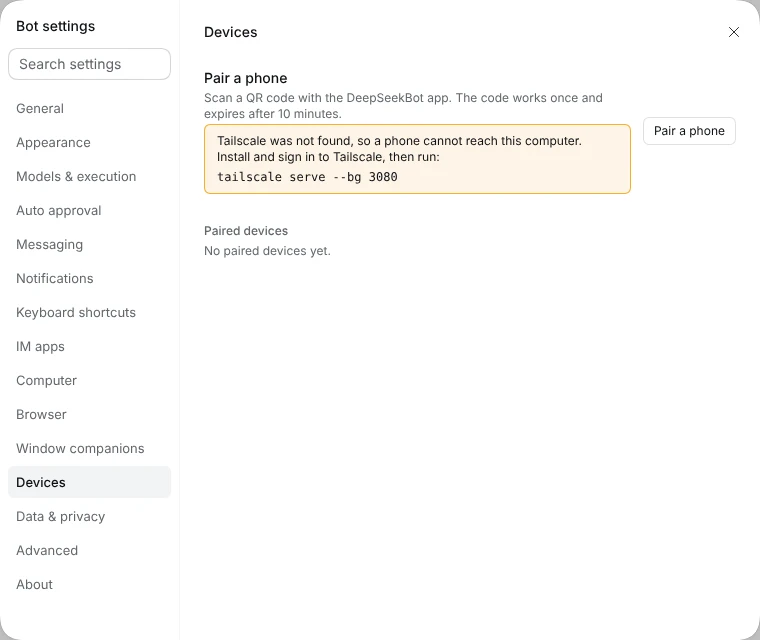
Open a terminal on the computer and run the command exactly as shown. Your port may differ:
tailscale serve --bg 3080
--bgkeeps it running after you close the terminal or restart the computer.- On macOS, if
tailscaleis not found, run/Applications/Tailscale.app/Contents/MacOS/Tailscale serve --bg 3080instead. - If it prints a link saying HTTPS is not enabled, open the link, turn HTTPS on and run the command again.
This publishes DSH only to devices signed in to your own tailnet. It is not reachable from the internet. Close and reopen Devices. When the notice is gone and only Pair a phone shows, continue.
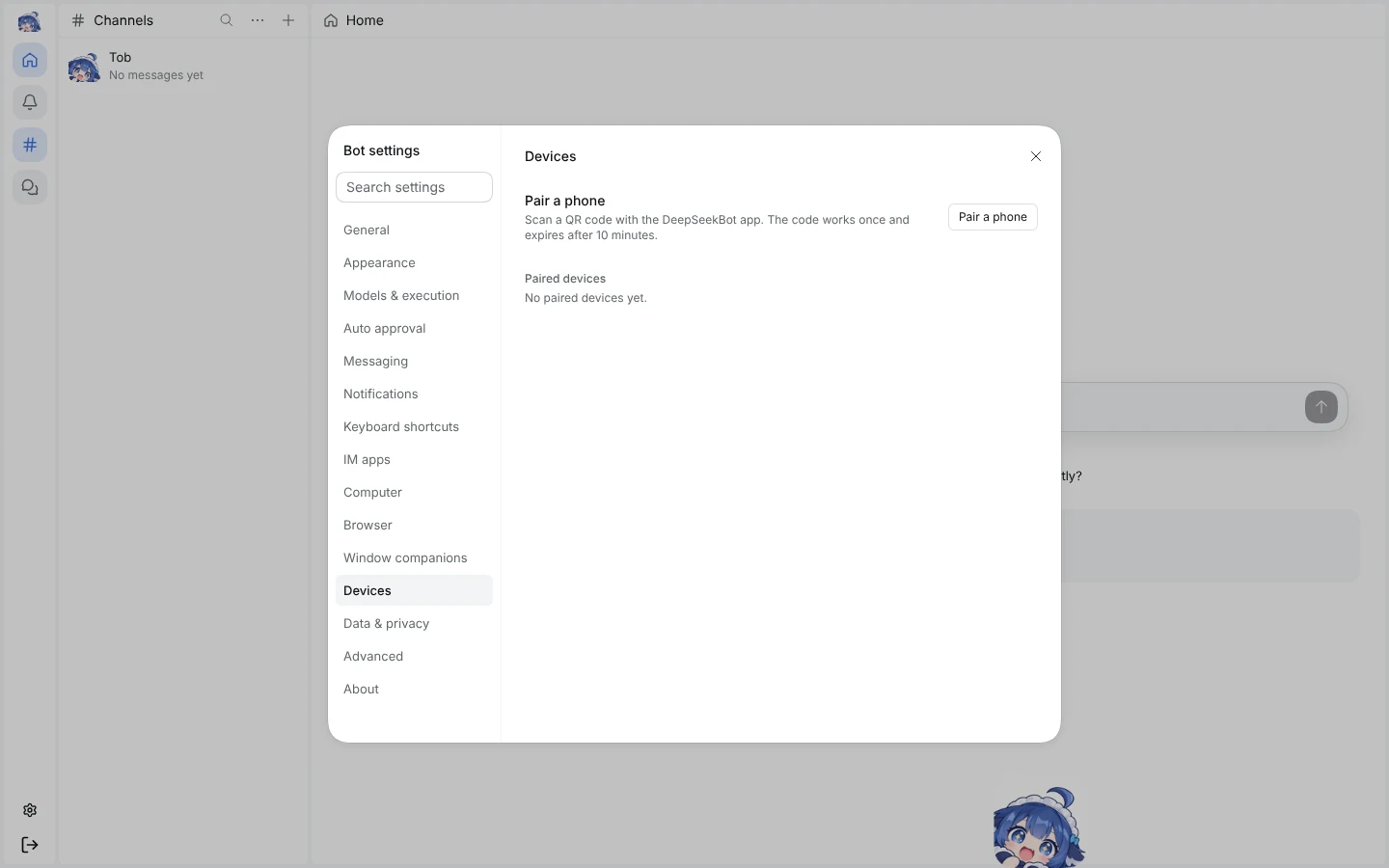
5. Pair the phone
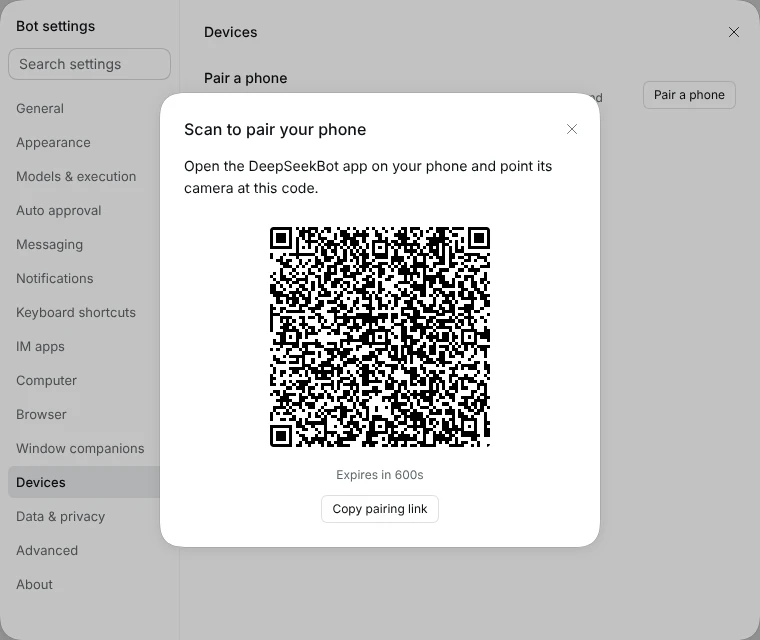
On the computer, click Pair a phone. A QR code opens. It works once and expires after 10 minutes; click New code if it runs out.
On the phone:
- Check that Tailscale is connected.
- Open the DeepSeekBot app. On first launch it shows Pair with your computer.
- Allow the camera and scan the code on the computer. If scanning does not work, click Copy pairing link on the computer, send the link to your phone and paste it into Or paste the pairing link.
- Optionally name the computer under Name on this phone, then tap Pair.
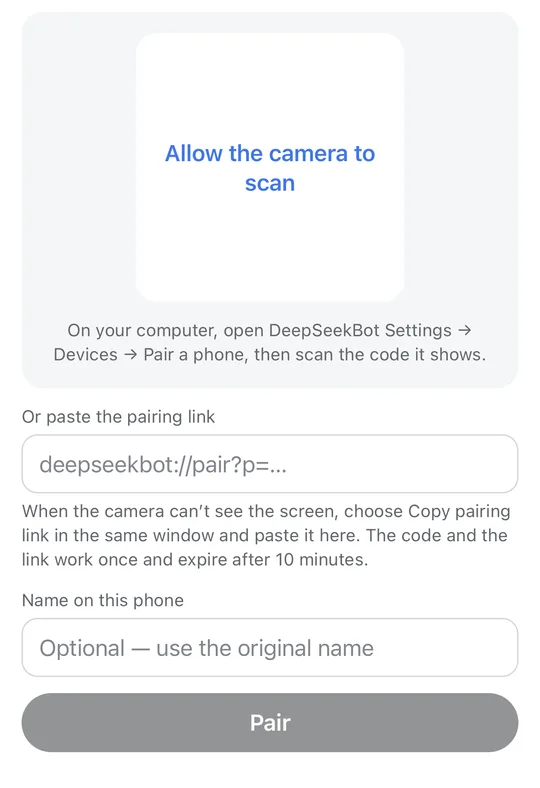
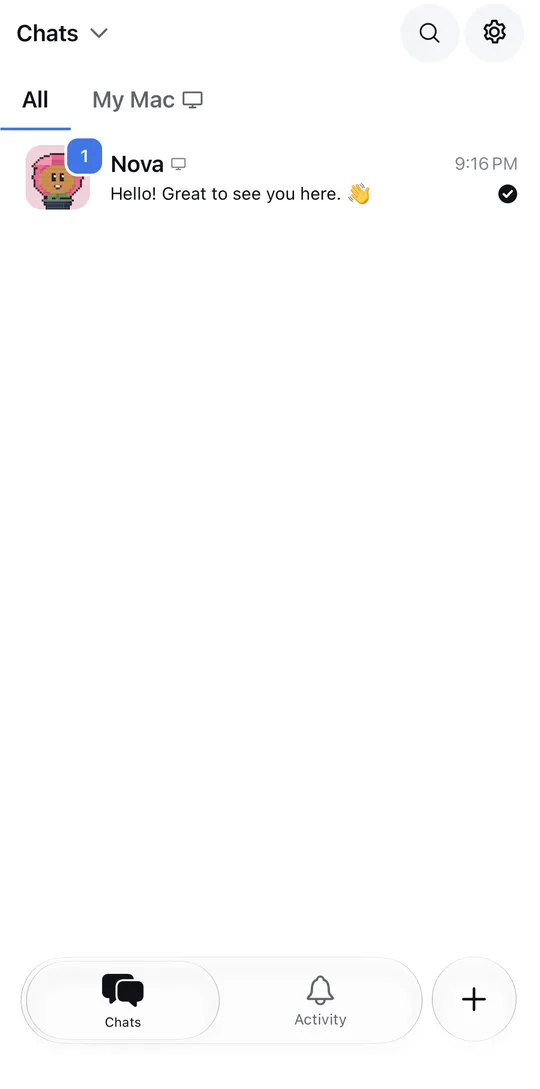
The phone now shows the Bots and groups on your computer. Open a Bot and send it a message: the reply comes from your computer. The computer's Devices page lists the phone under Paired devices. You don't need to pair again after restarting the computer or DSH.
If something does not work
The phone cannot reach the computer. Check that Tailscale is connected on both devices with the same account, the computer is awake and DSH is running. Open https://<computer>.<tailnet>.ts.net in the phone's browser: any page from the computer means the network works.
The yellow notice is back after restarting DSH. The port changed. Run the new command it shows, then click New code.
A phone is lost. Click Revoke next to it under Paired devices on the computer. The phone is cut off at once.
More answers are in Pair your phone. For anything else, open an issue on GitHub.