
Docs
Update DeepSeekBot
Install a new DeepSeekBot release from Bot settings and restart DSH.
Settings → Bot settings → DeepSeekBot version shows the version you are running and checks npm for a newer one. When an update is out, you can install it there and restart DSH with one click, without opening a terminal.
One-click update and restart ship in the releases after DeepSeekBot 1.0.2. If you are on 1.0.2 or earlier, update once by hand as described under "Update by hand" below; after that, Settings does it for you.
Check your version
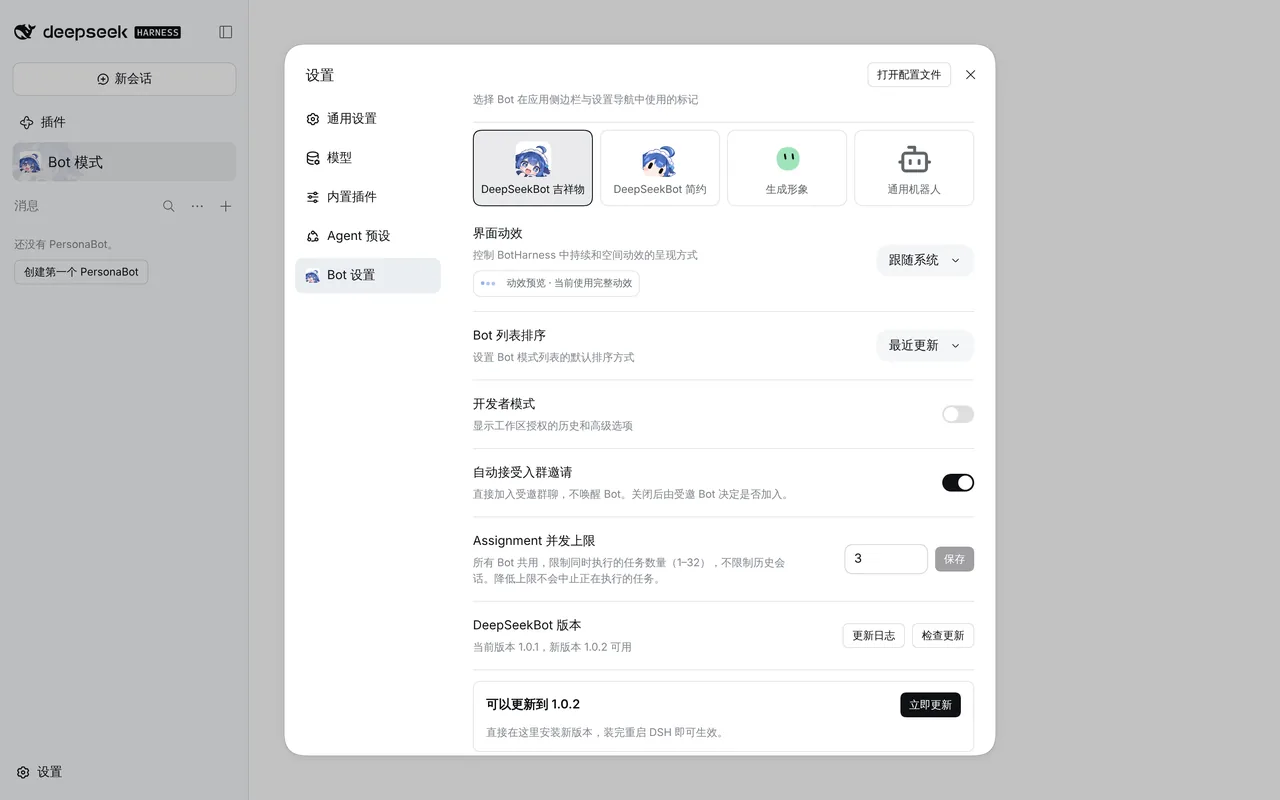
Open Settings → Bot settings and scroll to DeepSeekBot version. It shows the running version. Check for updates queries npm again, and Changelog opens the changelog on the website.
Update in one click
- When a new version is out, an Update to x.y.z card appears. Click See what's new to read the changes first.
- Click Update now. DeepSeekBot downloads and installs the new version through the DSH Plugin Manager; keep DSH running meanwhile. The page may reload once when the install finishes. That is expected.
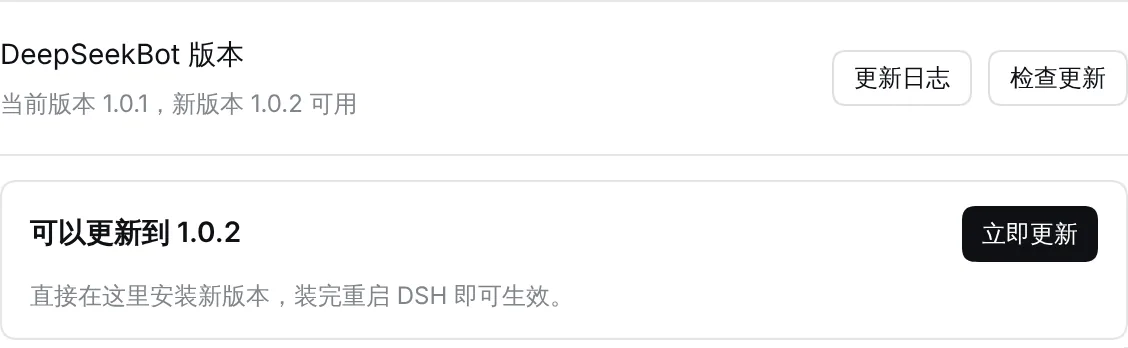
- When the install is done, the card reads Updated to x.y.z. Restart DSH to finish. DSH keeps running the old version until it restarts.
Restart DSH
Web (dsh web)
Click Restart now. DSH stops and starts again in the same terminal with the same options. The page reloads and reconnects a few seconds later; you stay signed in.
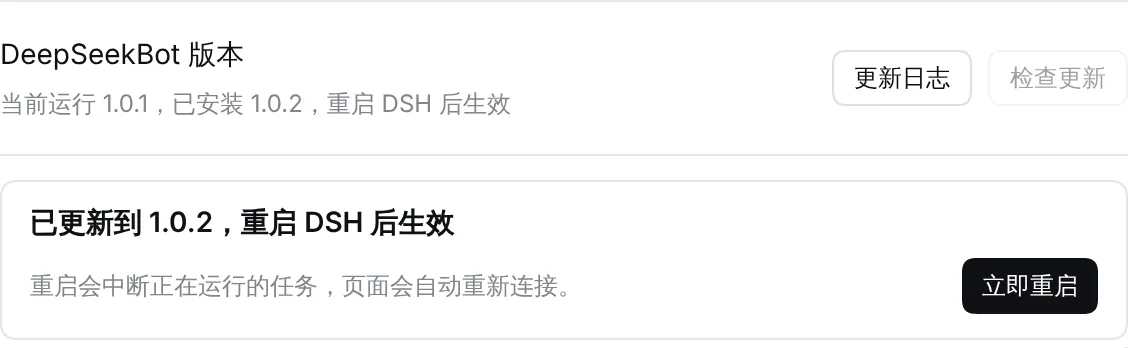
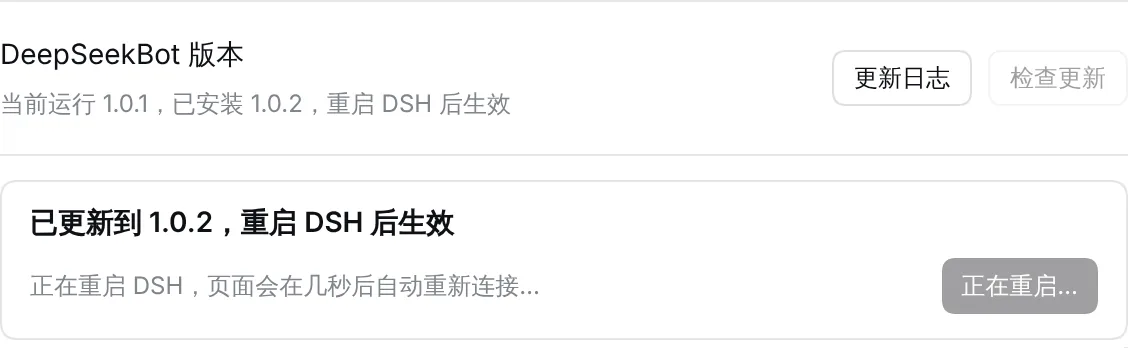
- Restarting stops running tasks and sessions, so restart when no Bot is busy.
- After the restart the terminal prints a new sign-in link. Pages you already have open do not need it.
- You still stop DSH with Ctrl+C in the terminal running
dsh web.
DSH Desktop
The desktop app has no Restart now button. Quit DSH Desktop completely (⌘Q on macOS; closing the window may leave it running), then open it again.
Confirm the update
After the restart, go back to Bot settings. The version row reads Version x.y.z, up to date, and Bot mode shows what is new in this release.

Update by hand
If there is no Update now button, or the one-click update fails, run this in a terminal on the computer that runs DSH:
dsh plugin --profile web add deepseekbot@<version>
Replace <version> with the version to install, for example deepseekbot@1.0.3. The update card in Settings shows the full command ready to copy. Then restart DSH: for the web app, press Ctrl+C in its terminal and run the same dsh web command again, keeping any options you started it with, such as --port; for the desktop app, quit it completely and open it again.
The DSH Plugins page cannot upgrade an installed plugin yet. To update the desktop app by hand, use the same command with web replaced by the desktop profile name: the folder name under profiles/ in the DSH data directory (~/.dsh by default).
Troubleshooting
| Message | What to do |
|---|---|
| Could not download the new version from npm | Check your network and retry. DeepSeekBot tries the npm registry first and falls back to npmmirror. If it still fails, update by hand. |
| The new version does not support this DSH version | Update DSH first, then DeepSeekBot. |
| The install needs dependency build scripts approved | Approve them on the DSH Plugins page, or update by hand. |
| The update failed | The card shows the error and the path to the full log. Before you send us the log, check it for API keys, tokens or other secrets and remove them. Update by hand meanwhile. |
| DSH could not restart itself | Restart by hand as the card shows: Ctrl+C in the terminal, then run the same dsh web command again with its original options. |
| The page does not come back after a restart | Reload the page. If it asks you to sign in, open the newest sign-in link in the terminal. |