
Docs
Schedules
Wake a Bot weekly, once, on cron or every few minutes, run a schedule now and lock it.
Open Bot DM → Channel sidebar → Schedules. A schedule belongs to one PersonaBot. When it is due, BotHarness drops the schedule’s instruction into that Bot’s Bot Inbox and wakes its Orchestrator, which decides what to do with it like any other incoming item.
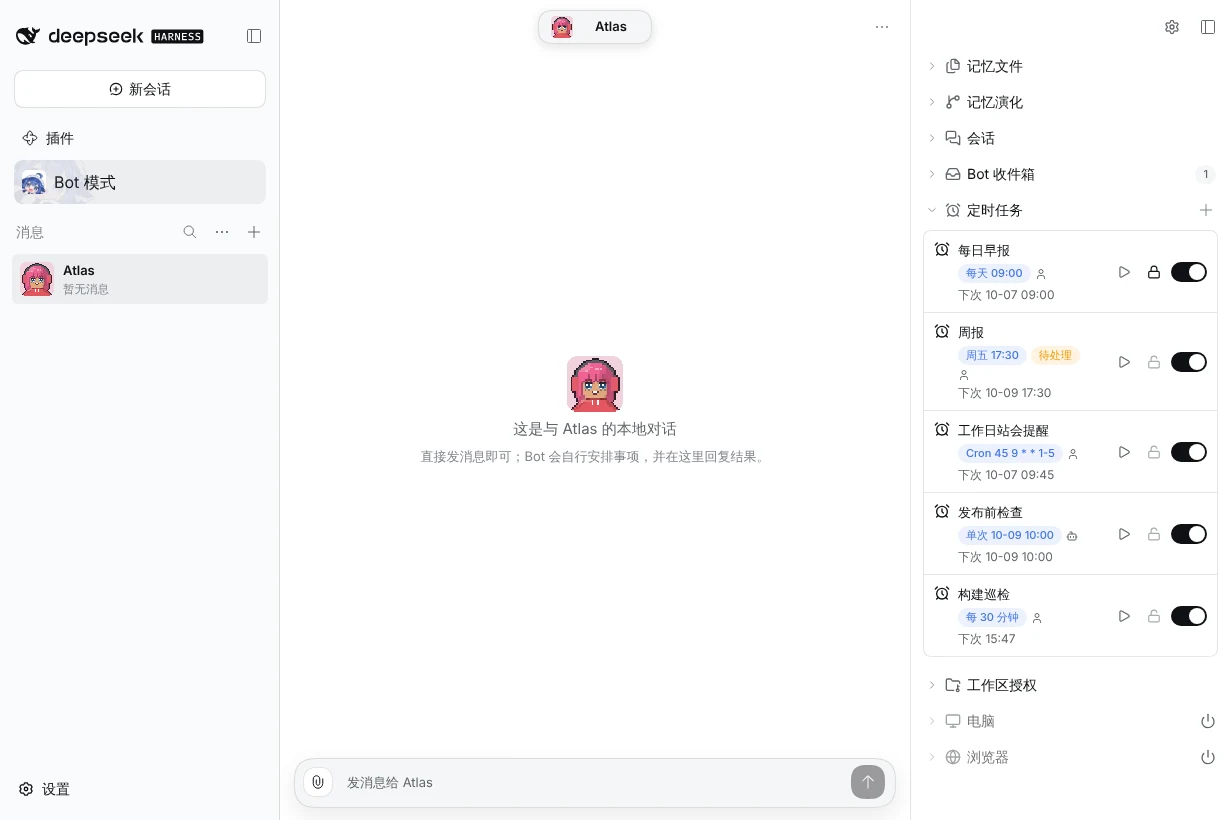
Create a schedule
- Click + beside Schedules, or New schedule when the list is empty.
- Give it a Name and say What the Bot should do. The instruction is what the Orchestrator receives when the schedule fires.
- Pick a cadence and fill in its fields. Coming up shows the next three runs as soon as the cadence is complete.
- Optionally turn on Lock, then click Create.
| Cadence | Fields | Fires |
|---|---|---|
| Minutes | Every N minutes (at least 1) | Every N minutes from when it was created or last edited. |
| Hours | Every N hours | Every N hours from when it was created or last edited. |
| Daily | Time, time zone | Every day at that local time. |
| Weekly | Days of the week, time, time zone | At that local time on each chosen day. Weekdays, Weekends and Every day label common picks. |
| Once | Date, time, time zone | Once, at that local date and time. It then turns itself off. |
| Cron | Five-field cron expression, time zone | Whenever the expression matches, for example 0 9 * * 1-5 for 9:00 on weekdays. |
Daily, weekly, once and cron schedules follow the wall clock of their time zone, so a 09:00 schedule still fires at 09:00 after a daylight-saving change. The time zone defaults to your browser’s. An interval shorter than 15 minutes shows a cost warning, because each firing can wake the Bot and use the model.
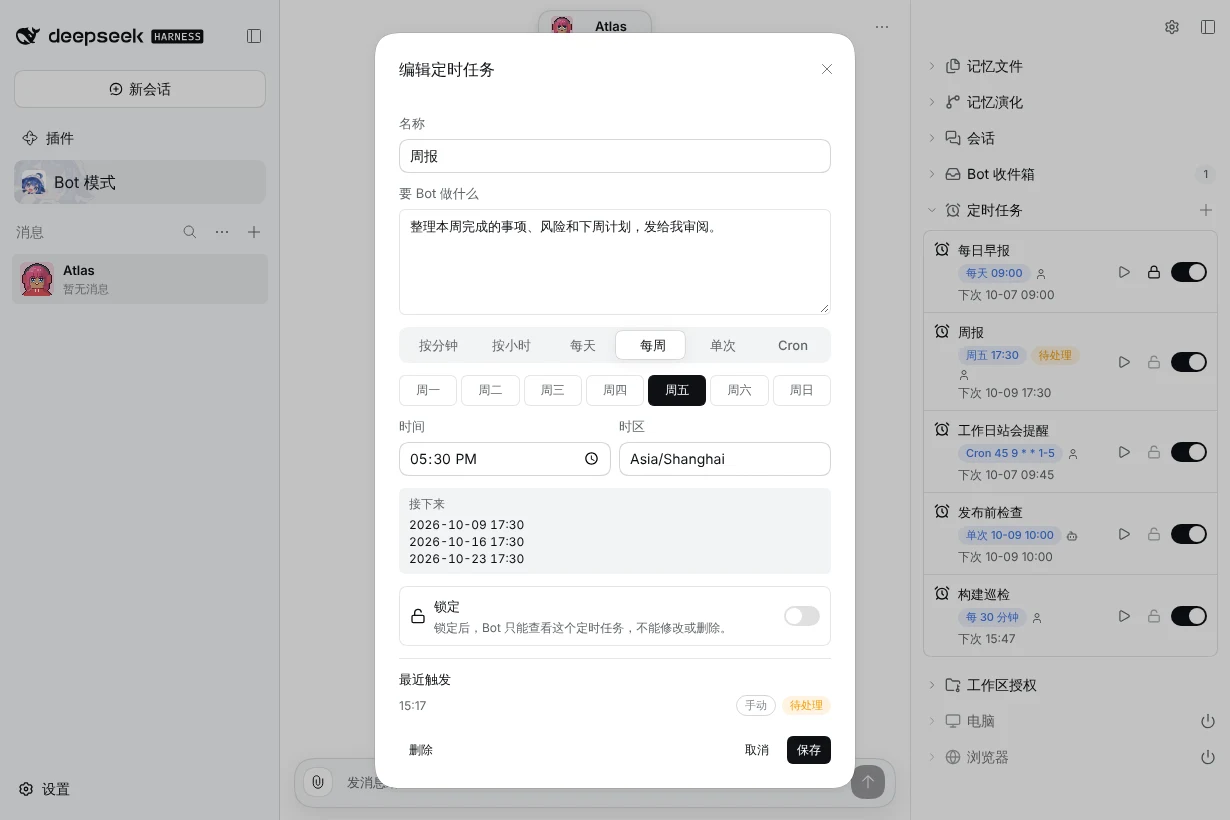
If Coming up shows an error, the cadence cannot be scheduled as entered, for example a cron field out of range or a once time that has already passed. Fix the fields before saving.
Read a row
| Part | Meaning |
|---|---|
| Blue chip | The cadence. It is grey while the schedule is paused. |
| State chip | What happened to the latest firing: Pending, Observed, Handled, Coalesced or Skipped. |
| Person / Bot icon | Whether you or the Bot created the schedule. |
| Last line | Next run time, Paused, or Done for a once schedule that has fired. |
Click a row to edit it. The dialog lists the Recent firings with their state; a firing the Bot handled links to the Session that handled it, and Manual marks a Run now.
Run now, pause and lock
- Run now (play icon) fires the schedule immediately and wakes the Orchestrator. It does not move the next planned run. If an earlier firing is still pending, the new one is coalesced into it rather than queued twice.
- The switch pauses or resumes the schedule. A paused schedule does not fire and does not backfill missed runs; resuming restarts its cadence from now. A PersonaBot can have at most 20 enabled schedules.
- Lock (padlock) makes the schedule read-only for the Bot. The Bot can still see it but cannot edit, pause or delete it. Only you can lock or unlock.
If the Host was off when a run was due, only the latest missed run fires after it starts again. Firings are skipped while the PersonaBot is paused.
Let the Bot manage schedules
Ask the Bot in its DM, for example “remind yourself every Friday at 17:30 to write a weekly report”. The Bot can list, create, edit and delete its schedules, including ones you created, as long as they are not locked. Schedules the Bot created show the Bot icon.
Related: Bot Inbox, Sessions, sidebar overview.