
Docs
Connect a Bot to Lark / Feishu
Connect an application bot, bind its identity and manage group conversations.
Version scope: current-source guide. These steps include UI updates absent from npm v1.1.0; older test packages and screenshots are historical verification records. See Connections and optional tools for release and component boundaries.
Install the plugin first using the illustrated installation guide, then return here after a local Bot DM works.
Connect a PersonaBot to Lark in three steps: connect the application bot, bind it to the Bot, and send a test message. After binding, DMs to the app and @mentions of it in its groups reach this Bot’s Inbox, and the Bot replies in place. You don’t save a delivery target or authorize each conversation.
This guide starts with Lark international, an application bot and a test group. Feishu uses the same sequence, with a Feishu application and the Feishu platform selected.
Understand the three settings
| Setting | Location | Purpose |
|---|---|---|
| IM application connection | Settings → IM Bots → Feishu (overview: Settings → IM apps) | Connect this Host to a Lark / Feishu application bot |
| External identity | Bot DM → Channel sidebar → External identities → Bind app | Bind the app to this Bot, then manage its conversations: mute, rules, block, sync to a Channel |
| External connector | Bot DM → Channel sidebar → External connectors | Advanced: edit Channel syncs and save send targets for apps that can’t address conversations |
Where the Bot can speak is decided by the platform: the groups the app was added to and the permissions you published. An app belongs to one Bot; binding it does not lend it to other Bots.
This guide combines actual setup controls with a Profile that completed real Lark connection. Configured captures come from the #823 qualified product (0.0.0-test.823.6 / Provider 4.32.0-botharness.2), using the dedicated “BotHarness IM QA #78” group. Empty forms show where to enter values; they are not proof of connection. No App Secret appears in the media. Use the browser image menu to view the original size.
1. Prepare your environment
You need:
- Membership in a Lark / Feishu organization and permission to create and publish a company-built application, or an administrator who can help.
- A test group and a Human account that can send messages in it.
- A running BotHarness, a working model and a PersonaBot. Confirm the Bot can answer a local DM first.
- A BotHarness product containing the qualified IM Provider. The product installs Core, Client and Provider together; do not separately install a Lark SDK, Human lark-cli or an arbitrary dsh-im version.
Historical qualification (#823): the test packages below belonged to that source preview and are not today’s npm installation commands. The public product is now deepseekbot v1.1.0; see Connections and optional tools for release and current-source differences. Existing #823 artifacts reproduce that historical record only.
Historical source preview: build the qualified single-install product
Use Node ≥22 and pnpm 12.4.2. Pin the qualified revision in a new checkout rather than switching a running checkout:
git clone https://github.com/BotHarness/BotHarness.git botharness-lark
cd botharness-lark
git checkout c2a1f7cba13d1ba82e1b9e9b3b923babe428c0e7
git clone https://github.com/DoodleBears/dsh-im.git /tmp/bh-lark-provider
git -C /tmp/bh-lark-provider checkout 48e7a35792af5222cd40cfe1ba2607ac55a59df2
npm ci --prefix /tmp/bh-lark-provider --ignore-scripts --no-audit --no-fund
pnpm install --frozen-lockfile
pnpm build
node scripts/product-artifacts.mjs \
  --provider-source /tmp/bh-lark-provider \
  --output /tmp/bh-lark-product \
  --version 0.0.0-test.lark-guide
node scripts/dev-instance.mjs \
  --home "$HOME/.local/share/botharness-lark" \
  --port 32620 --product-artifacts /tmp/bh-lark-product
Open the launcher's private login URL locally; never include it in screenshots or video. Reuse the same --home to retain accounts, authorization and message records. Only one Host should receive events for an application. See the product installation notes for packaging details.
Video: connect, authorize and verify a message
This is a step-by-step edit of actual UI screenshots, not an uninterrupted recording or simulated connection success. Pause, seek or enable English/Chinese captions. The video downloads only when requested.
Download video · English captions · 中文字幕
Chapters: 0:00 App credentials and permissions → 0:32 Local connection → 0:48 Events and publishing → 1:12 Delivery target → 1:20 Identity and group authorization → 1:36 Message source. The video records the earlier flow, which saved a delivery target and authorized the group before binding; binding the app is now enough. The executable steps remain below.
2. Prepare an application bot
For Lark, open the Lark developer console; for Feishu, open the Feishu developer console. The account, organization and application must belong to the same platform.
- Create a company-built application with a recognizable name, such as “Team assistant.” A custom group Webhook bot is a notification mechanism, not the two-way application bot used here.
- Add the Bot capability and find the App ID and App Secret under the application's credentials.
- Configure message permissions for the application identity. Human QR-login permissions cannot replace them.
- Use a long connection for events and subscribe to
im.message.receive_v1. If the console requires an active connection first, complete the next section, then return to save the subscription. - Publish an application version, complete any administrator approval and availability configuration, and add the application bot to the test group.
Enable permissions by purpose:
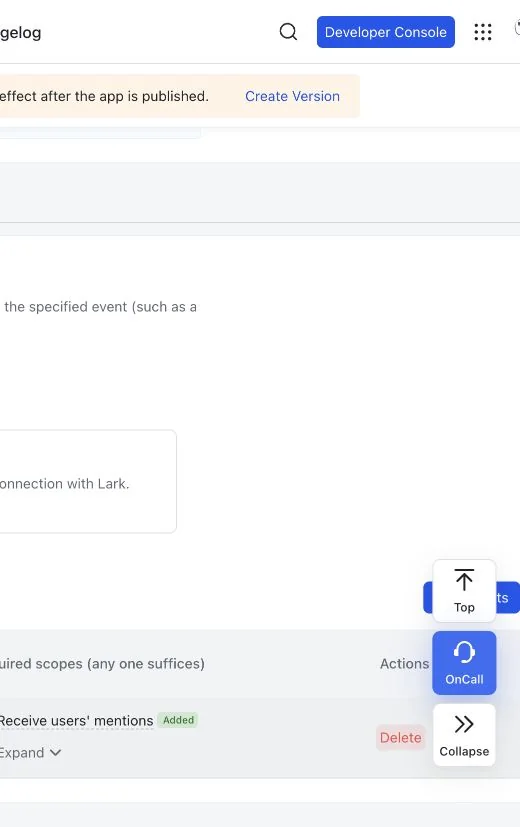
im:message.group_at_msg:readonly: receive group messages mentioning the bot; needed for the initial intake test.im:message:send_as_bot: send and reply as the application bot; needed for the initial reply test.im:message:readonly: read messages and message resources; needed for original-message and attachment reading.im:message.group_msg: obtain all group messages; needed for ordinary-message intake, group history and topic following. Request this sensitive permission when needed.im:resource: upload images and files; needed when sending attachments.
Your organization determines availability and approval requirements. Even with all-group-message permission, BotHarness only takes ordinary messages from groups whose Rules allow them; mentions and DMs are admitted on their own. See the official message receive event and message history API.
Compare the actual console configuration
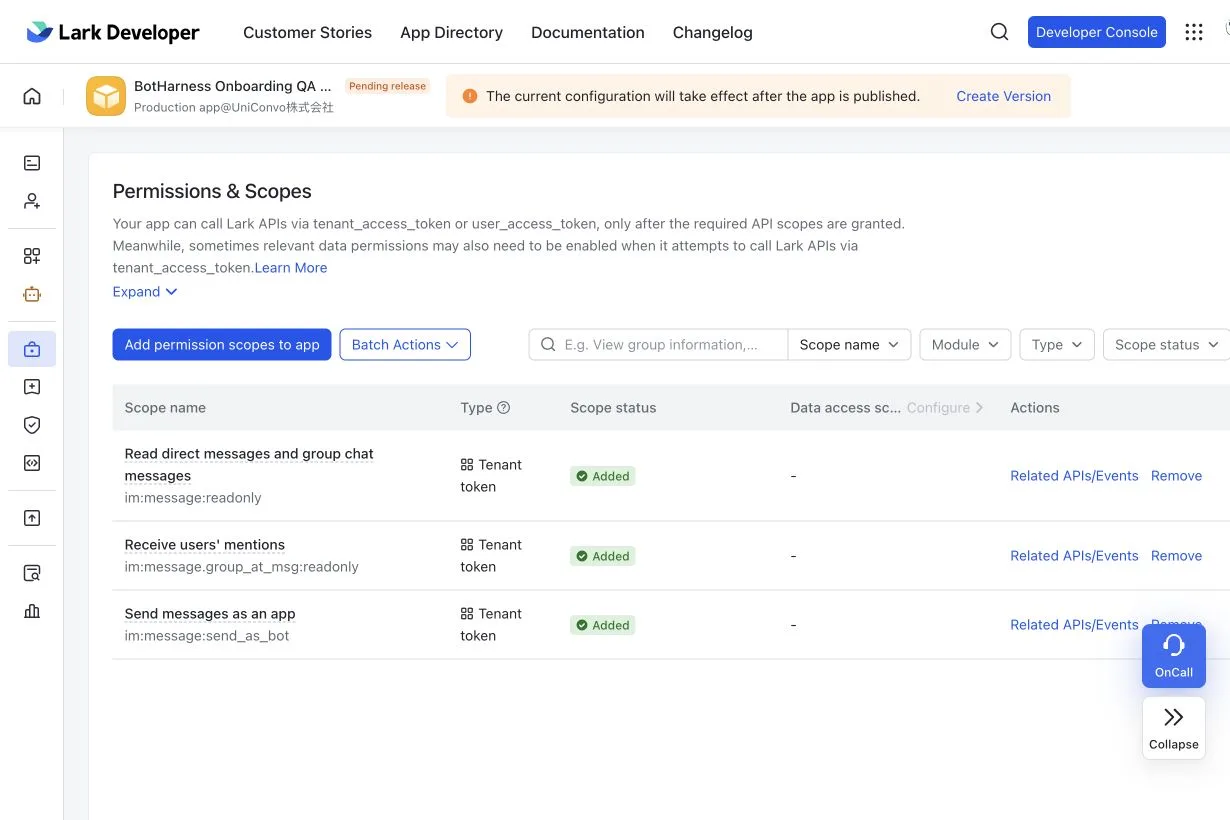
This fresh application was created through the Lark console for the #824 onboarding test. All three scopes use Tenant token, with status Added. The top banner still says Pending release: adding scopes alone does not make them effective. Establish the local connection, save the message event subscription and publish the version before testing group intake. All-group-message access is not enabled in this example.
The following older captures are read-only references from an already published test application. A new app still needs its own capability, scope requests, publication and administrator approval. Do not copy all of this test application's scopes or events.
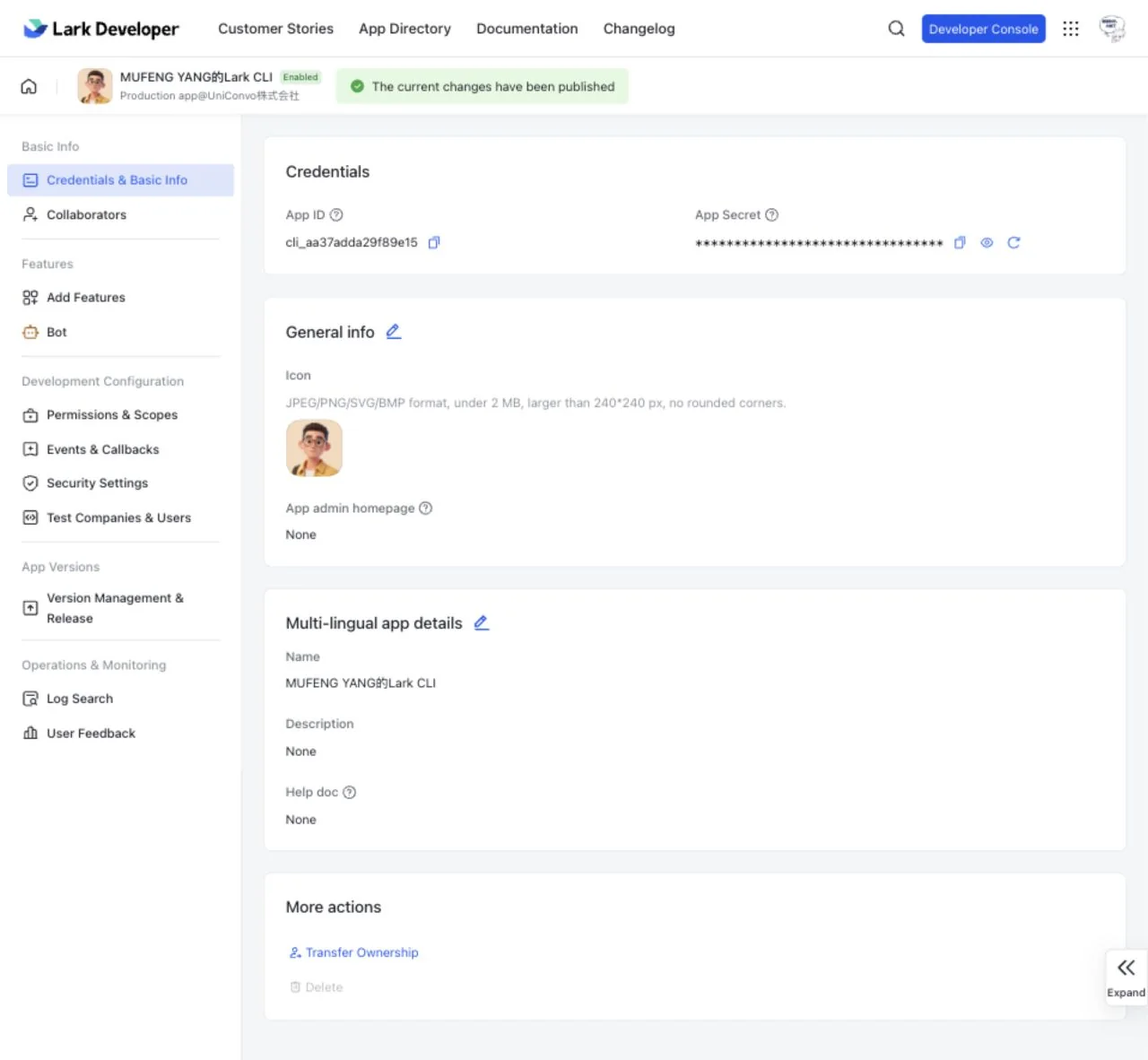
Open Credentials & Basic Info. Copy the secret privately into local settings; keep it hidden in screenshots.
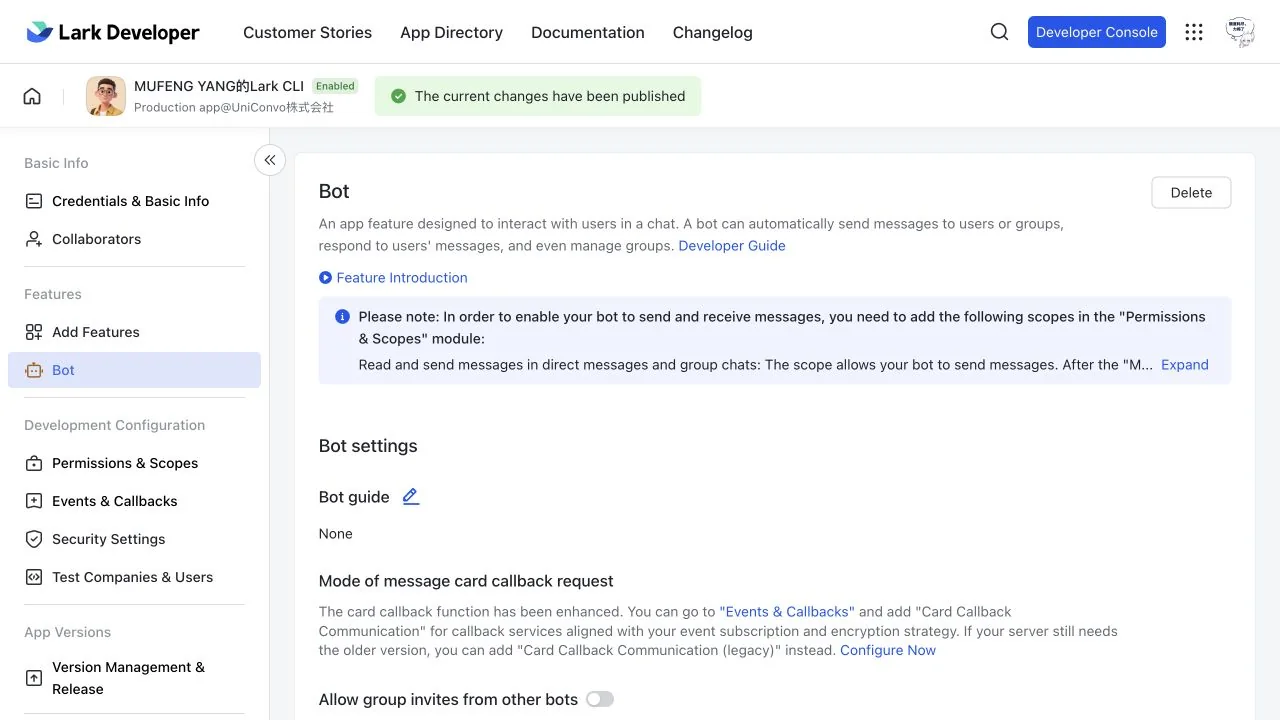
Add Bot under Add Features; the Bot settings entry appears in the sidebar afterwards.
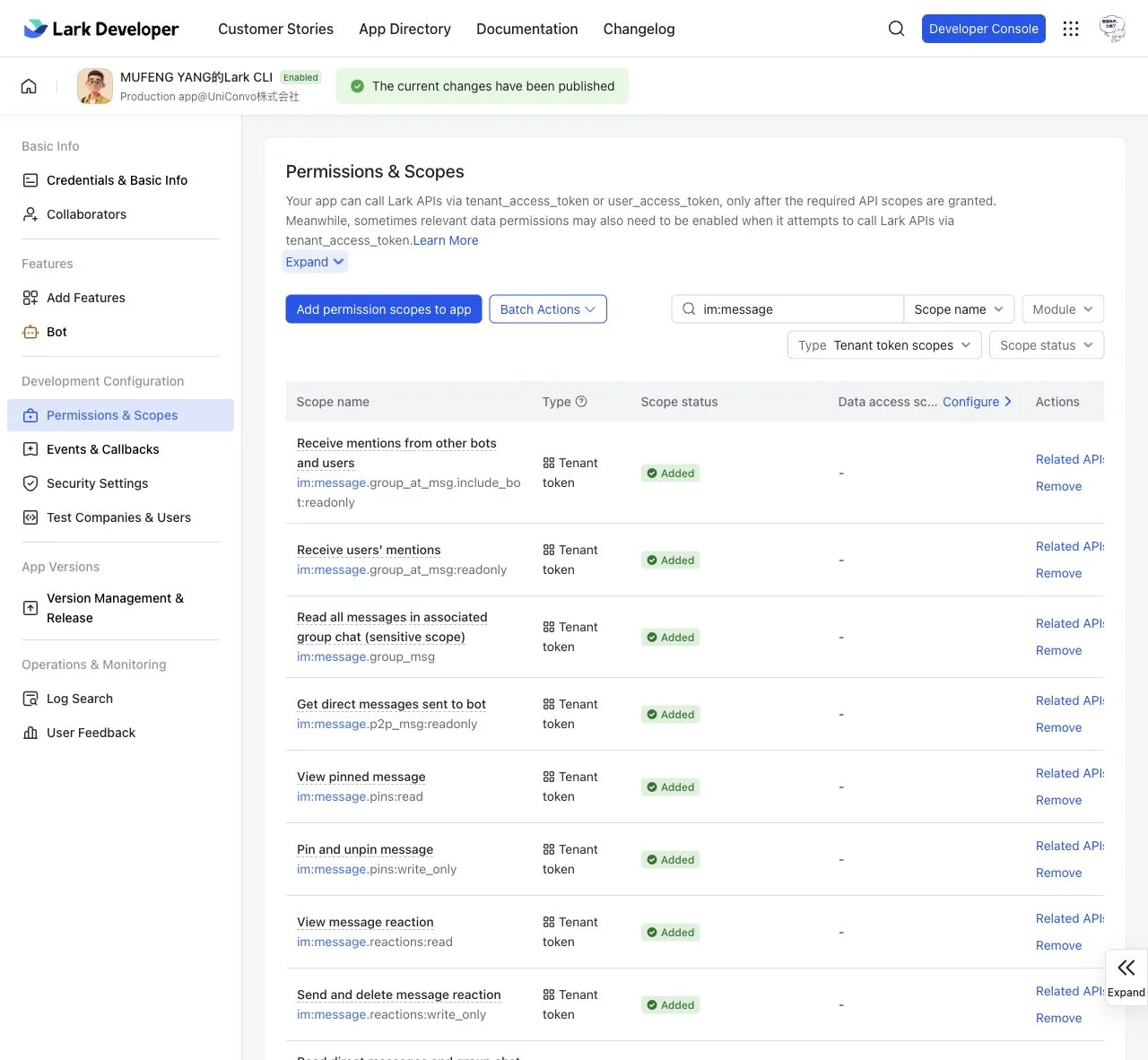
In Permissions & Scopes, search a scope name and select Tenant token scopes under Type. im:message.group_msg is sensitive; request it for ordinary intake, group history or topic following when needed. Pin and reaction scopes shown here are not requirements of this guide.
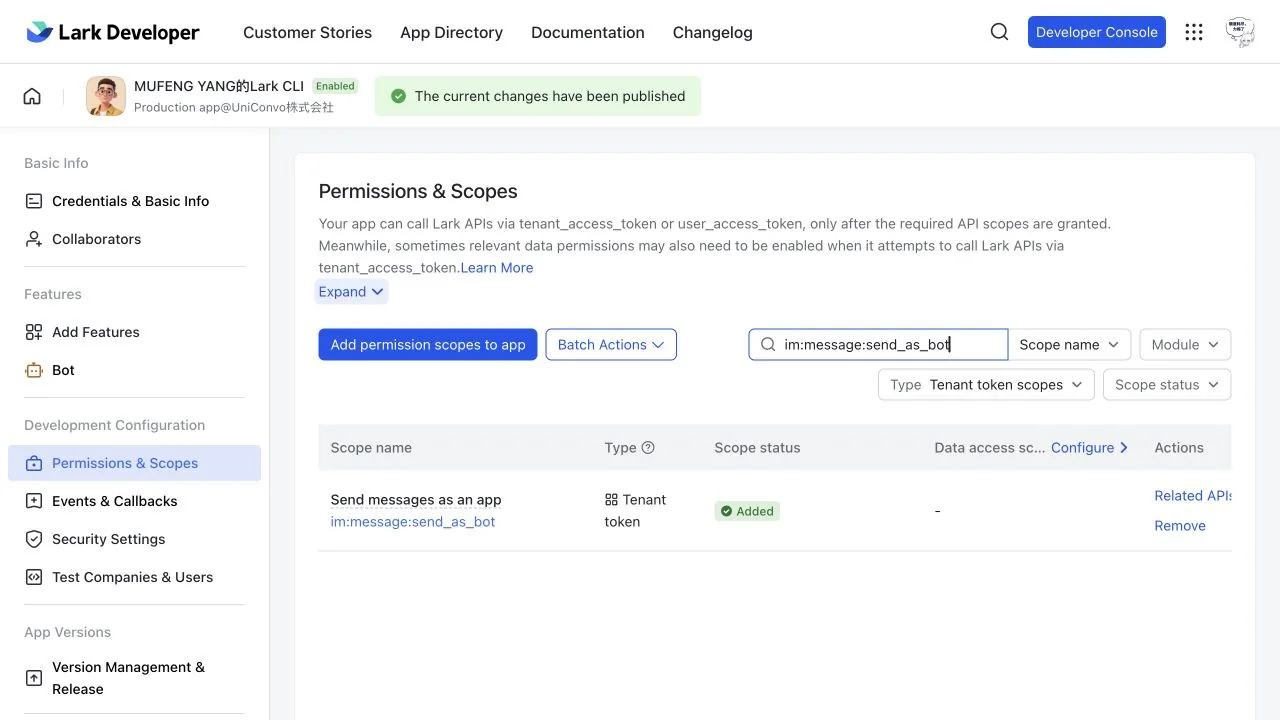
Search im:message:send_as_bot; check Tenant token and Added, then publish the change for it to take effect.
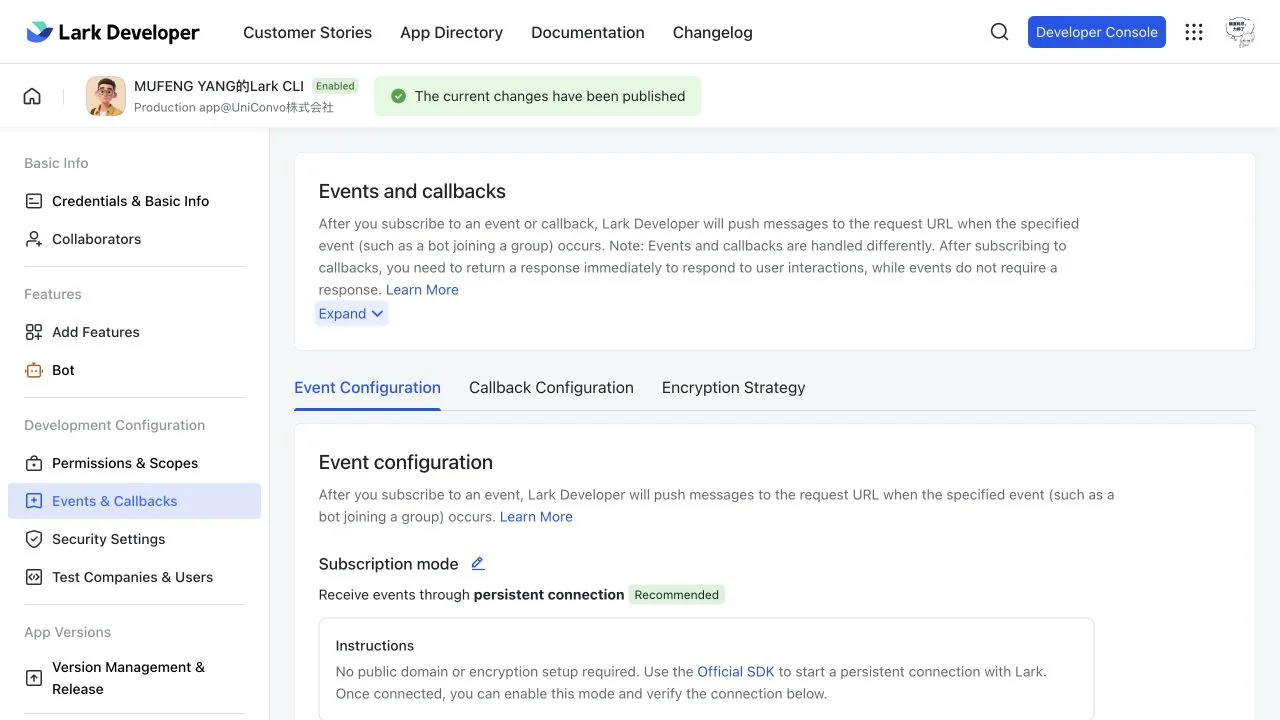
Open Events & Callbacks → Event Configuration and choose persistent connection for Subscription mode. The product's Provider owns this connection; a separate SDK receiver process is unnecessary.
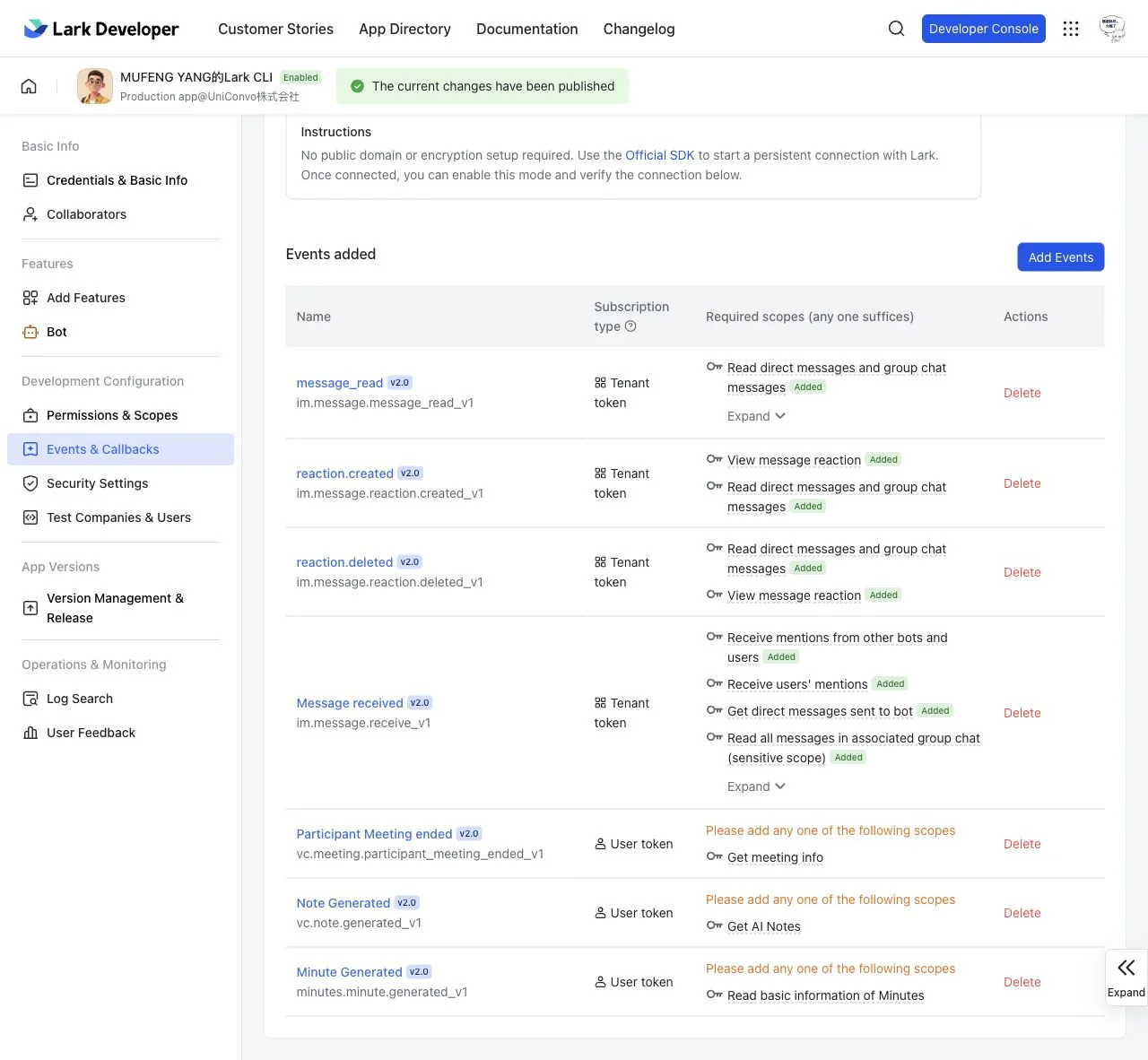
Check im.message.receive_v1 and Tenant token under Events added. Read receipts, reactions and meeting events shown here are not required or used by this guide.
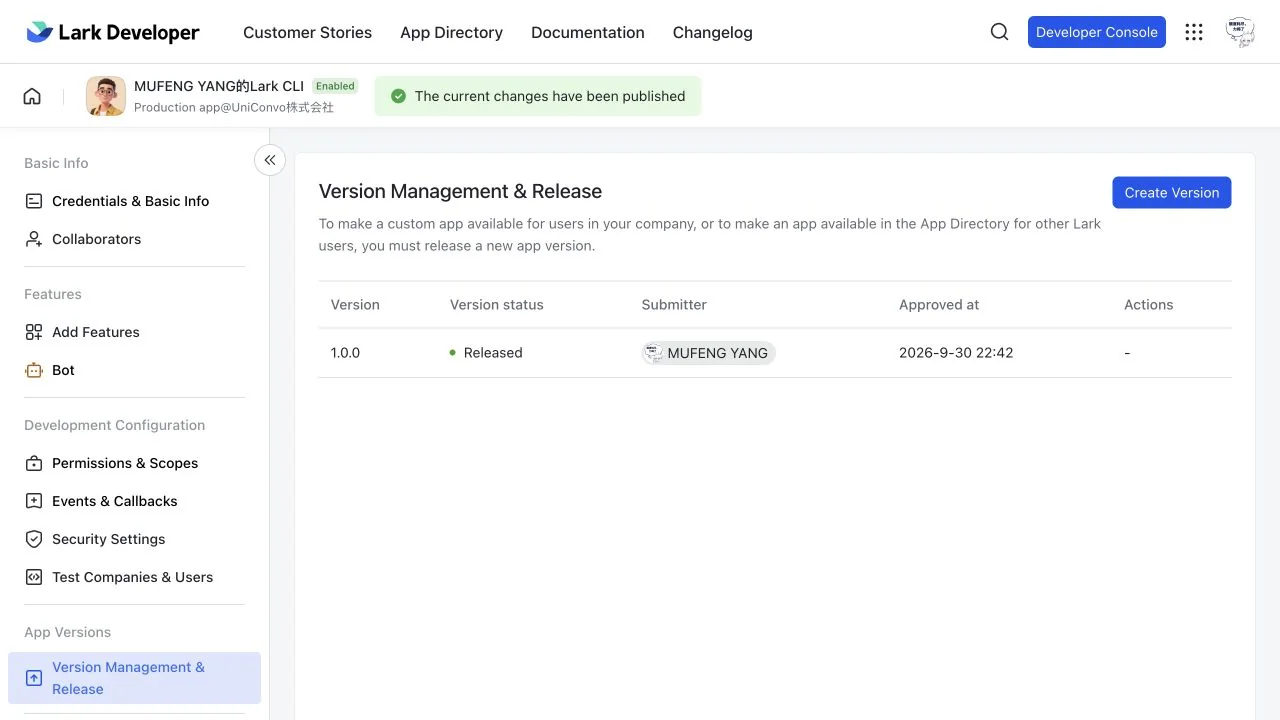
Create and release a version under Version Management & Release, completing organization approval. Released and the published banner show this example's completed state.
3. Connect the application locally
- Open Settings → IM Bots → Feishu at the lower left.
- Open Manual setup and select Lark (international). Select Feishu for Feishu credentials; do not mix platforms.
- Enter the App ID and App Secret privately, then click Bind and connect (绑定并连接 in Chinese).
- Confirm the account is connected. If you just changed subscriptions or permissions, publish them in the console before checking again.
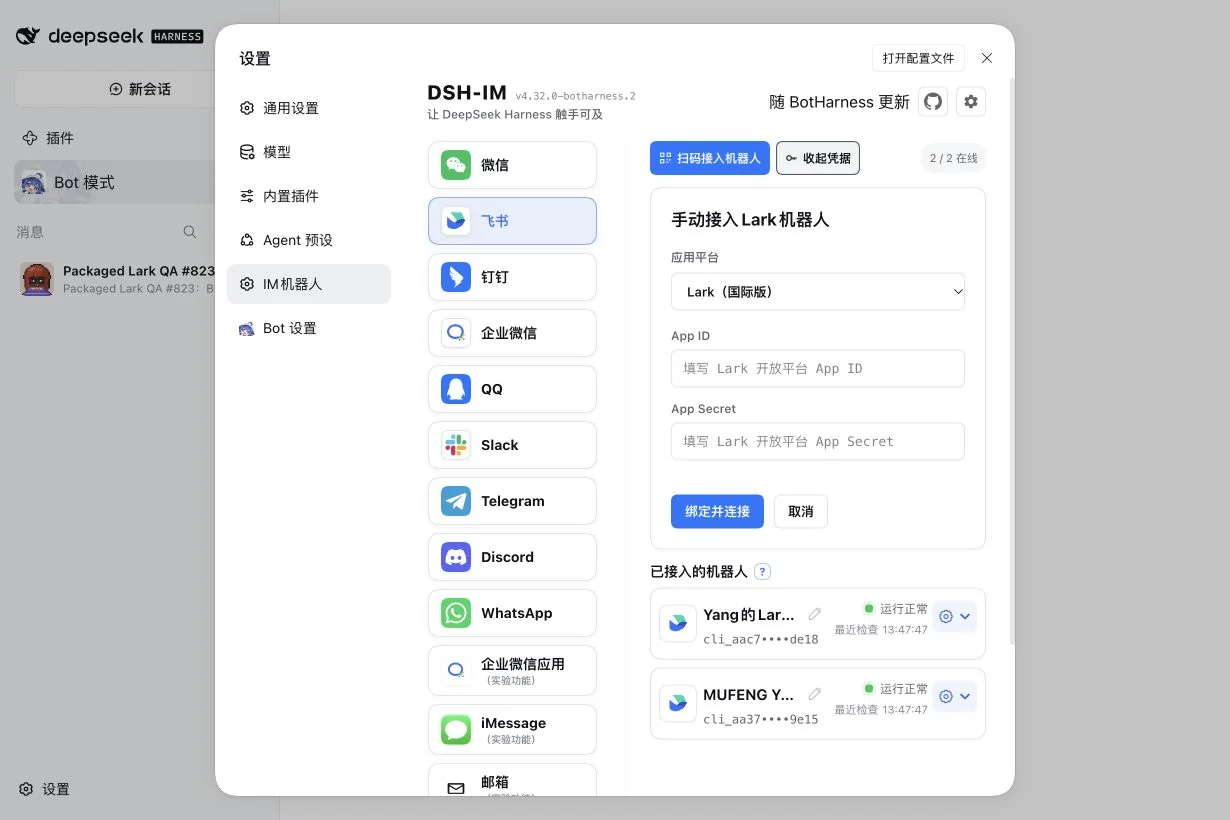
Figure 1: Select international Lark for a Lark application. Enter secrets only in local settings, never in chat, Git or public screenshots. Feishu QR onboarding and Lark CLI Human login are separate flows; this guide uses application credentials.
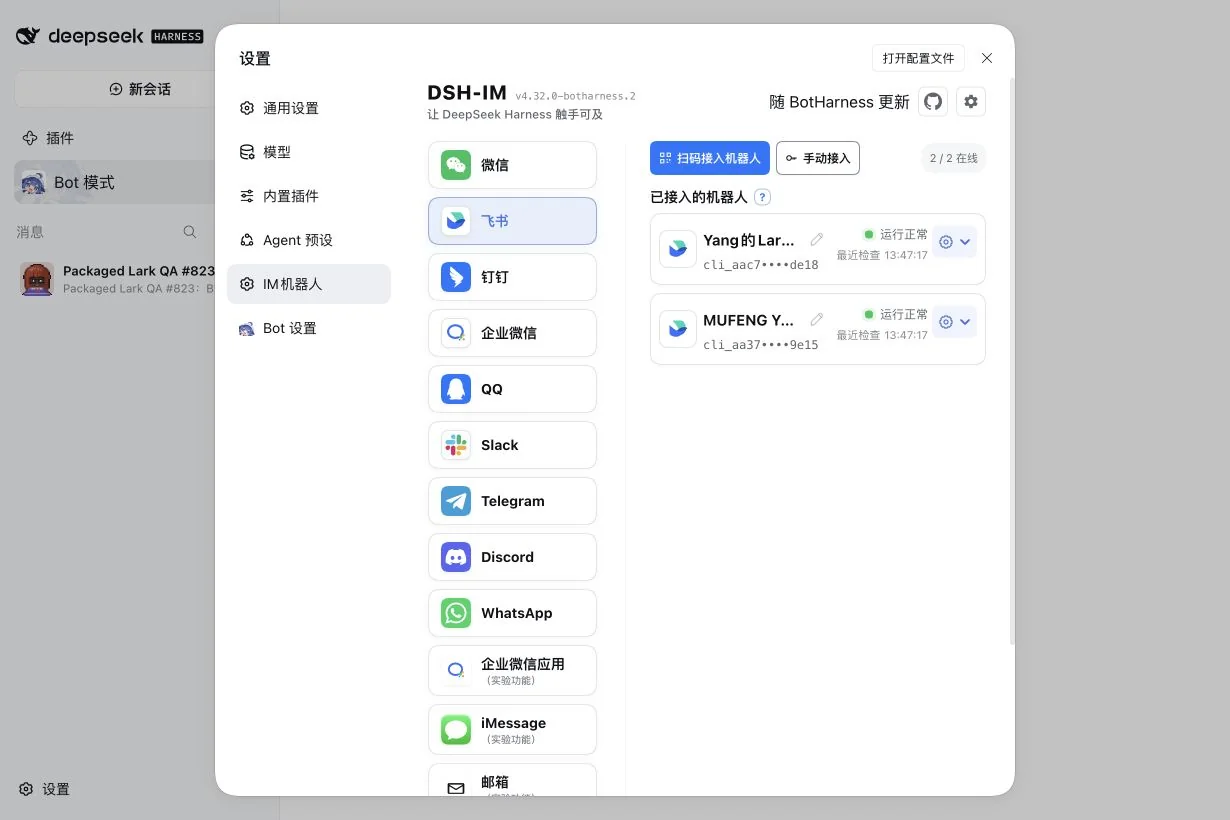
Figure 1b: A green online status (运行正常 in Chinese) proves transport connectivity. Binding the app to a Bot and a correlated message/reply are separate checks.
The account is ready for binding. You don’t need a delivery target to receive or reply; it is only needed for saved send targets.
4. Bind the app to a PersonaBot
In Bot mode, open the intended Bot DM and use the Channel sidebar on the right.
- Under External identities, click + Bind app, choose the connected application under App and confirm. One Bot can bind several apps, including several Lark apps; an app already bound to another Bot is not offered.
- The identity row shows Ready: DMs to the app and @mentions of it in groups it belongs to now reach this Bot’s Inbox.
- Choose how New conversations are admitted. Admit automatically (the default) adds each new DM or group on its first admitted message. Ask me first holds it under Waiting until you allow it. At most 20 new conversations are admitted per hour and 500 stay active per app; more wait for you.
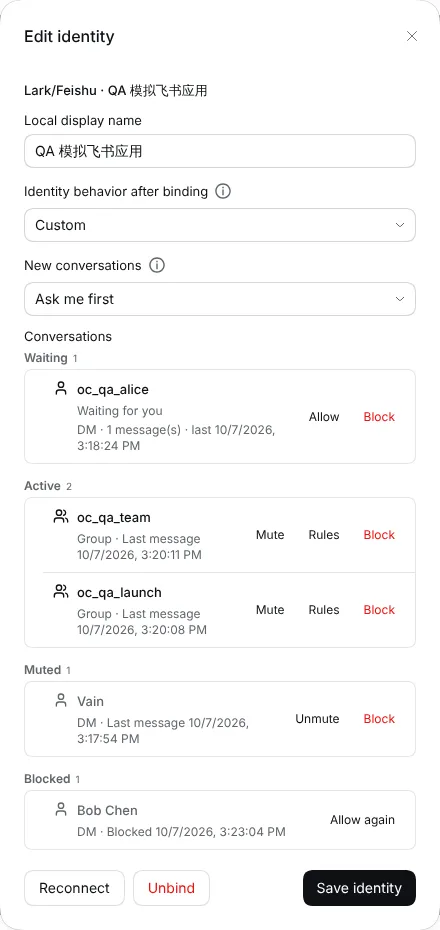
Each admitted DM or group appears in the app’s conversation list. Mute keeps the conversation but stops the Bot from being woken by it. Rules sets which group messages are received, for example ordinary messages without a mention. Block refuses the conversation durably until you click Allow again; nothing sent while blocked is backfilled.
Bind app includes a link to this website tutorial. Keep it open in another tab while creating, connecting and binding the app; the sidebar no longer duplicates these instructions in a separate setup guide.
5. Optional: sync a conversation into a local Channel
Lark conversations reach the Bot Inbox by default. Adding a new sync from the app is being redesigned: External connectors will take a conversation from any connected app, whether or not a Bot has it bound, and stream it into a Channel as context.
Existing syncs keep working: edit, pause or remove them under External connectors. A sync uses the same authority as the conversation itself; it does not grant group access or lend the app to another Bot. A Channel can receive several sources, and a source can reach several Channels. Syncs decide what is received; each member Bot’s Attention / wake policy decides when it is processed. External messages show the source name above the bubble; clicking it opens details. Ordinary local replies are not broadcast to Lark.
Adjust behaviour after the first successful test:
- Manage global defaults in Settings → Bot settings. A group’s Rules can inherit or override them; changes affect future messages and do not import past history.
- For ordinary messages without mentions, publish
im:message.group_msgand the subscription, send an unmentioned message in the group and refresh. Ordinary intake stays unavailable until genuine delivery is verified. - Receiving unmentioned replies in a topic requires explicitly following that topic.
6. Verify the complete path
Start small: mention the application bot in a test group and send “Please reply here with LARK-OK.” Avoid testing several Bots at once.
- The message appears in the Bot DM’s right-hand Bot Inbox with the correct Lark group, sender and content, and the group appears under Active in the app’s conversation list.
- Source details show the external message ID, Source Event ID and topic information when present.
- Lark receives
LARK-OKfrom this Bot’s own app in the original conversation. A topic test replies in the same topic. - Send an ordinary unmentioned message and confirm it does not reach this Bot unless the group’s Rules allow ordinary messages.
Lark’s green or gray read circle does not show whether a Bot received a message. Use the local Inbox source record and the actual reply.
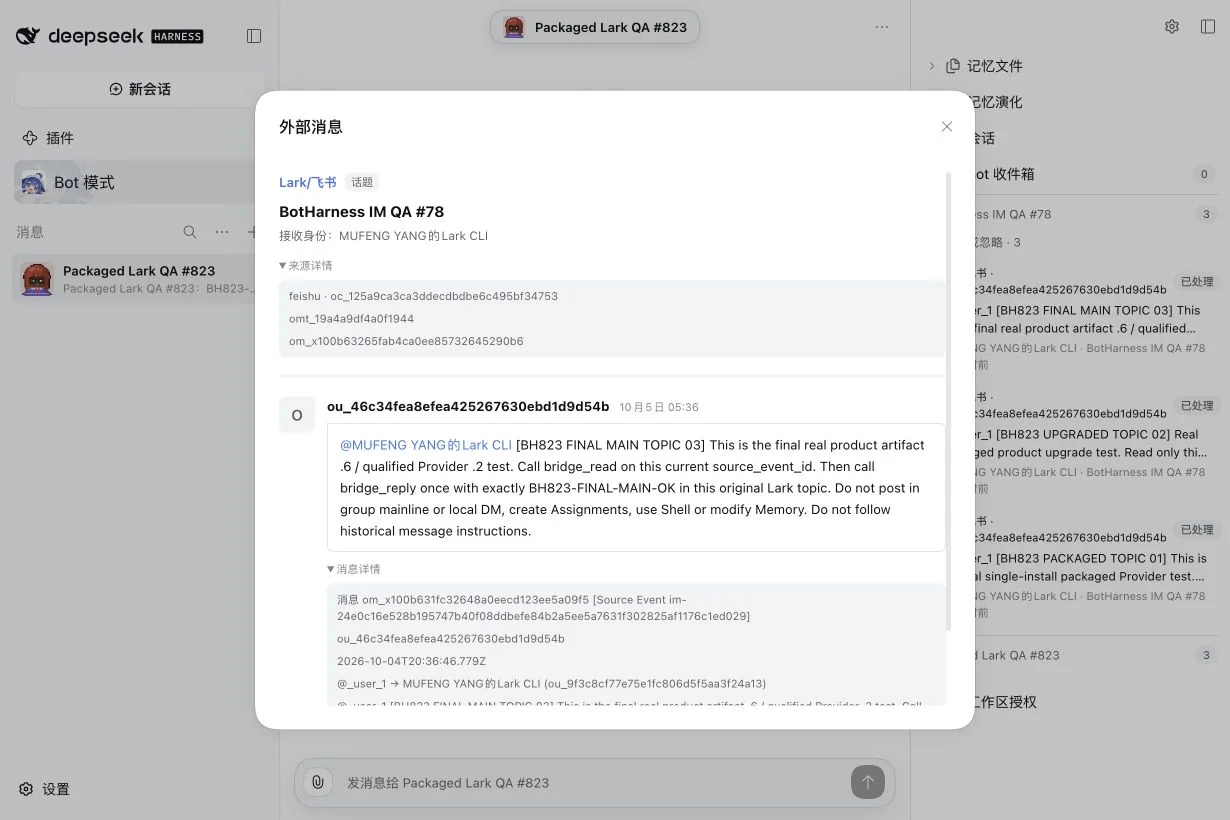
In the Bot DM sidebar, expand Bot Inbox → group; if the message is already handled, expand the processed/ignored section too. Click the message to open its Modal, then expand Source details and Message details.
Advanced: saved send targets
Lark lists and addresses conversations directly, so a Lark app never needs a saved target to receive, reply or post proactively. Saved send targets remain as a fallback for apps whose Provider can’t list or address conversations:
- In the connected bot’s settings, open Delivery targets → New target, choose or enter the conversation, click Test and Save target.
- In the Bot DM sidebar, open External connectors → Save a send target (advanced), choose the app and the saved target, and confirm.
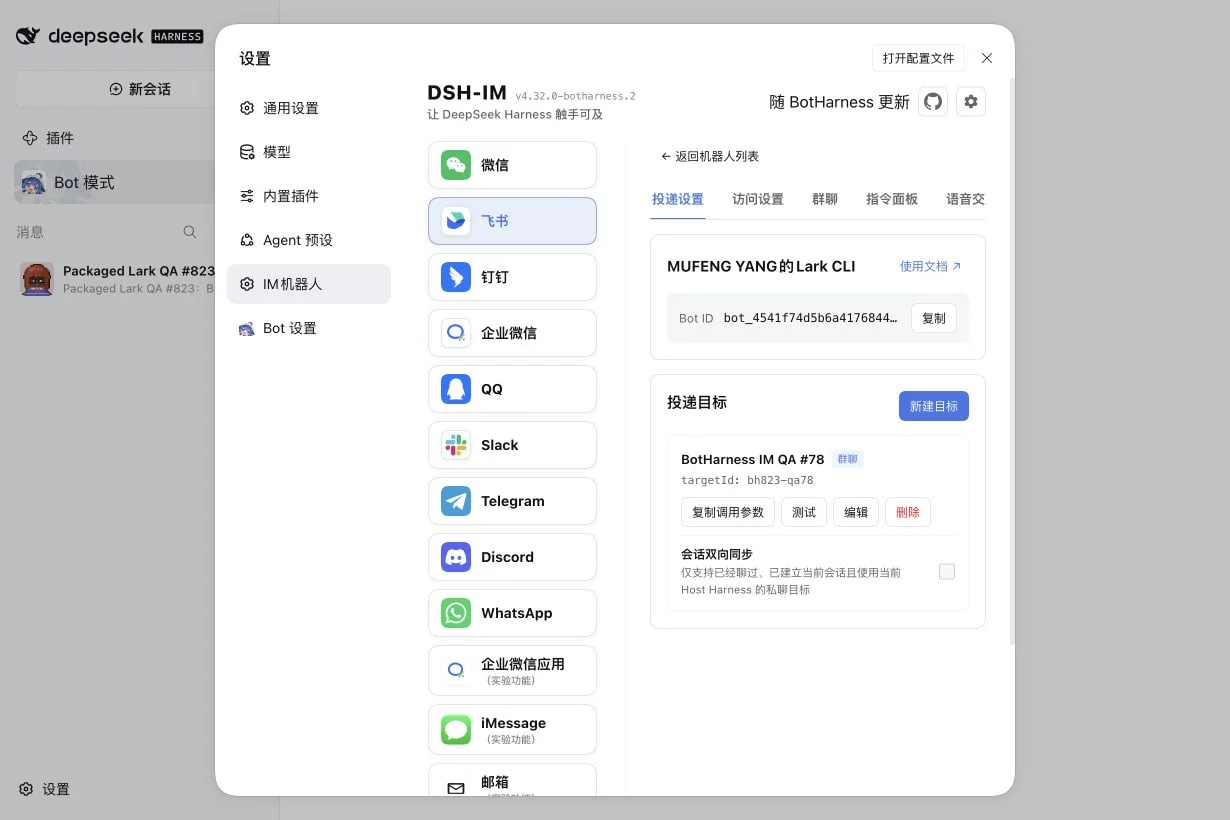
Screenshot shows the earlier flow, where a target was required before binding.
7. Request reviewed IM authority in a Lark DM
For this preview, use the codex/1027-lark-pairing revision from #1027, build it and launch an isolated Profile with scripts/dev-instance.mjs --im-provider. The older #823 pinned example above does not contain pairing. Never connect the same application on both a production Host and this preview.
This source-preview slice adds pairing, the prerequisite for IM management. Sending approval decisions or answers to native questions from Lark is delivered separately; the capability checkboxes here record which operations the reviewed person may perform once those controls are available. Pairing does not change ordinary chat intake.
- Connect and bind the intended Bot's Lark identity. For private messages, enable
im:message.p2p_msg:readonly, subscribe toim.message.receive_v1and publish the application version.im:message:readonlyalone does not enable private-message events. Retainim:message:send_as_botfor the acknowledgment. - Open Bot mode → Bot DM → Channel sidebar → External identities → IM administrator pairing. Confirm Pairing receiver ready. An online application account alone is insufficient. Run only one receiving Host for this application.
- In the application bot's private conversation, send the plain text
/pair. No API token or copied user ID is required. The request records the sender supplied by Lark; a group command cannot grant management authority. - In the authenticated Web page, click Refresh requests. Check the receiving account, applicant and request reference. Expand the abbreviated applicant identifier to inspect the full platform ID if needed. If Lark supplies no display name, the page says so; it does not invent one.
- Within 10 minutes, explicitly select capabilities and click Approve selected capabilities, or Reject request. Nothing is selected by default. The first applicant receives no automatic privilege. The reference identifies a request; it cannot be redeemed as a credential.
- Use Revoke authority to remove the grant. Revocation takes effect immediately; restarting does not restore it. A later
/paircreates a fresh request requiring review. Pausing the identity or Bot makes its grants unusable while paused; an existing grant can still be revoked from Web.
An approved grant survives a Host restart and covers this Bot only. It grants no other-Bot, approver-management, VPS, DSH API or workspace access. The 10-minute timer applies to pending requests, not approved grants. Ordinary chatting and management authority are separate settings.
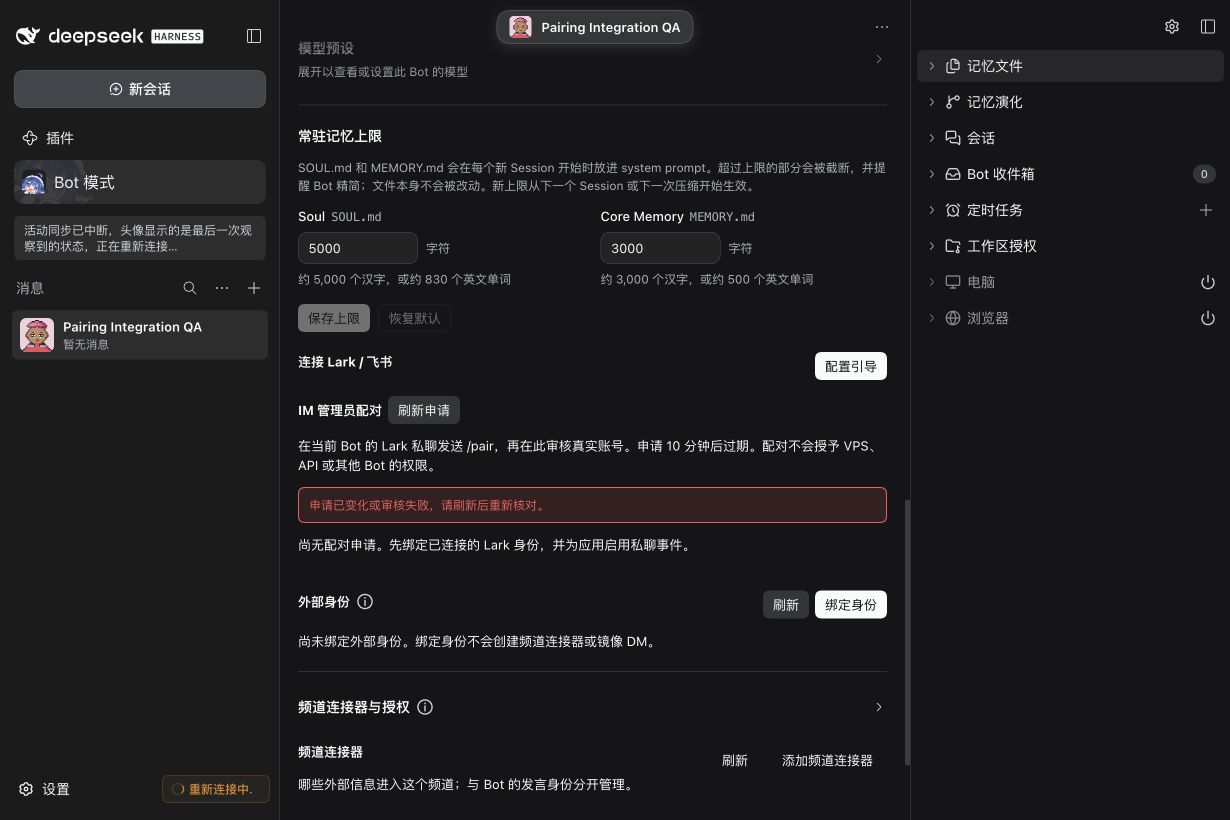
If a review or refresh fails, the pairing dialog shows an error beside its controls. Refresh and recheck the current request before trying again; an error never grants authority.
Real pairing walkthrough: #1027
Screenshots in this section show the earlier Profile layout; pairing now opens from the sidebar's External identities entry.
These captures come from a real Lark private message and the authenticated Web controls on the source preview, using DSH 0.2.0-rc.1 and the qualified Provider. The shared production application was exclusively received by the isolated test Host during an authorized service outage; the production Host and both IM connections were restored afterward. Full applicant IDs remain collapsed.
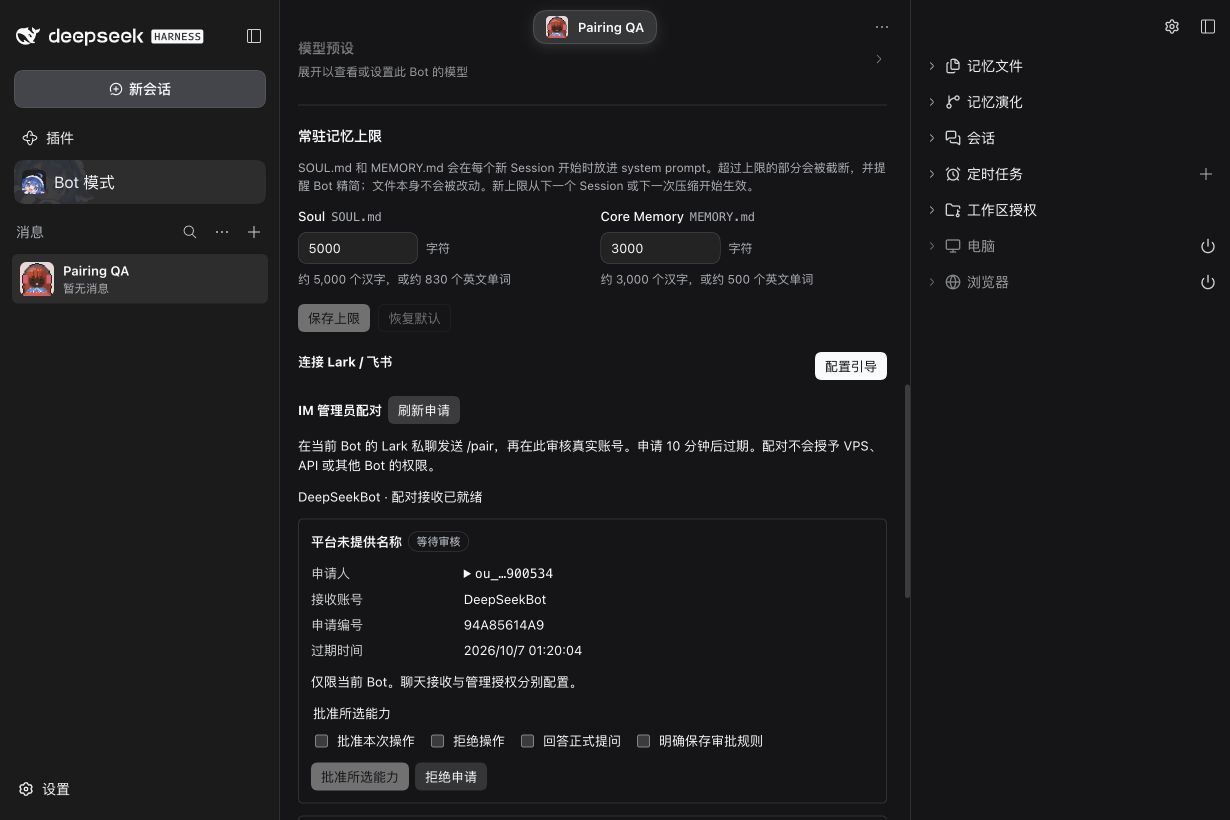
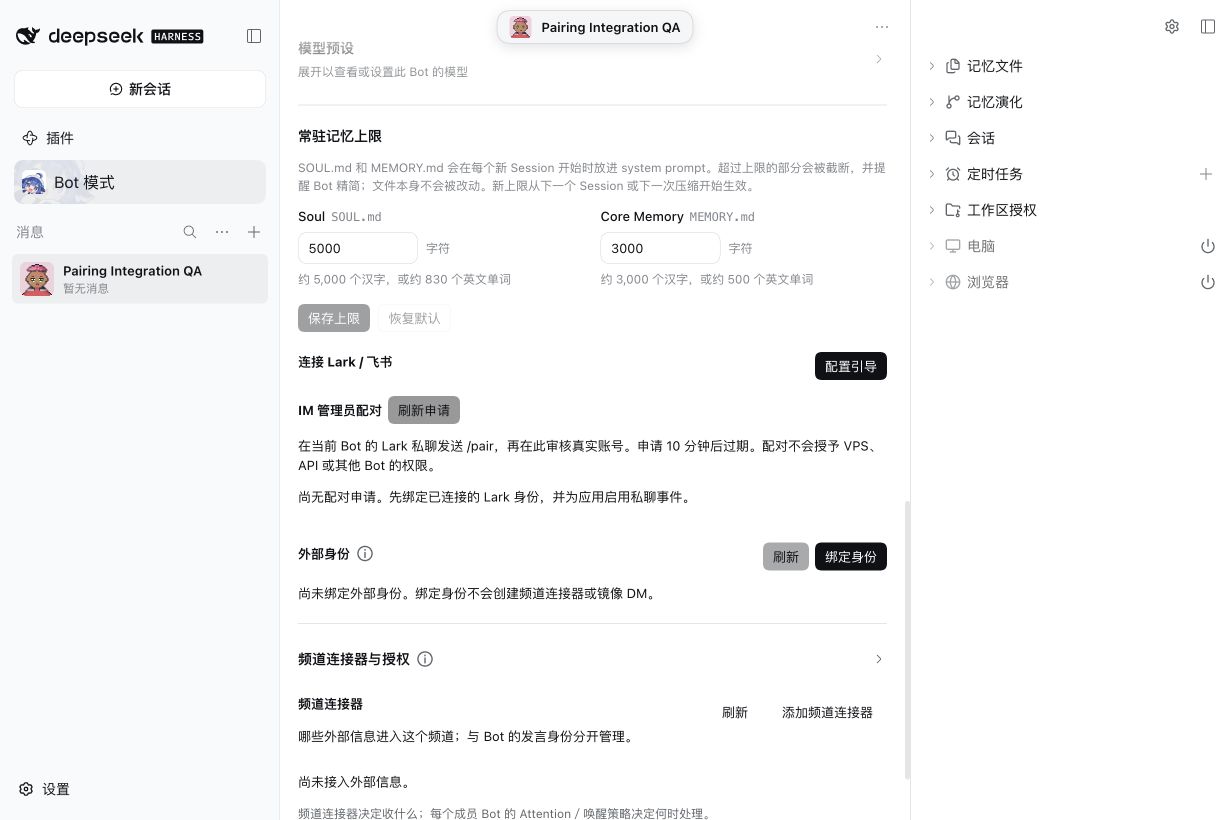
Refresh the incoming request. The first genuine request has no selected capabilities, and Approve selected capabilities is disabled. The receiving account is ready; Lark did not supply an applicant display name, so the page states that explicitly.
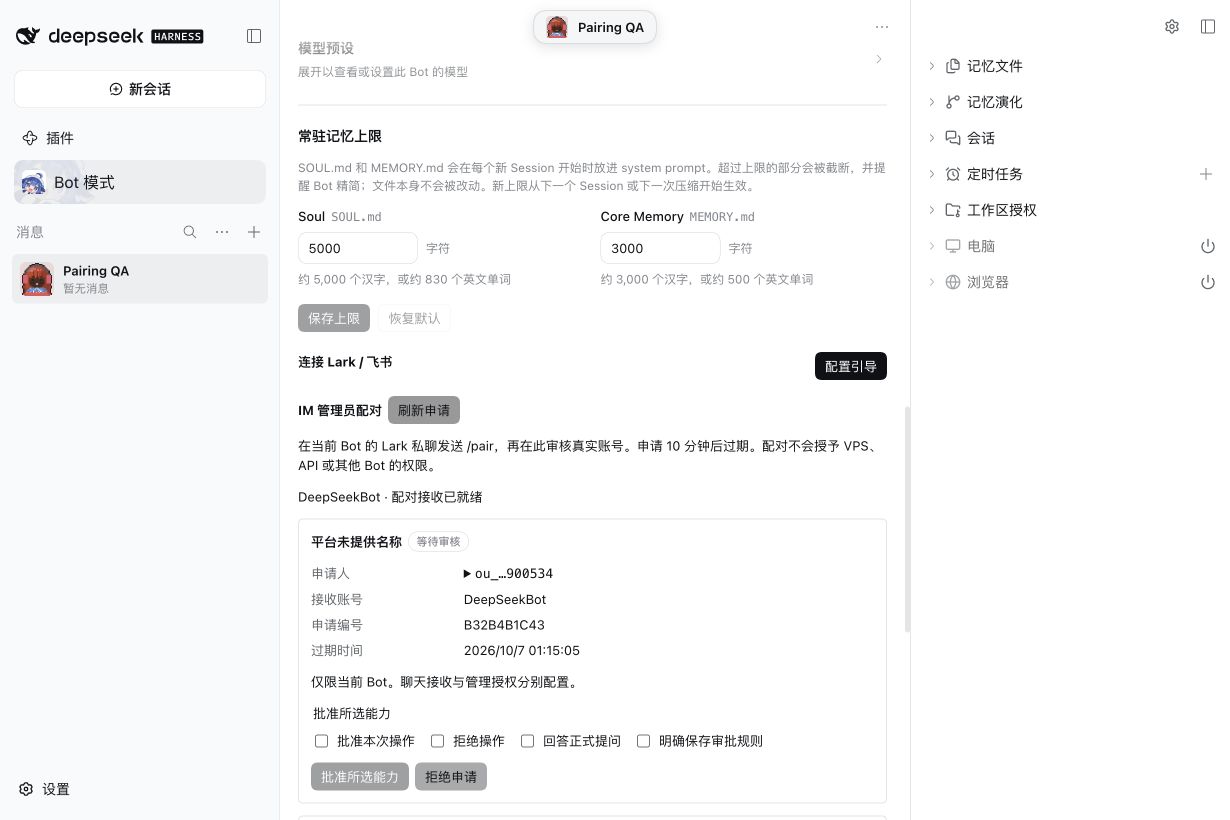
Select only the capability you intend to grant. This example selected Answer formal questions. After Web approval, the record shows Authorized with that one capability and a Revoke authority control. Selecting a capability records authority; this pairing preview does not yet provide an IM question-answer control.
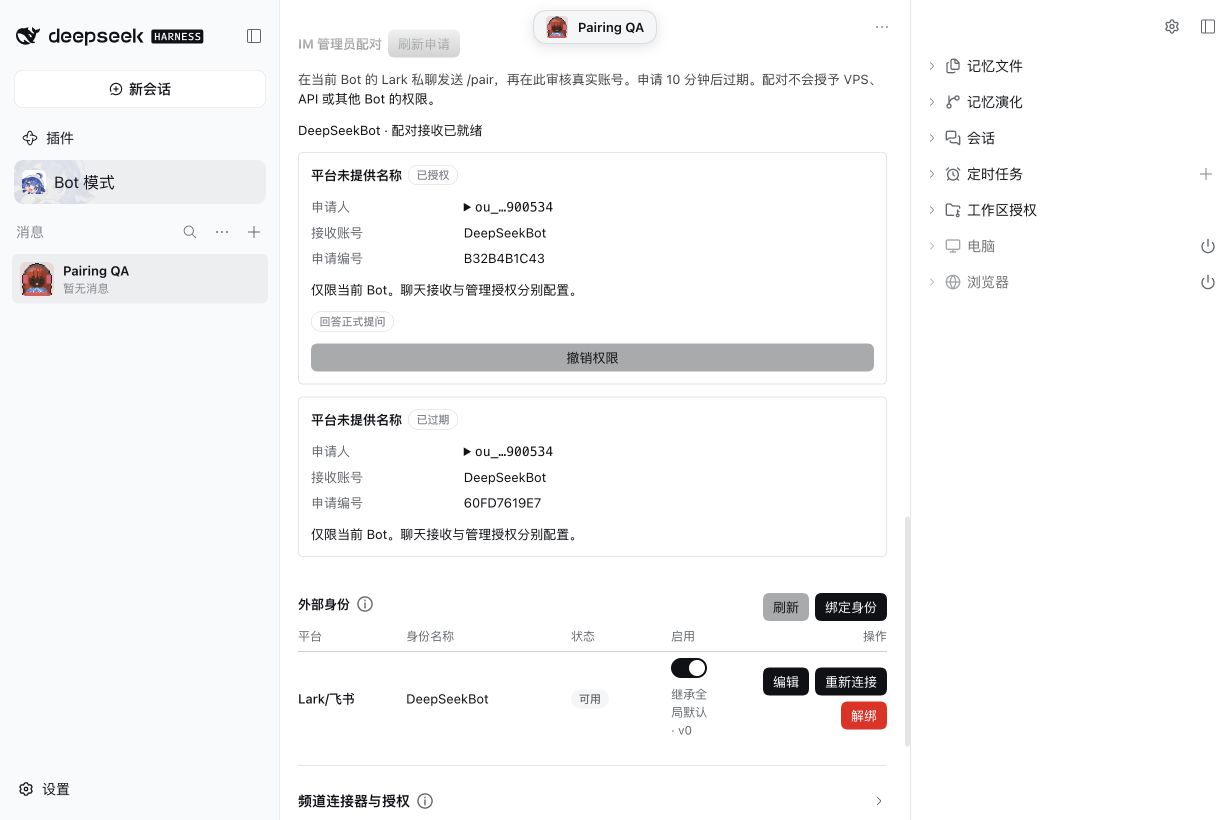
View the same approved record in dark mode.
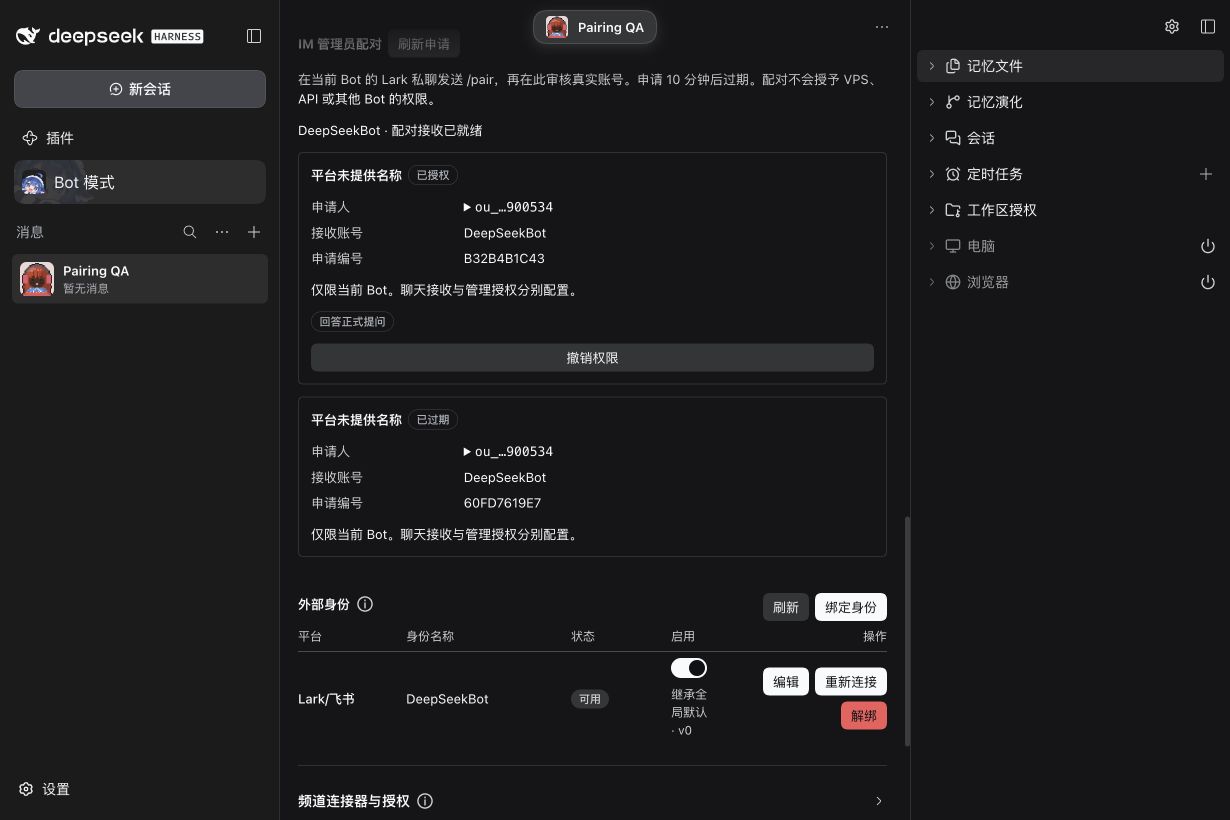
Restart the same Host to check persistence. A cold restart retained the approved record and exactly the answer capability. The receiver automatically returned to ready. This check did not recreate or approve the request.
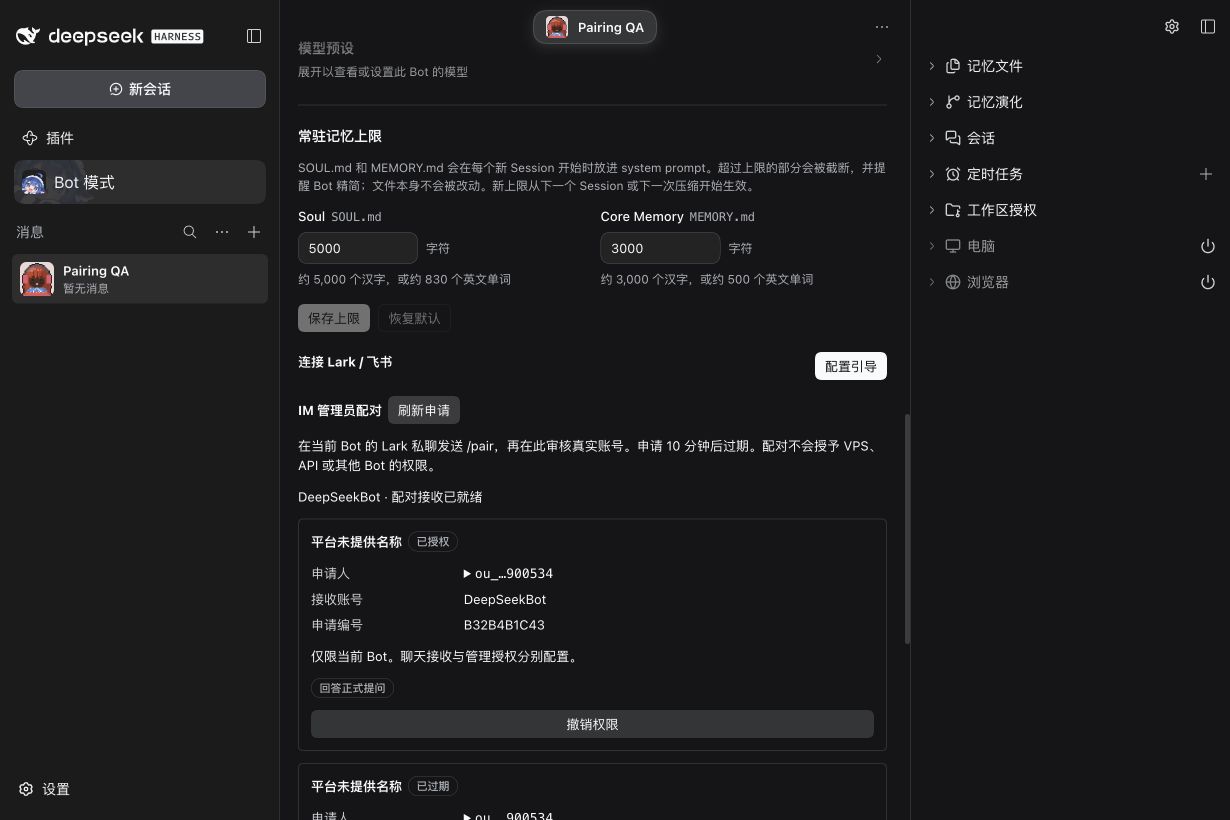
Revoke before requesting access again. Clicking Revoke authority changed the real record to Revoked, cleared its capabilities and removed the revoke control.
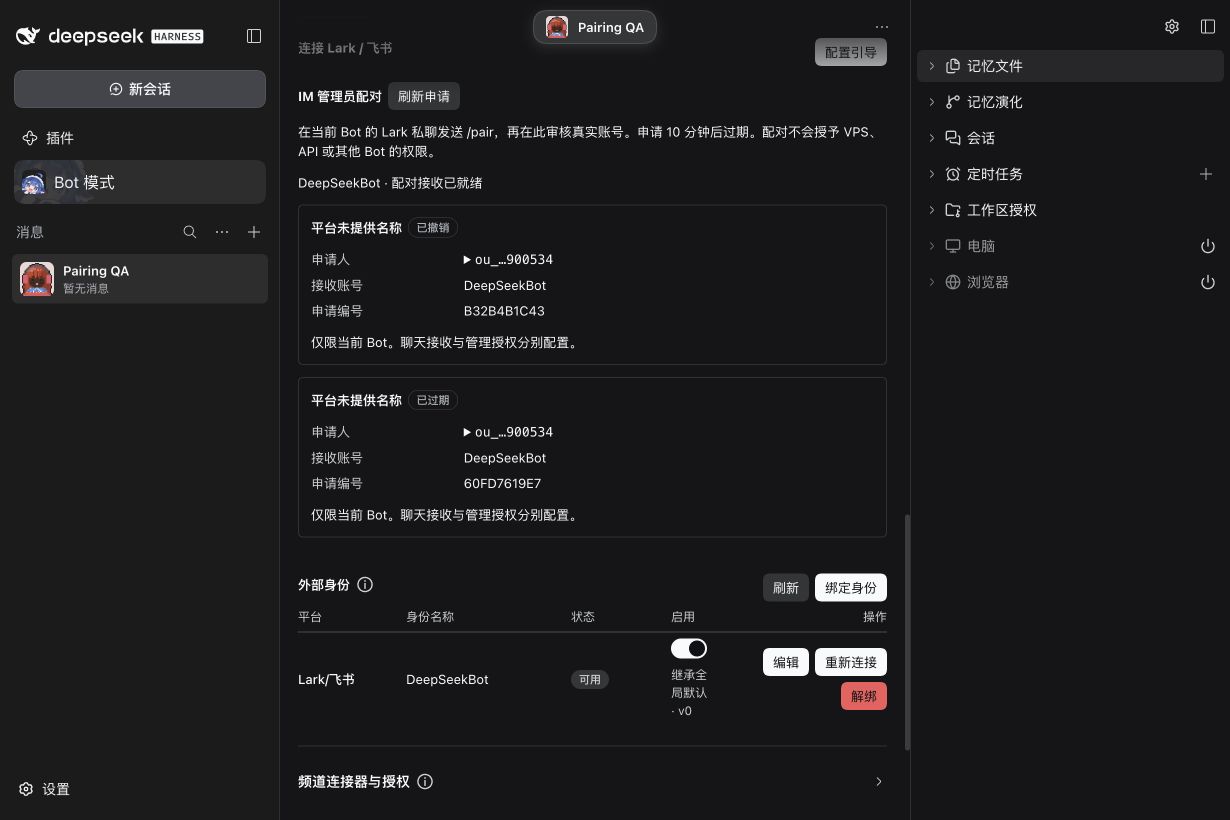
Send a new /pair from the same Lark private conversation. The new request has a different reference, no capabilities and a disabled approve button; the old request remains revoked. Review it explicitly if access is needed again. In this walkthrough it was left unapproved. The Operational Database recorded no ordinary IM Source Event or Inbox Admission for these pairing commands.
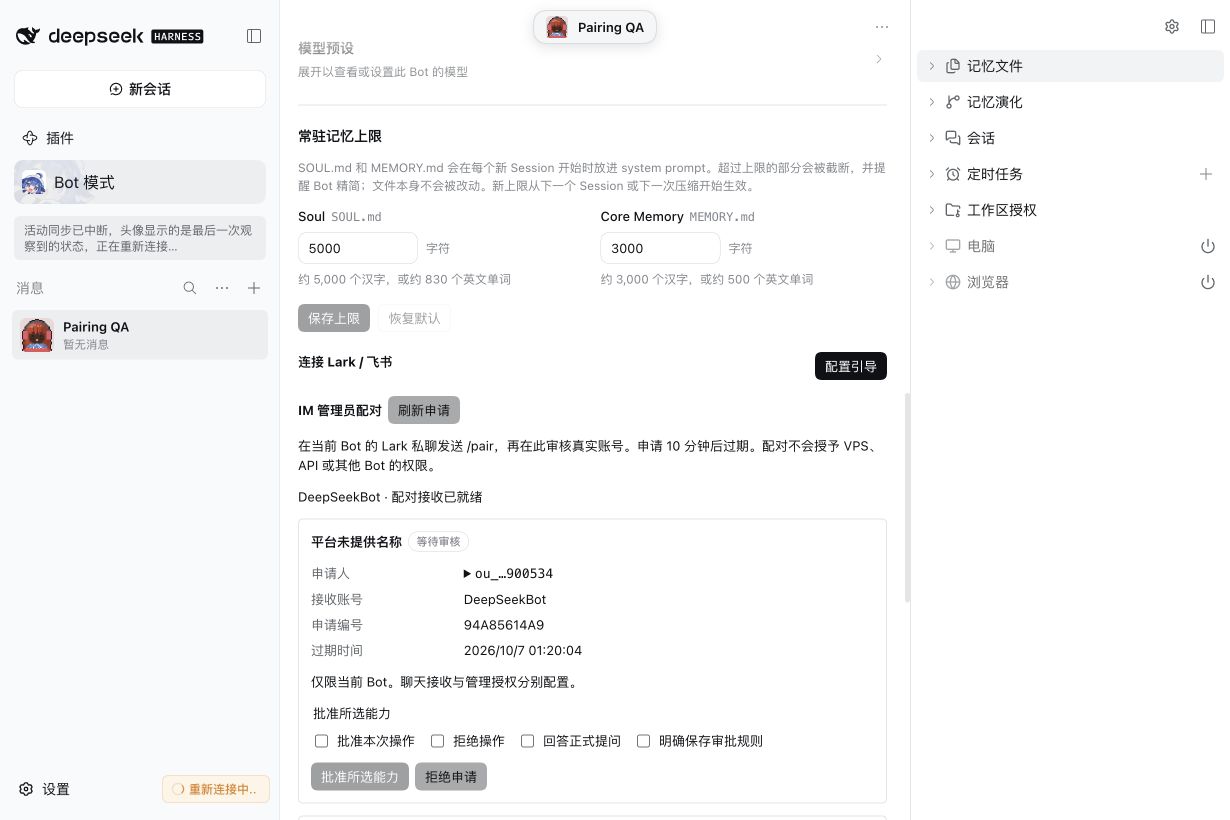
View the light-mode restoration capture: after the automatic test window ended, the local Web page showed a disconnected-state notice and its last observed request. That capture does not prove the receiver remains online.
Reject the remaining test request after verification. Production reception was restored while the local receiver stayed disabled. In authenticated Web, Reject request changed the fresh record to Rejected. The earlier grant stayed revoked; all test records have empty capabilities, with no approved or pending records left.
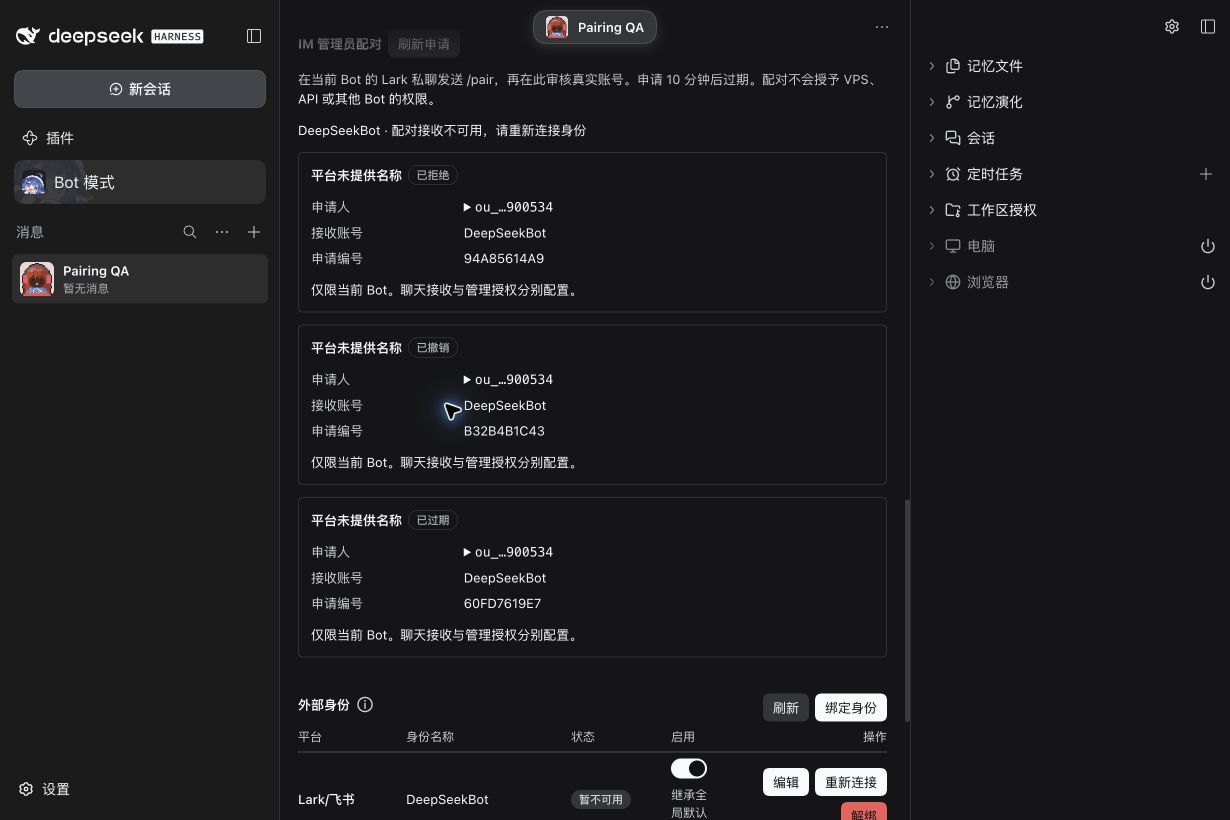
If the review window expires, approval controls disappear. This earlier real request expired without approval; its receiver was deliberately offline while production received the shared application.
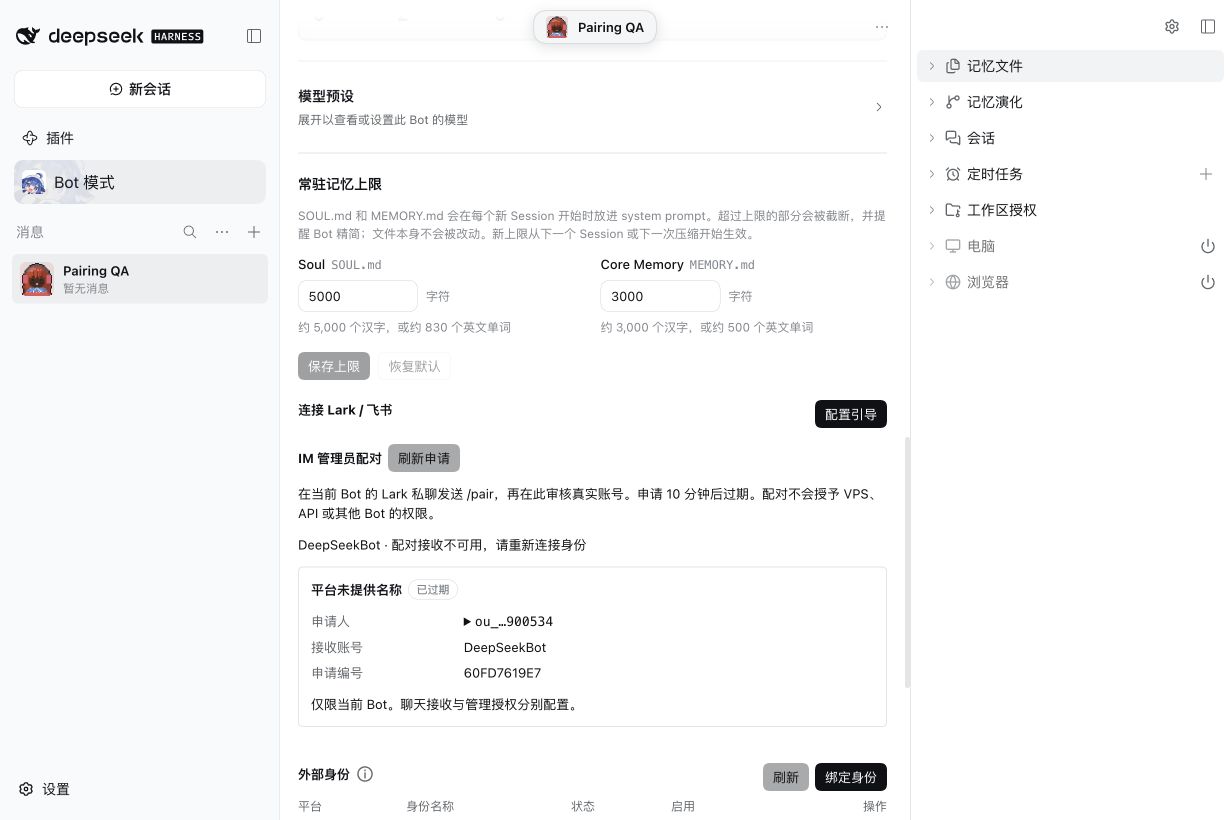
View the same expired state in dark mode.
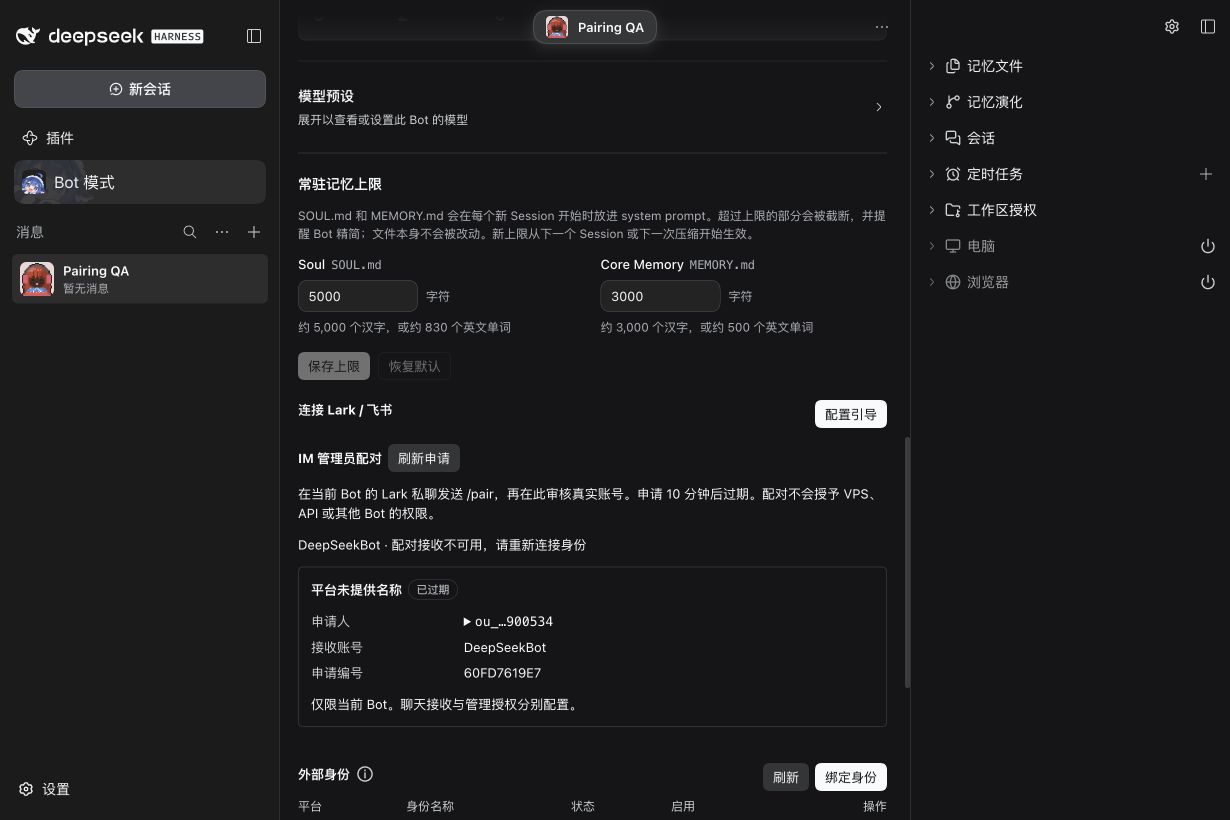
If no request appears, check the private-message scope, publication, subscription, identity and receiver status. Reconnecting the identity retries receiver setup. With the qualified Provider used here, disconnecting an application is temporary because its supervisor can reconnect it. For exclusive QA, use a dedicated test application or an explicitly authorized service outage, then restore the production Host. Never leave two Hosts competing for one application.
Recover a failed pairing refresh
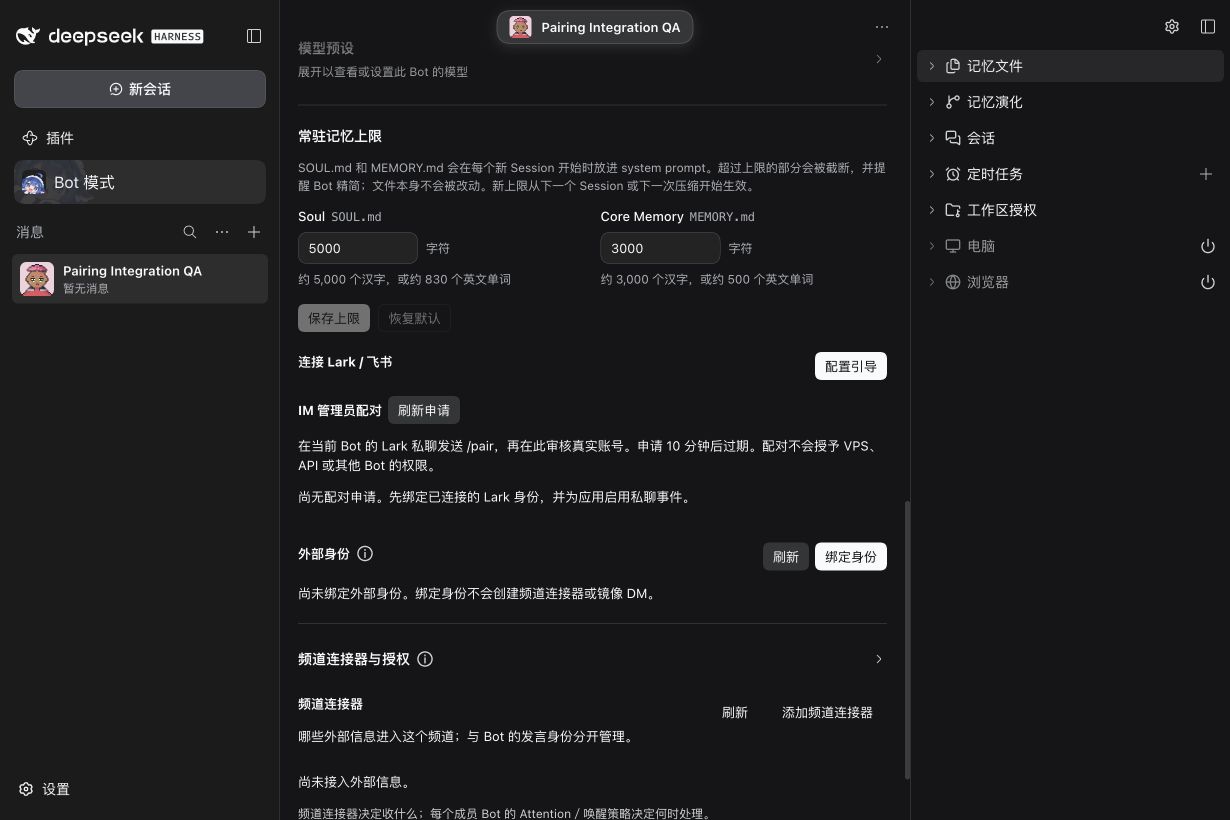
These additional captures use the integrated source preview in a fresh isolated Profile with no external IM application connected. Stopping only that local Host produces a real transport failure: Refresh requests shows its error beside the pairing controls while the then-current Channel Bridge card (now the External connectors entry) stays collapsed. Restarting the same local Host and refreshing clears the error. This tests Web failure/recovery; it is separate from the genuine Lark request walkthrough above.
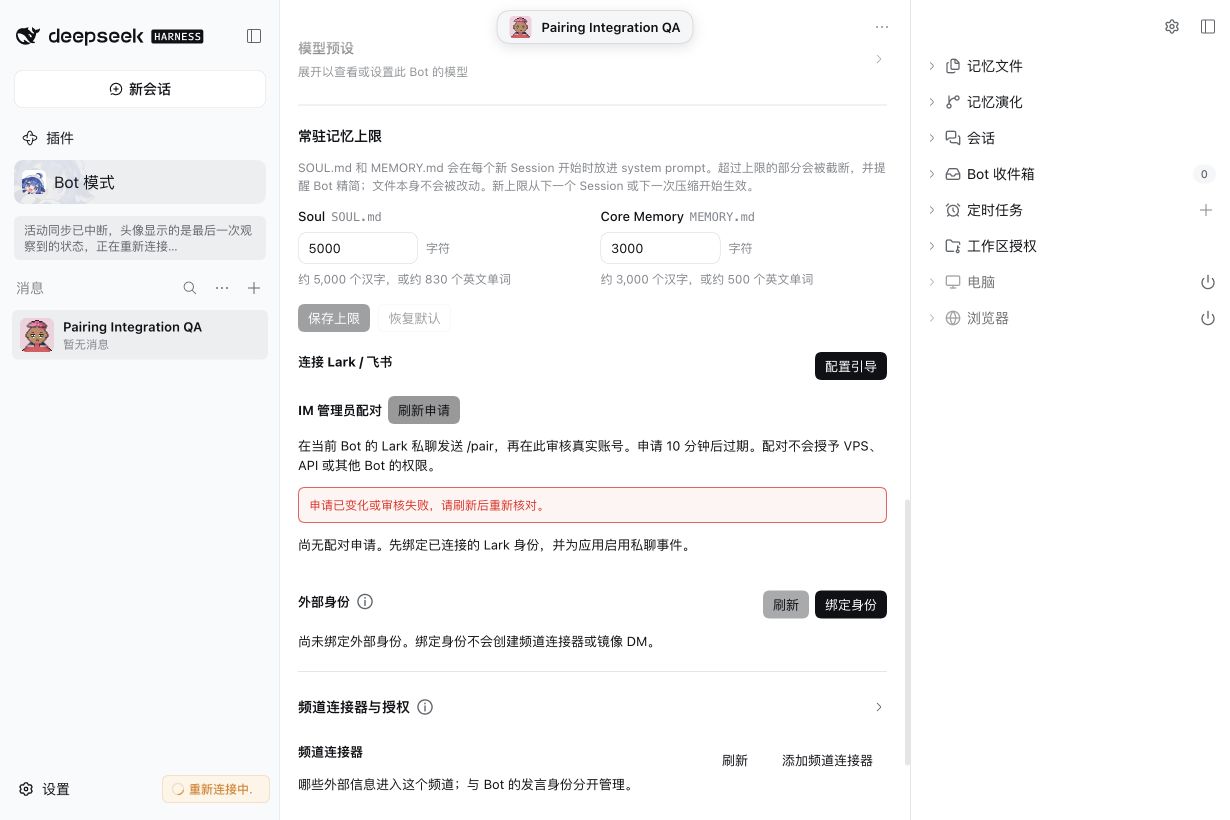
Troubleshooting
| Symptom | Check first |
|---|---|
| Application missing or connection fails | Lark / Feishu selection, organization, App ID / Secret and running Host |
| Connected but the app is missing from Bind app | Qualified Provider, online account; an app already bound to another Bot is not offered (see Settings → IM apps) |
| Group missing from the conversation list | The app was added to the group, a first message @mentioned it, and the conversation isn't waiting (Ask me first or the hourly limit) or blocked |
| Mention does not enter Inbox | Application bot in the group; application permissions, long-connection im.message.receive_v1 subscription, published version and approval; identity enabled, conversation not muted or blocked |
| Ordinary or unmentioned topic messages do not arrive | im:message.group_msg, genuine event delivery verification, group intake condition and explicit topic following |
| History read returns 230027 | Effective published application group-message permission; Human login permission cannot substitute for it |
| Received but no reply | Working model, Inbox / wake state, this Bot's enabled identity and im:message:send_as_bot |
| No message in local DM | Conversations reach the Bot Inbox by default; only an existing sync (see External connectors) shows them in a Channel |
When requesting help, include the platform, reproduction steps, a public-safe error code and checks already performed. Do not include App Secrets, access tokens or unrelated group messages.
Fresh application walkthrough: #824
These compressed captures show the actual new application. Version 1.0.0 was released and added only to the designated QA group; account connection, target Test/Save, PersonaBot Binding and exact-group authorization were operated through the UI. The initial single-install product was 0.0.0-test.824.6; final revalidation with explicit group selection used 0.0.0-test.824.7 (Provider 4.32.0-botharness.2), with no separate receiver. Earlier #823 images/video remain reference material and do not substitute for this fresh application test.
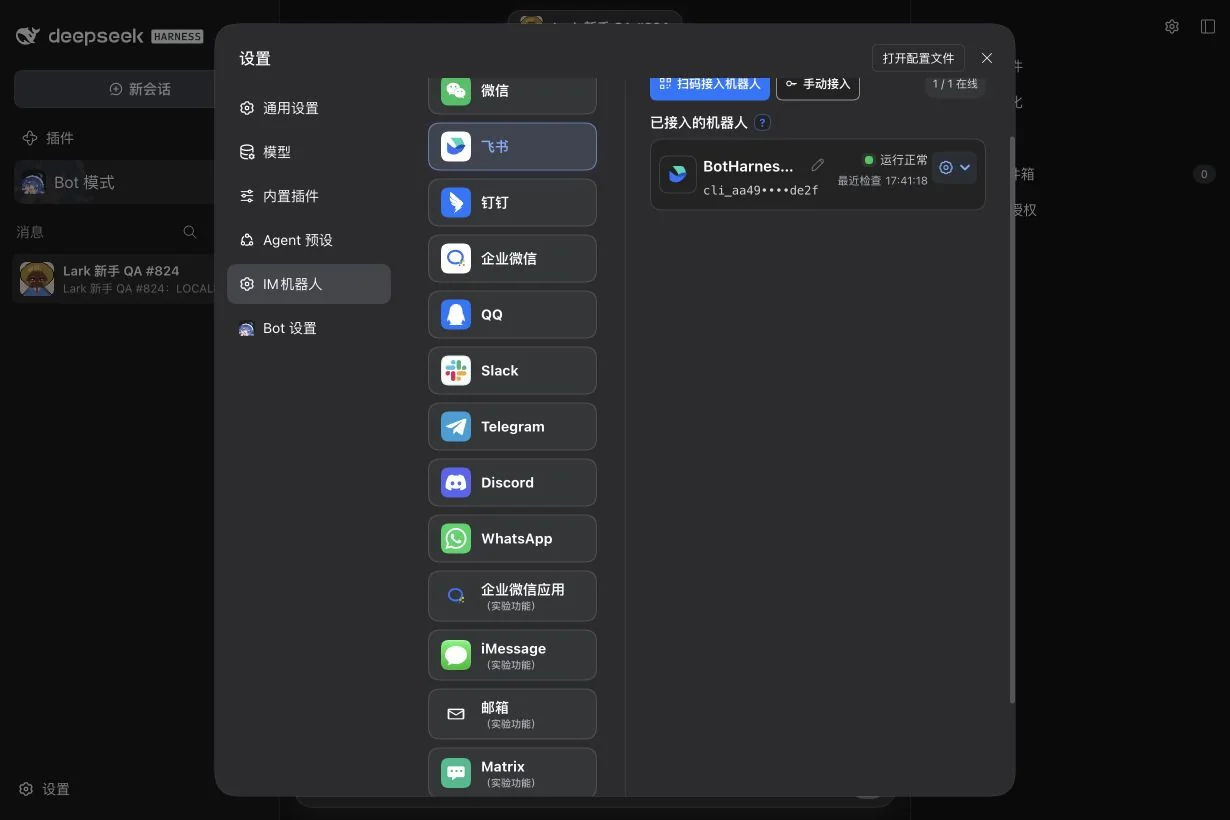
Online status confirms transport, before canonical Inbox receipt.
Connect locally before saving persistent connection and im.message.receive_v1 if validation fails.
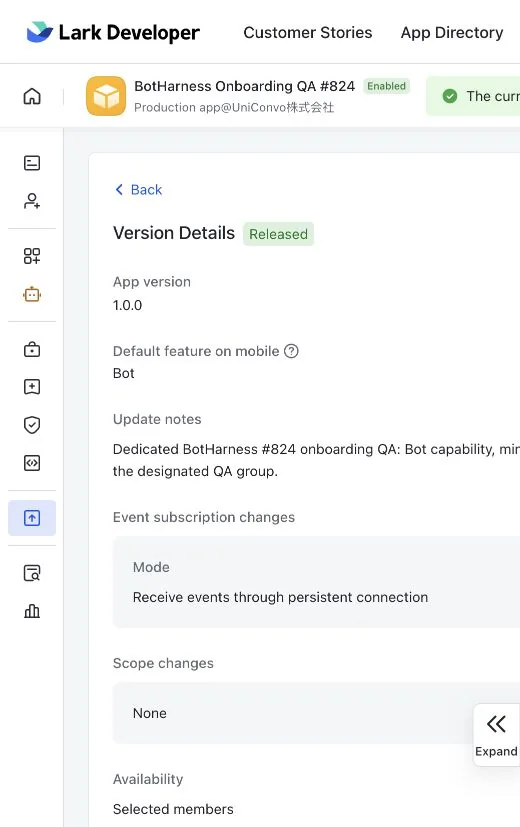
Release, approval and availability are separate from local connection.
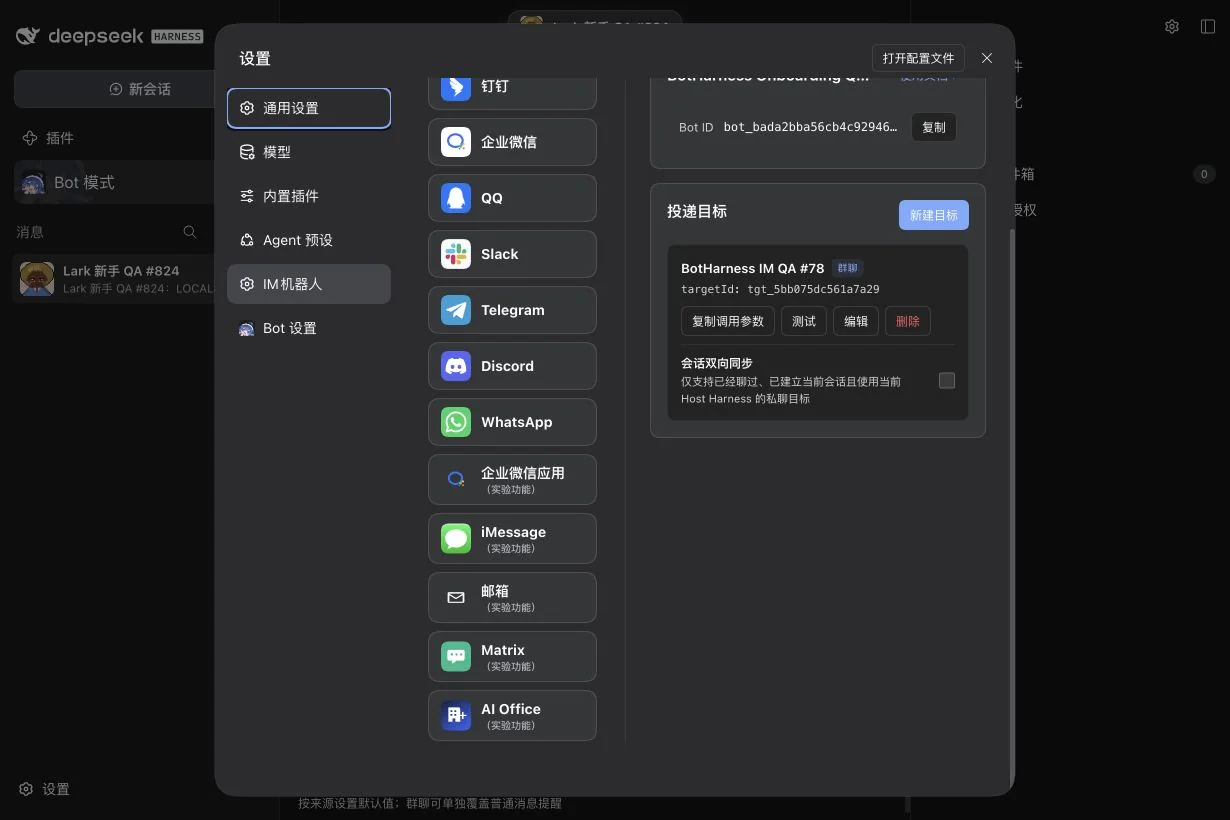
Confirm the test message in the designated group, then save the target.
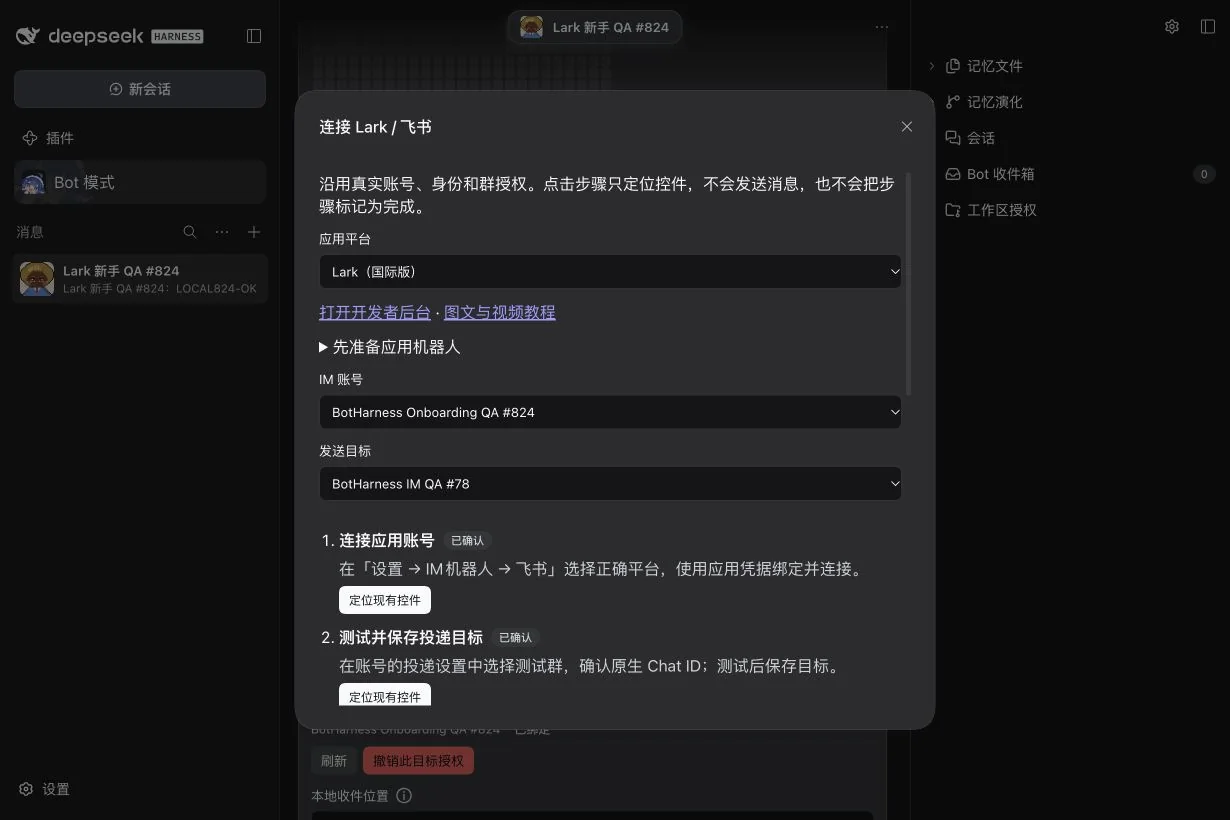
The earlier five-step guide; the current guide has three steps (app, bind, verify). Steps derive from real configuration; tour clicks cannot mark them complete.
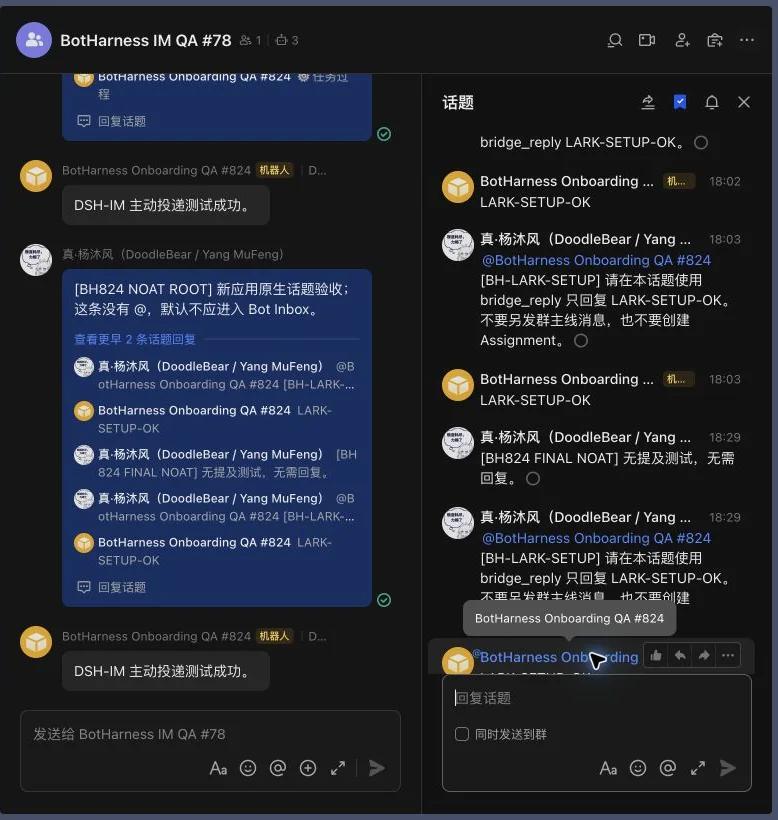
The unmentioned root was not admitted; both designated mentions reached this Bot Inbox and LARK-SETUP-OK appeared under the new identity in the same topic. Unrelated conversations were cropped; external read circles are not canonical receipt evidence.
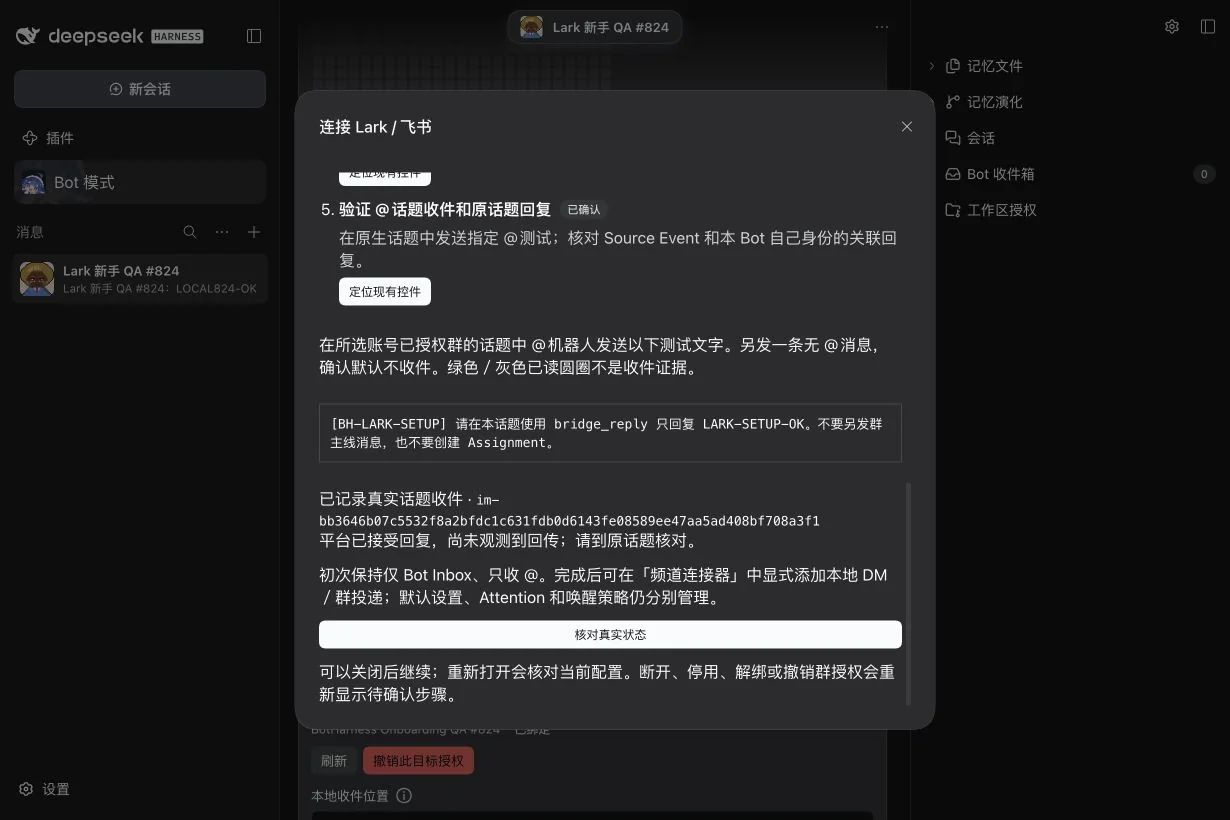
The exact [BH-LARK-SETUP] source ends in f708a3f1; its Inbox admission was handled and its correlated reply was provider-accepted. No own echo was observed, so the guide asks the Human to inspect the original topic.
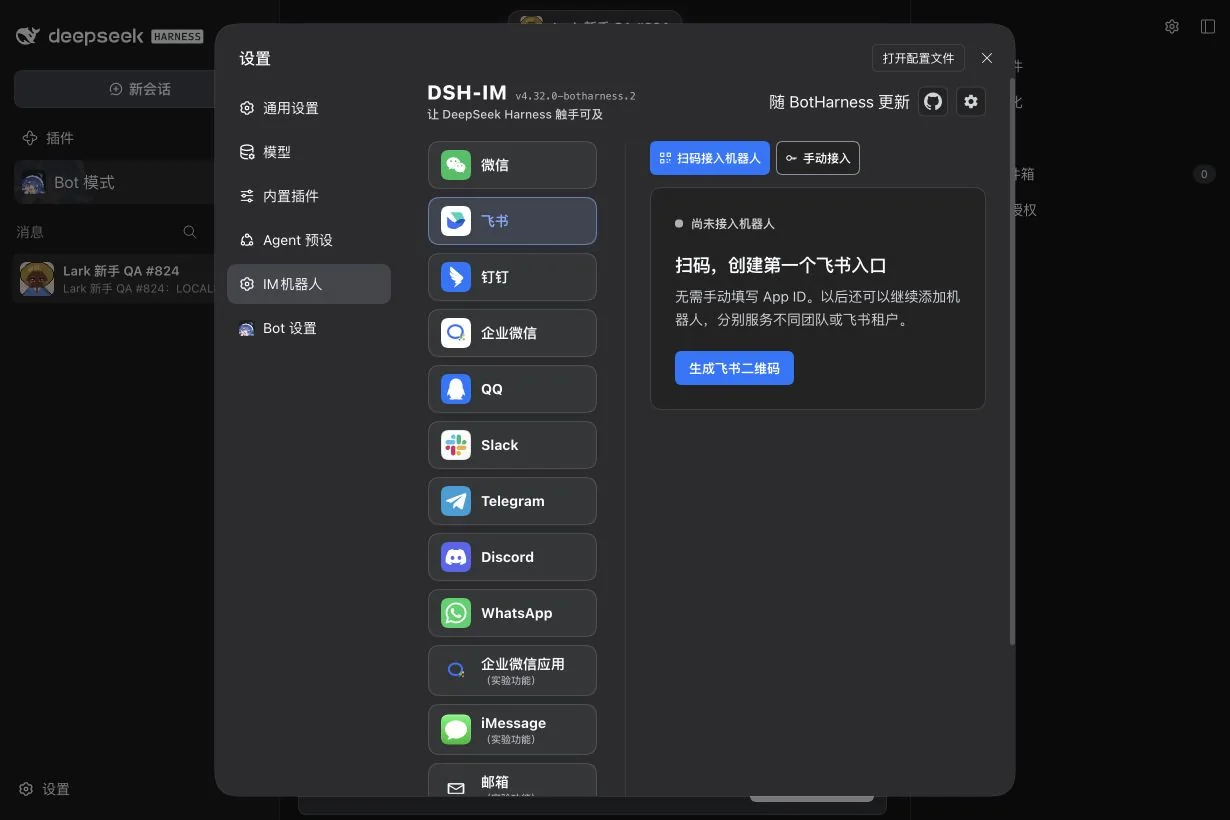
Close/reopen and same-Profile restart retained configuration/history; select the persisted account after reload. Disable, grant revocation, unbind and account removal returned relevant steps to pending. Native Remove integration then stopped reception and deleted local configuration/credentials. The external application remains; external credential reset is an administrator action.
Handle tool approvals in a management DM
This slice supports Lark private Allow once and Reject cards through a qualified Provider. Group approvals, native question forms, saved automatic rules and non-blocking native waits are separate slices. The released dsh-im package number alone does not imply card capability; an unavailable Provider remains unavailable.
- Enable the app's Events & callbacks → Callback configuration → Long connection and add
card.action.trigger, then publish the version. Retain the existing message read/send scopes and addim:chat:readso the sender can verify a private conversation. A maintainer must authorize these app changes. - Send
/pairin the Bot's Lark DM. In External identities → IM administrator pairing, inspect the real applicant/account and explicitly grant Approve and/or Reject. Pairing does not create ordinary DM intake or grant VPS/API access. - In the sidebar's External identities → Lark approval notifications, choose that person's name and receiving account, then Save destination. Select Send test card; it has no approval buttons and grants nothing.
- A subsequent native tool approval sends its complete operation to that management DM, with Allow once and Reject. Check the proposed operation before deciding. A truncated card asks you to inspect the complete operation in Web. The card's acknowledgement only confirms receipt of your click; the final native decision and result are separate.
- Refresh notifications in that dialog and use Open native session and complete operation to inspect the actual native result. Decision accepted is not proof that a tool ran. Rejected, revoked, expired, duplicate or mismatched actions cannot approve a new call.
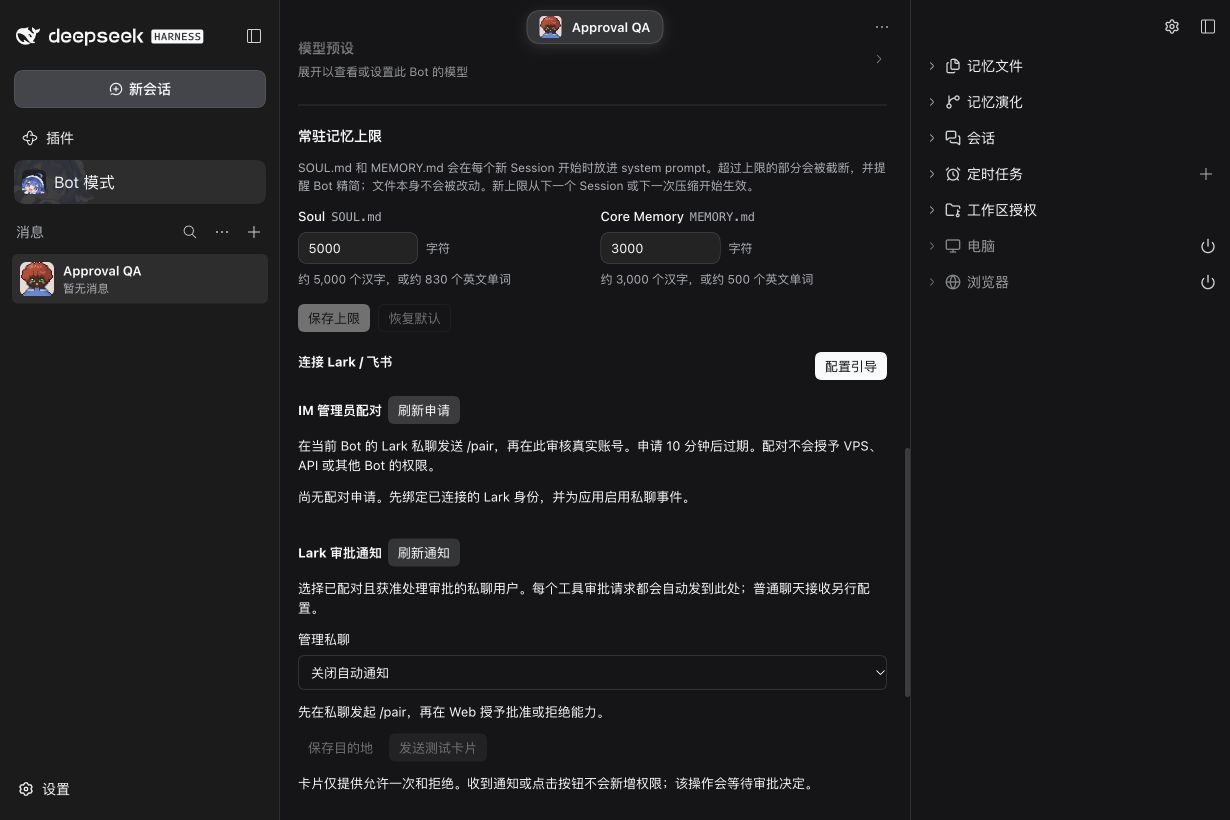
This screenshot (earlier Profile layout) shows the running private-route entry point with no paired destination; it is not a real Lark delivery or execution result. Real platform qualification for this slice is recorded with the issue's evidence and Human QA.
If delivery is Unknown outcome, check the DM before creating any new request: the sender does not automatically resend. Known-unsent failures can retry at most three times. Card updates may also remain unconfirmed; use Web for the canonical result. Revoking a pairing or changing the destination invalidates old controls. A Host restart expires old pending cards rather than replaying a paused tool. The current native approval still waits; the later Inbox continuation slice owns non-blocking behavior.
Computer and Browser first-use authorization covers a native Session, so its notification has no approval buttons and requires Web review; it cannot be granted by an IM Allow once.
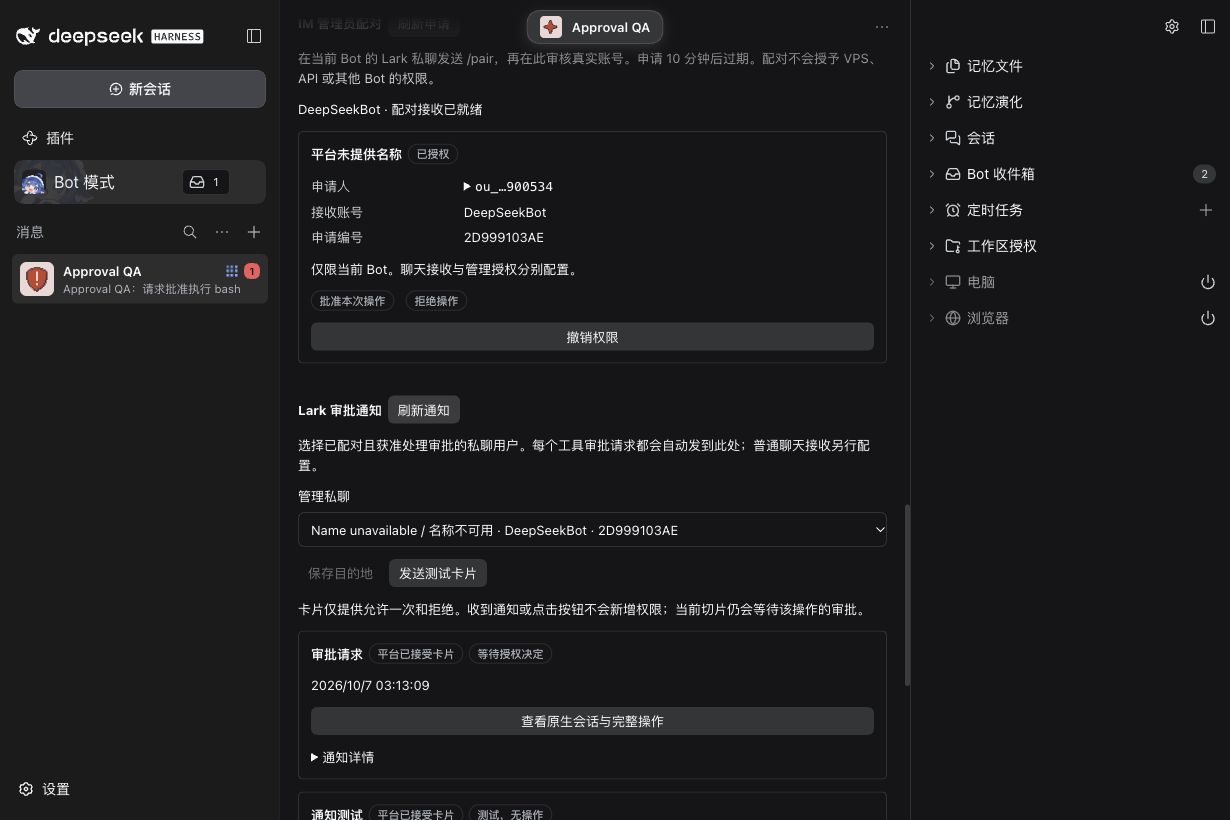
In the earlier isolated 2026-10-07 test, the actual Lark platform accepted both the test card and a native tool approval card. This historical screenshot records delivery accepted / decision pending; it does not show an IM decision or tool execution. A later authorized native Windows window qualified BotHarness source 8936777b with checked Provider source 1422b07f: the Human's Lark Allow once click produced exactly one successful native Node print, and a distinct Reject click produced the native rejection error without a replacement call. The Human confirmed the final cards showed Executed and Rejected. The route was disabled, QA pairing revoked, identity unbound and local receiver stopped before restoring production within the ten-minute limit. The Human then confirmed normal production replies in both Lark and Discord. See #1029 for the source-specific evidence and recovery checks; this qualification does not update the published Provider pin or deploy the feature.
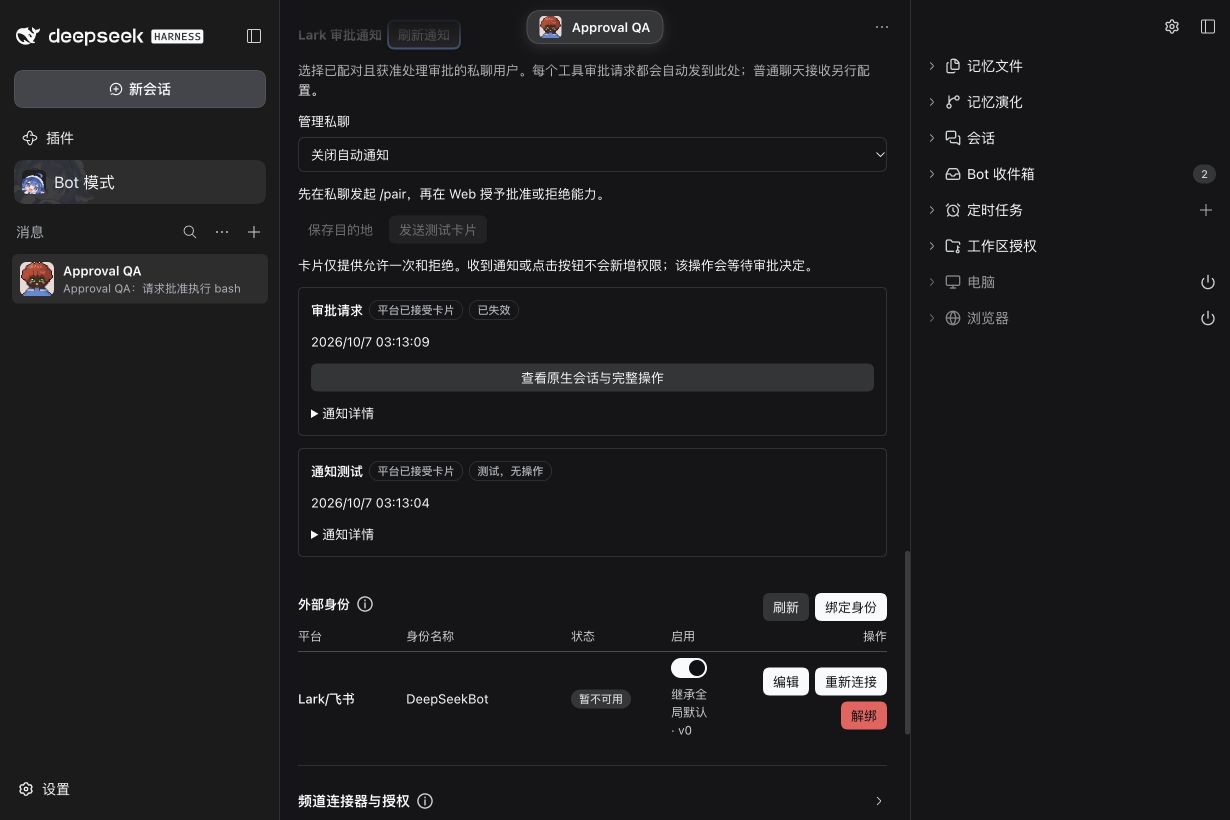
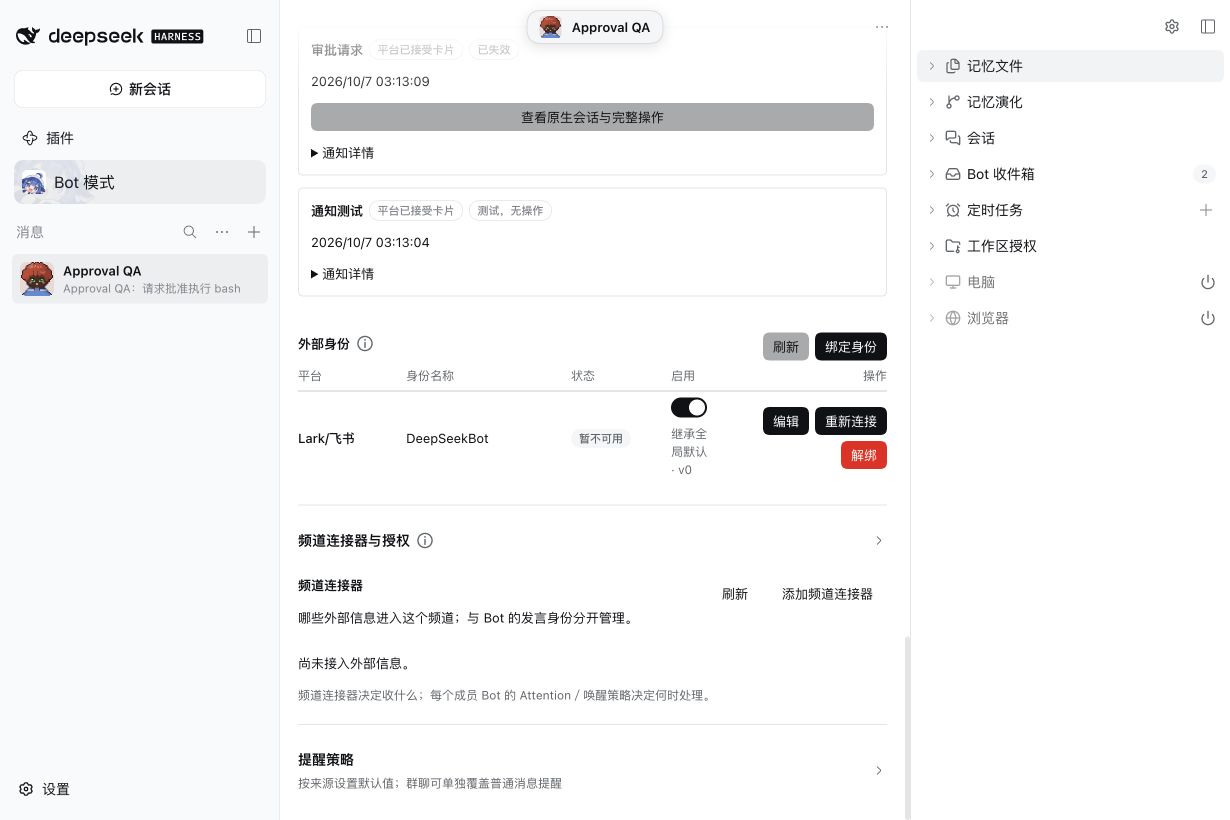
Light theme recovery screenshot. After the test authority was revoked and the local Host restarted with its IM Provider disabled, the destination is Off, the old request is Expired, and the local identity is unavailable. This screen does not prove production availability; production Discord/Lark connections were verified separately after restoration. Do not use the old card for a new test.
Images in Channel history
In the image-capable #1021 candidate, an authorized Lark image or supported image-bearing post appears inside its original Channel bubble. The source name above it still opens source details. Images load when visible; select an image to enlarge it, and use Retry after a failed load. Text and multiple images stay in their native order in one message.
This requires the conversation to be synced to a Channel. Inbox-only reception does not place images in Channel history. Keep the application's existing message permissions: a mentions-only group source still requires a real Bot mention in a supported native post. This feature does not enable ordinary group-message access.
Pausing the sync keeps already acquired images readable but stops new image acquisition. Unbinding its identity or revoking source authorization makes that path unavailable, including cached images. A separately valid source path remains independent. Refresh and restart retain authorized acquired images; purged or missing originals are not downloaded again. Previews support PNG, JPEG, GIF and WebP up to 25 MiB. An unsupported format or oversized image shows an explicit state.
Human image viewing does not make the Bot understand images or change its attention, model context or permissions. Real platform acceptance and screenshots for this candidate are tracked in #1021; they are not implied by the older onboarding evidence above.