
Docs
Share a Bot
Publish a Bot’s Memory to GitHub and list it in the Bot Marketplace.
Sharing a Bot publishes its Memory Repository as a public GitHub repository. When someone finds it in the Bot Marketplace and clicks Install, the repository is cloned into a new Bot with the same memory. Your Bot itself, its chats, Workspace grants and IM connections are not shared, and later conversations on your side are not synced to installed copies.
Not ready to go public? Send a zip
To hand a Bot to someone you know, or move it to another computer, you don't need GitHub: export a zip with Share at the top right of the Bot profile, and the other person uses Import from zip to get a new Bot. See Export and import a Bot.
Before publishing: check what becomes public
Anyone can read a public repository, including files deleted earlier in its Git history. Memory may hold personal details you told the Bot, keys, or summaries of private conversations. Look through it first:
- Open Bot DM → Channel sidebar → Memory files and open each file.
- Open Memory evolution and check the commit history for anything that should stay private.
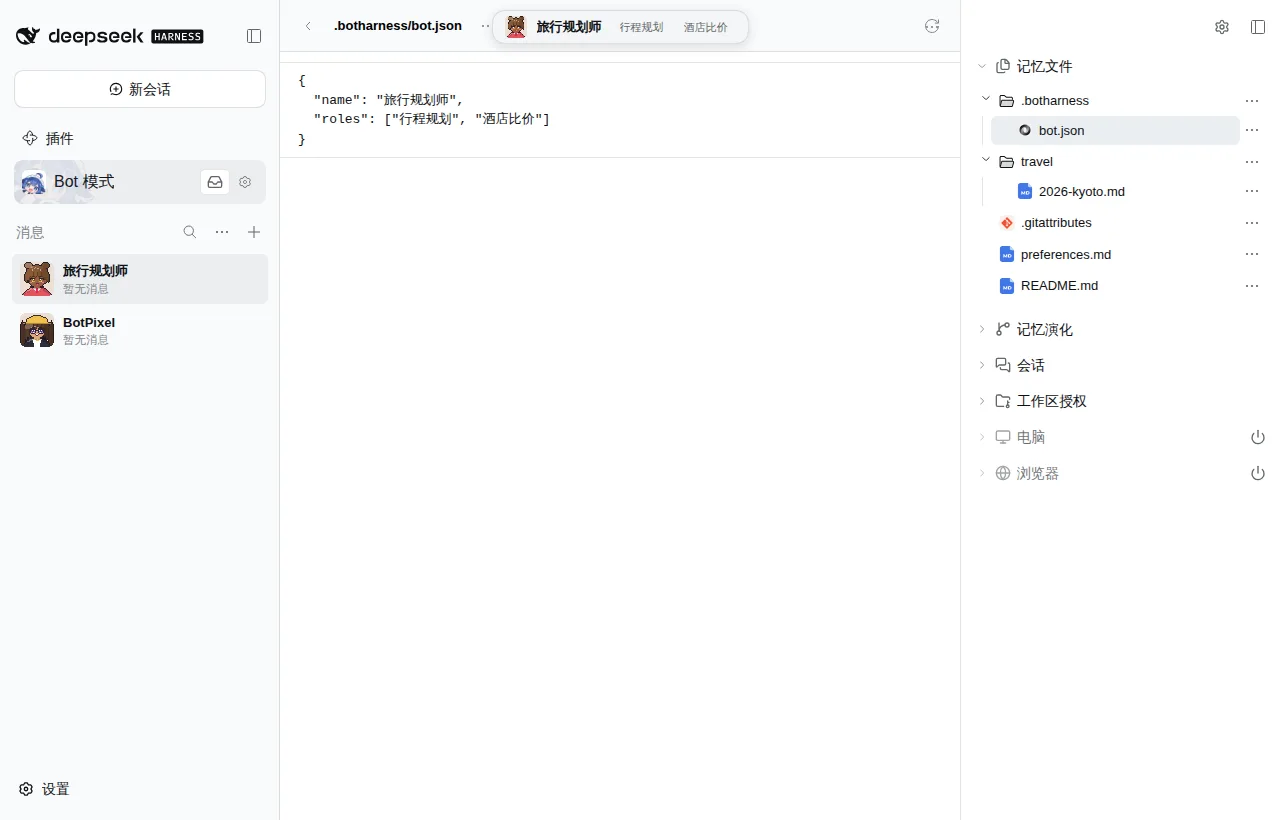
Deleting a file is not enough if sensitive content appears in the history. The prompt below handles that by pushing a single new commit without history.
Option 1: let the Bot publish itself (recommended)
The computer running DeepSeekBot (the Host) needs the GitHub CLI, signed in with gh auth login. The Bot asks for your approval before each command, so you see every step.
Copy this and send it in the DM of the Bot you want to share:
Please share your Memory repository to the BotHarness Bot Marketplace. Follow these steps and tell me the result after each one:

1. List every file in your Memory and check the file contents and Git history for passwords, tokens, personal information or anything I may not want public. List what you find and wait for my confirmation before going on. Do not push anything before I confirm.
2. If there is no README.md, write a short one: who you are, what you are good at, and how to use you.
3. Check that .botharness/bot.json exists (DeepSeekBot normally creates it). If it is missing, create it with your name, 1 to 3 tags and a one-sentence bio, as {"name": "Name", "tags": ["Tag"], "bio": "One sentence"}; if it exists, leave it as is.
4. Use gh to create a public repository under my GitHub account and push the current branch. Name it after you in English, and tell me the name before creating it. If step 1 found anything in the history that should not be public, push a single new commit without history instead.
5. Add the botharness-bot topic: gh repo edit --add-topic botharness-bot
6. Send me the repository URL.
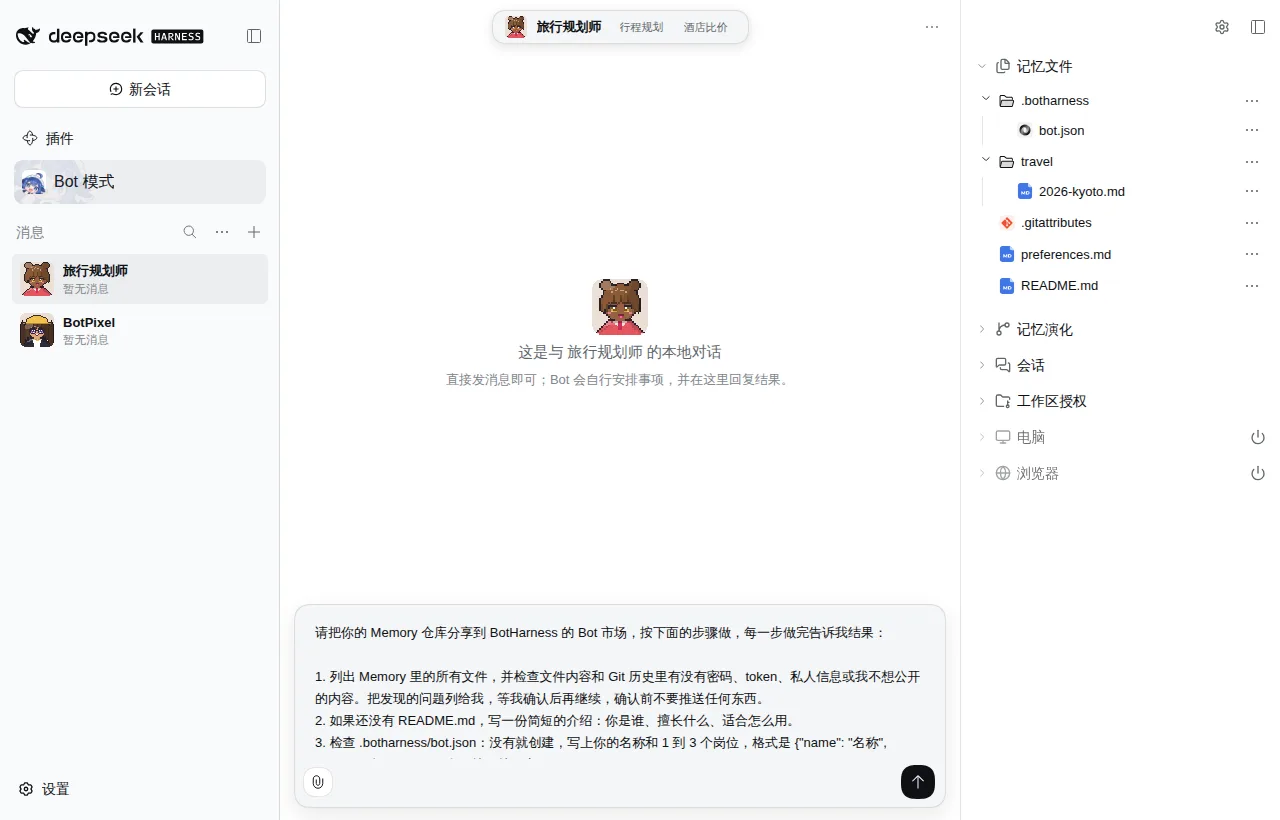
The Bot lists what it found and waits for you. After you confirm, it creates the repository, pushes, adds the topic and sends you the URL.
Option 2: publish it yourself
Find the Bot's Memory Repository path under Settings → Workspace grants, then run (replace <path> and <name>):
cd <path>
gh repo create <name> --public --source . --push
gh repo edit --add-topic botharness-bot
You can also create an empty public repository on GitHub, push with git remote add origin and git push -u origin HEAD, and add botharness-bot under About → Topics on the repository page.
Get it into the Bot Marketplace
A repository is listed when it is public and has the botharness-bot topic. Matching repositories are picked up once a day. To list it right away, click + (New) → Bot Marketplace above the message list in the DeepSeekBot sidebar, paste the repository URL at the top and click List:
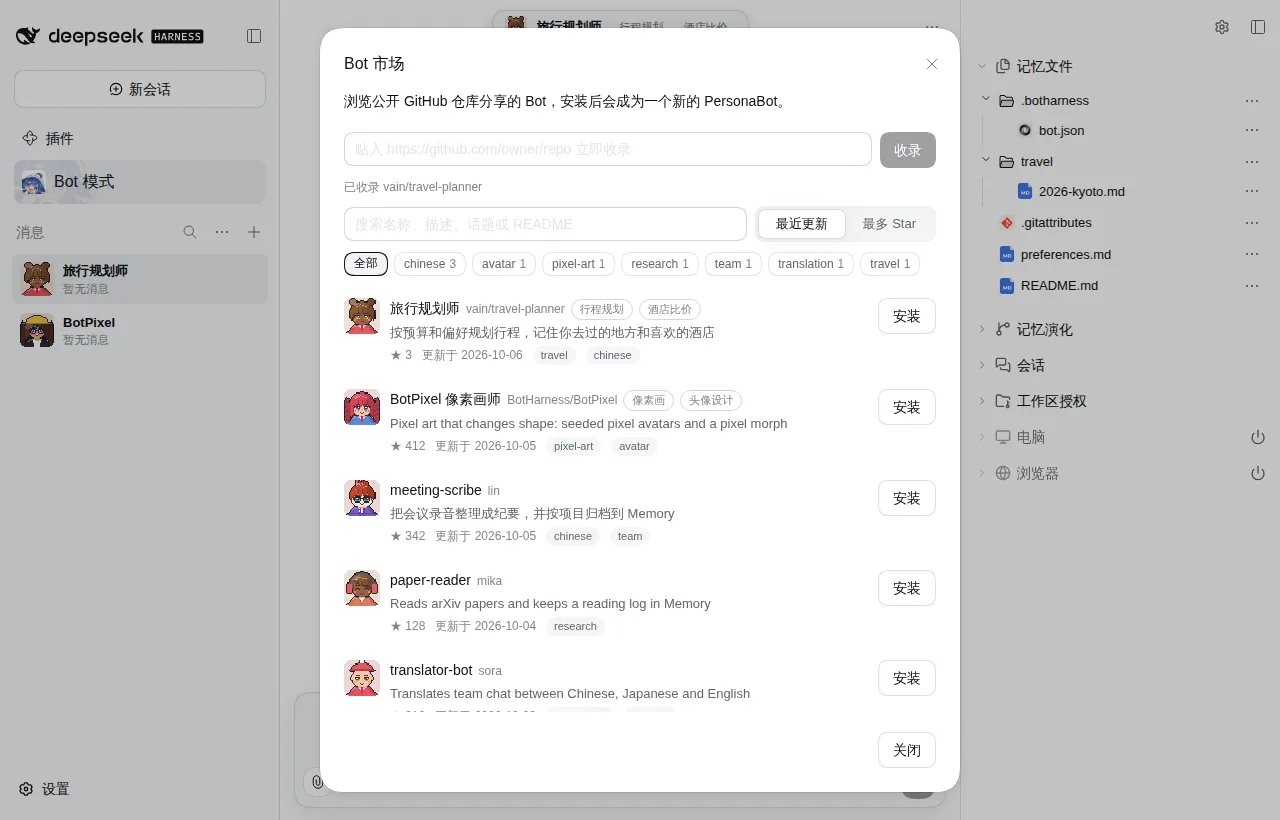
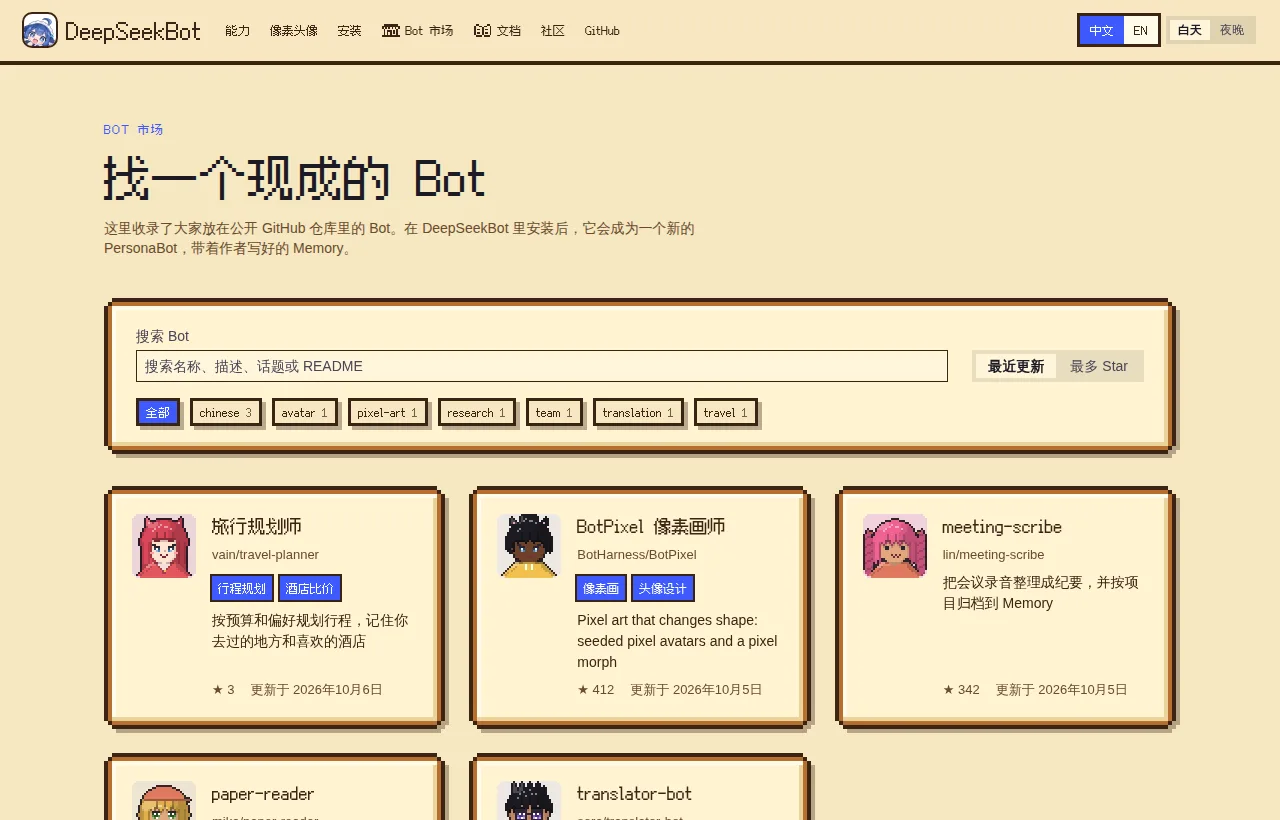
Once listed, it appears in the DeepSeekBot Bot Marketplace and on the Bot Marketplace website with its README, stars, update date and topics. After each push, the Marketplace moves to the latest commit within an hour.
When listing fails, the Bot Marketplace says why:
| Message | Next step |
|---|---|
| Repository not found / repository is private | Check the URL and make the repository Public on GitHub. |
| Missing the botharness-bot topic | Add botharness-bot under About → Topics and retry. |
| This repository was just listed | One repository is fetched at most once per 5 minutes; retry later. |
| This repository is blocked or hidden after reports | Open an Issue on the BotHarness repository to contact us. |
Name, tags, bio, avatar and banner: .botharness/bot.json
DeepSeekBot writes .botharness/bot.json into every Bot's Memory and keeps it up to date: when you create a Bot, and each time you change its name, tags, bio or avatar in Edit profile. Bots created before this get the file the next time DeepSeekBot starts. The Marketplace and the installed Bot read it, so they show the same name, tags, bio and avatar as your sidebar. An uploaded avatar image is saved next to it as .botharness/avatar.png (or .jpg, .webp). The Profile banner is always saved as .botharness/banner.png (1500 × 500), whether it is a generated pixel scene or an uploaded image.
You can also edit the file by hand. DeepSeekBot keeps any other keys you add, and keeps your edits until you next change the name, tags, bio or avatar in DeepSeekBot:
{
  "name": "BotPixel",
  "tags": ["Pixel art", "Avatar design"],
  "bio": "Turns a one-line description into a pixel avatar.",
  "avatar": { "image": "assets/avatar.png" },
  "banner": { "recipe": { "scene": "sea", "seed": 2786543041 } }
}
| Field | Meaning |
|---|---|
name |
Name shown in the Marketplace, up to 60 characters. |
tags |
Tags, up to 8, each up to 32 characters. Older files that use roles are still read as tags. |
bio |
A short introduction, up to 160 characters. Without it the Marketplace shows the GitHub repository description. |
avatar |
{ "image": "path in the repository" } (PNG, JPEG or WebP, at most 128 KiB), or a pixel avatar { "recipe": … }. |
banner |
A generated pixel scene { "recipe": { "scene", "seed" } }, or { "image": ".botharness/banner.png" } (a 3:1 PNG, at most 2 MB). Scenes: spring, summer, autumn, winter, sea, mountain, desert, forest, night-sky, space. |
Every field is optional. An invalid file is ignored as a whole, and the Marketplace falls back to the repository name and a generated pixel avatar.
Profile banner
Every Bot has a banner at the top of its Profile and of the popover you get from the name at the top of a DM. A new Bot gets a pixel scene picked from its name, and renaming the Bot doesn't change it; Bots created before banners existed get one the next time DeepSeekBot starts.
Hover the banner and click Change banner to:
- pick one of ten scenes: spring, summer, autumn, winter, sea, mountain, desert, forest, night sky or space;
- Reroll for another picture of the same scene;
- Upload your own image and crop it to 3:1;
- Reset to the scene picked from the Bot's current name.
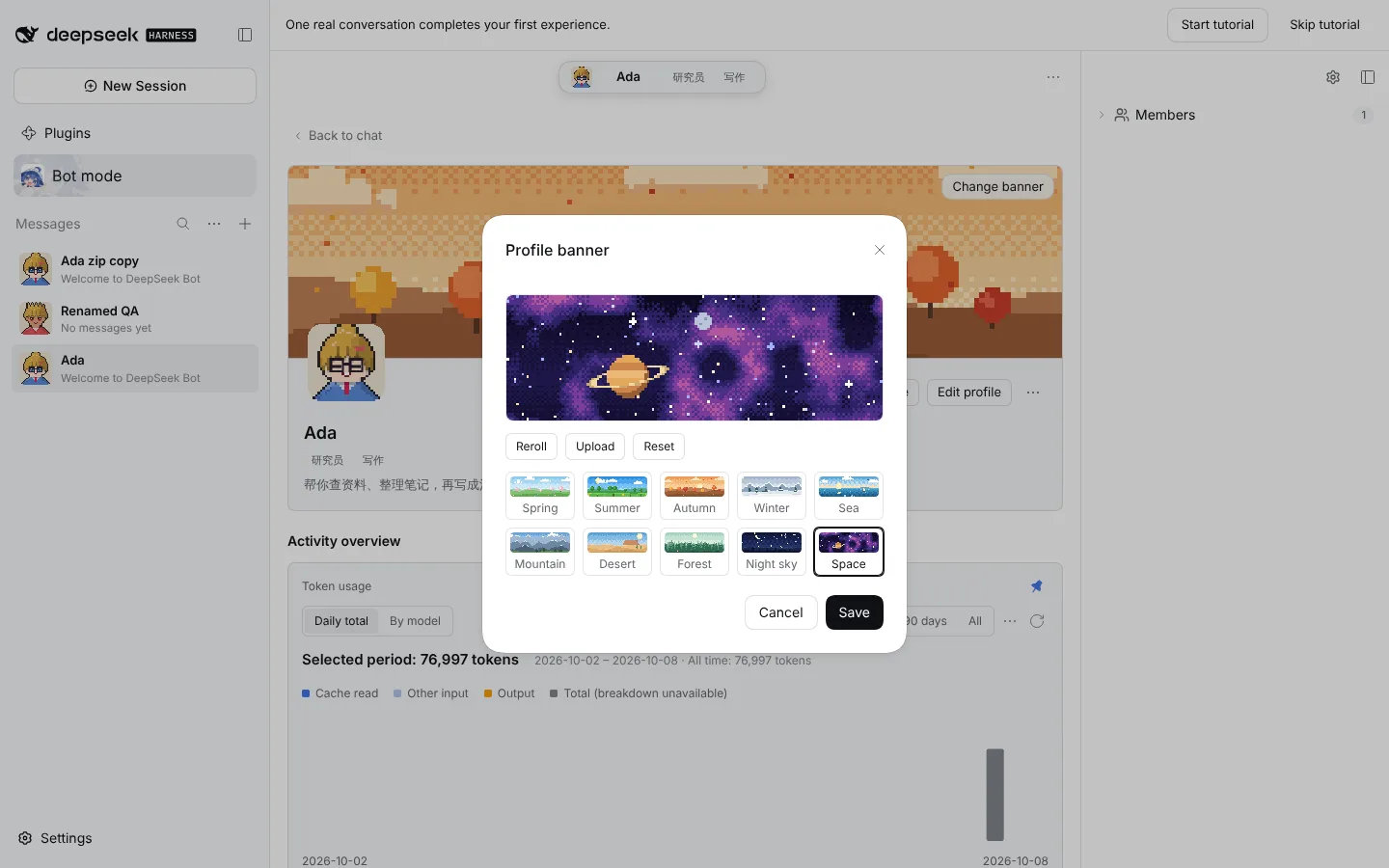
The banner travels with the Bot: Bot Zip export and import, and installing from GitHub, keep it.
Related: Memory files, Memory evolution.