
Docs
Pair your phone
Install Tailscale, publish DSH on your tailnet and pair the phone app by QR code.
The DeepSeekBot phone app connects to DeepSeek Harness (DSH) on your own computer. Bots, chat history and approvals stay on the computer; the phone is a remote client.
The test builds (TestFlight and Google Play internal testing) reach the computer only through Tailscale: the phone and the computer sign in to the same Tailscale network (tailnet), the computer publishes DSH as https://<computer>.<tailnet>.ts.net with tailscale serve, and after you scan the code the phone connects back through that address. You need no public IP and no router changes, and it works over mobile data. The test builds have no cloud account or cloud services.
The whole setup takes about 10 minutes:
- Install Tailscale on the phone and the computer, and sign in with the same account.
- Start DSH with the DeepSeekBot plugin on the computer.
- Run the
tailscale servecommand shown in settings on the computer. - Show a pairing QR code on the computer and scan it with the phone app.
1. Install and sign in to Tailscale
Tailscale is free for personal use. Install it on both the phone and the computer:
| Device | Download |
|---|---|
| iPhone | App Store: Tailscale |
| Android | Google Play: Tailscale |
| Desktop | tailscale.com/download (macOS, Windows, Linux). On macOS the standalone download is easiest: it ships the tailscale command. |
Sign in on both devices with the same account (Google, Microsoft, GitHub, Apple and others work) and keep the switch connected. The first time you open it on the phone, the system asks to add a VPN configuration; allow it.
Then open the DNS page of the Tailscale admin console and check that MagicDNS and HTTPS Certificates are both on. The phone only accepts an HTTPS *.ts.net address, so it cannot connect without HTTPS certificates.
2. Start DSH and DeepSeekBot on the computer
Start the DeepSeek Harness desktop app (or dsh web) and check that the DeepSeekBot plugin is installed and enabled: Bot mode shows in the left bar. If it is not installed yet, follow Install DeepSeekBot first.
Open Bot mode, click the gear at the bottom left to open Bot settings, and choose Devices.
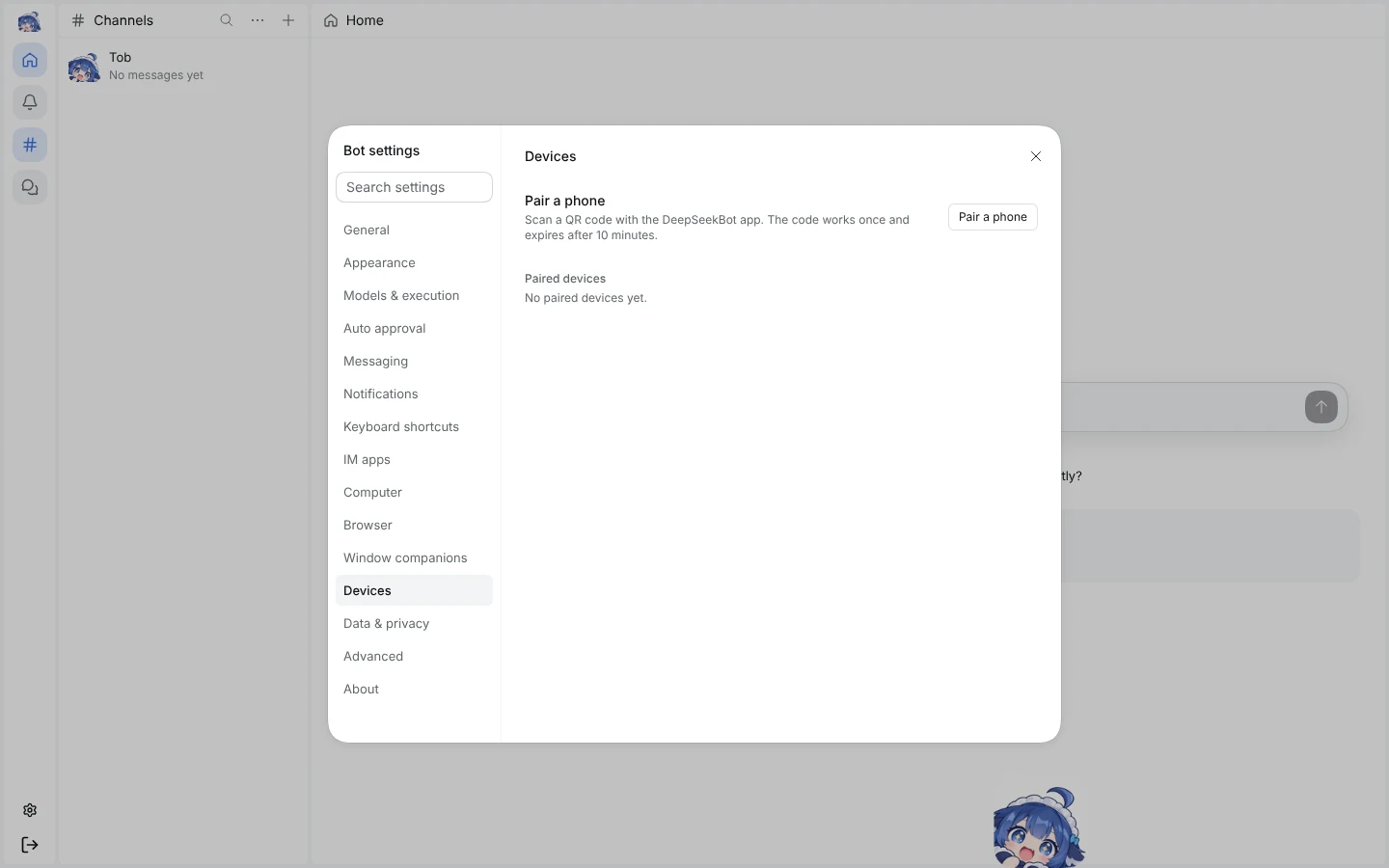
If the page only shows the Pair a phone button, as above, Tailscale is ready: skip to step 4.
3. Publish DSH on your tailnet
When Tailscale is missing or not publishing DSH yet, the Devices page shows a yellow notice with a command, for example:
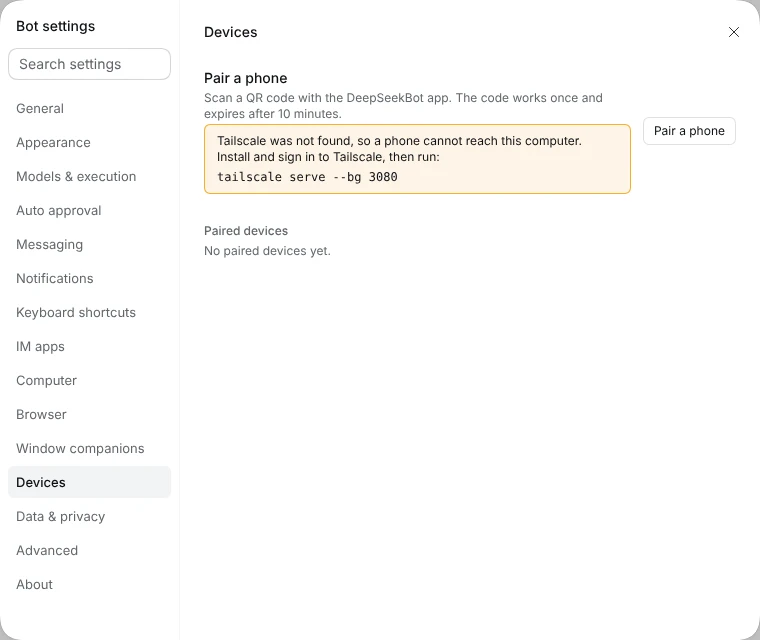
Open a terminal on the computer and run the command exactly as shown (your port may differ):
tailscale serve --bg 3080
--bgkeeps it running in the background, including after you close the terminal or restart the computer.- On macOS, if the
tailscalecommand is not found, use the full path:/Applications/Tailscale.app/Contents/MacOS/Tailscale serve --bg 3080. - If the first run prints a link saying HTTPS is not enabled for your tailnet, open it, enable HTTPS, and run the command again.
The command publishes DSH only to devices in your own tailnet; it is not reachable from the internet. Close and reopen the Devices page: once the yellow notice is gone, continue.
4. Show the pairing code and pair the phone
On the computer, click Pair a phone on the Devices page. A QR code opens:
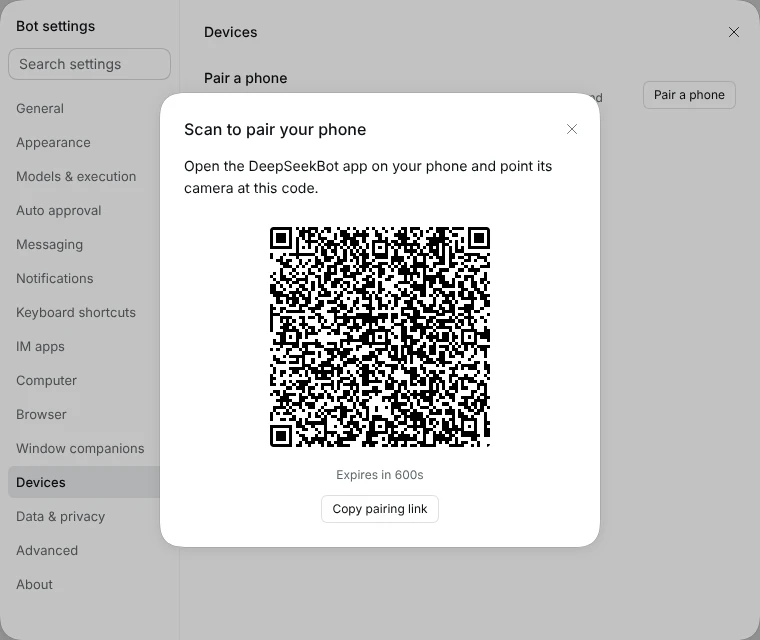
The code works once and expires after 10 minutes. If it expires, click New code.
On the phone:
- Check that the Tailscale app is connected.
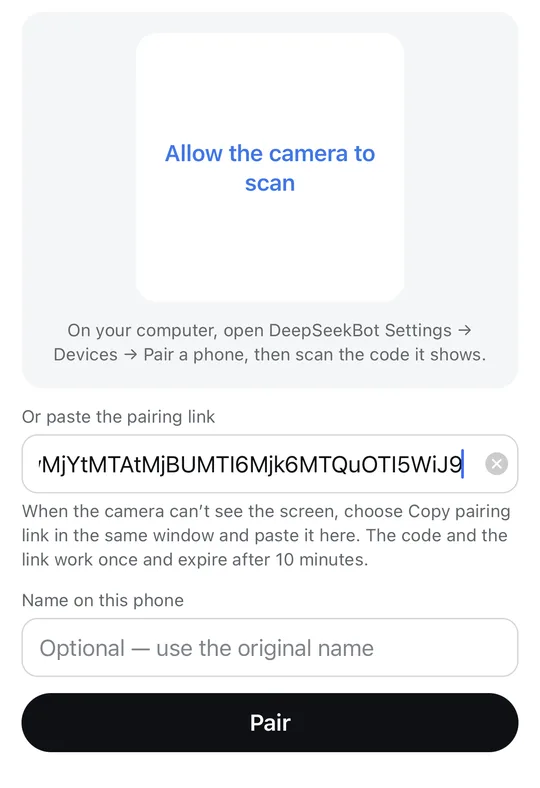
- Open the DeepSeekBot app. On first launch it opens Pair with your computer. If you already paired another computer, open Workspaces → Computers → Pair a new computer.
- Allow the camera and point it at the code on the computer. If scanning does not work, click Copy pairing link on the computer, send the link to your phone (for example through your own notes or chat), and paste it into Or paste the pairing link.
- Optionally give the phone a name under Name on this phone, then tap Pair.
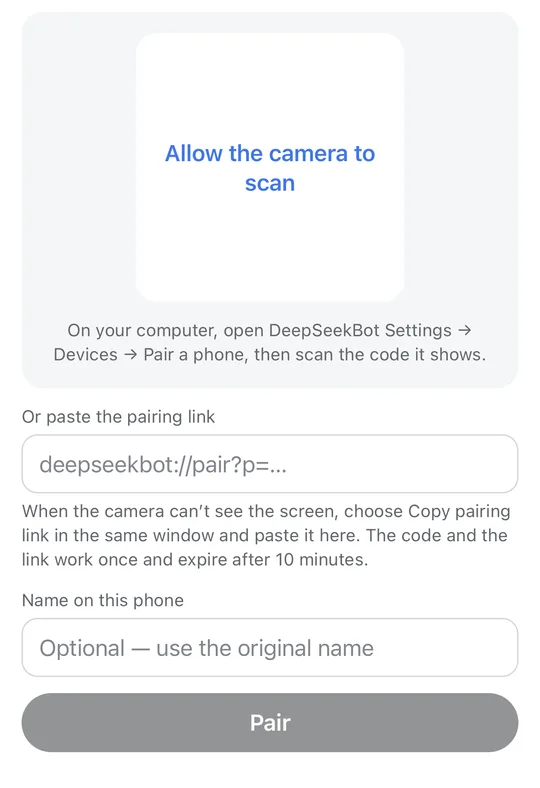
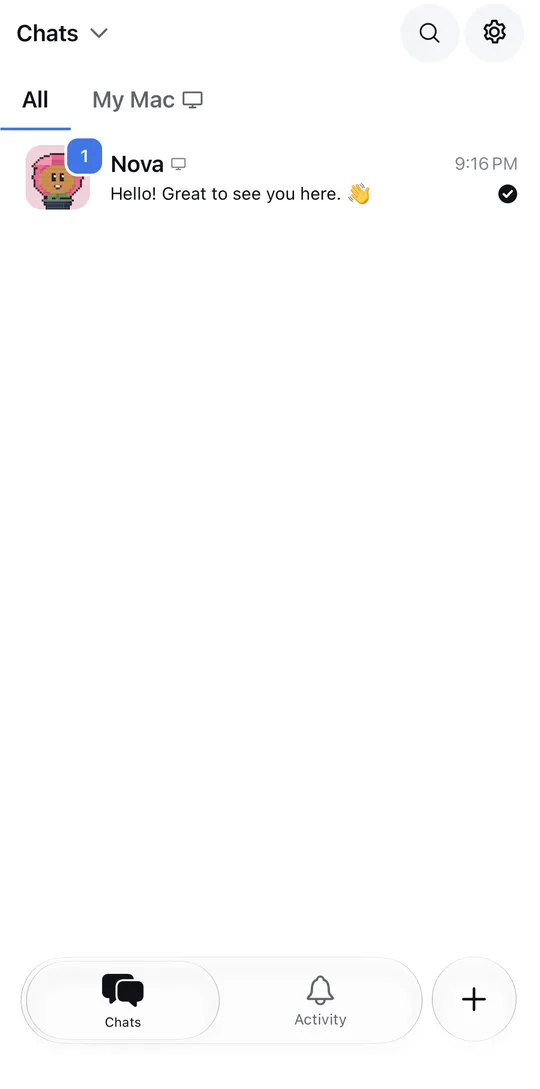
Once paired, the phone shows the Bots and groups on your computer, and the computer's Devices page lists the phone under Paired devices with its last-seen time. Restarting the computer or DSH does not require pairing again.
Troubleshooting
Settings say the code only carries the local address
Tailscale is not publishing DSH yet. Go back to step 3, run the tailscale serve command, then click New code.
The phone cannot reach the computer
Check in order: Tailscale is connected on the phone; both devices use the same account; the computer is on and not asleep; DSH is running on the computer. Opening https://<computer>.<tailnet>.ts.net in the phone's browser tells you whether the network path works: any page the computer serves, even a DSH error page, means the phone can reach it. A browser message that the site cannot be found, the connection failed or the certificate is invalid means it cannot.
The yellow notice is back after restarting DSH
If the port in the notice changed, run the new tailscale serve command it shows.
A phone is lost or no longer used Click Revoke next to it under Paired devices on the computer; the phone is cut off at once. Unpair on the phone only deletes the credential the phone keeps.
Will it work on a company or school network? Tailscale connects directly or through its own relays on most networks. If the network blocks Tailscale, the app cannot connect yet; a connection option without Tailscale may come later.
Security
- A paired phone has the same authority as you on the computer, so pair only your own devices.
- The phone keeps its credential only in the system keychain (iOS Keychain / Android Keystore); the computer keeps only its hash.
- DSH itself still listens on the local address only. Phone requests go through the DeepSeekBot device gateway and can be revoked at any time. Details: ADR-0199.