
Docs
Export and import a Bot
Pack a Bot into a zip, choose its files and Git history, and import it as a new Bot.
A Bot can be packed into a zip file to send to a friend or colleague, or to move to another computer. Importing it gives the other person a new Bot with the same memory. Unlike sharing a Bot to the Bot Marketplace, this needs no GitHub and publishes nothing: the zip only leaves your computer when you send it to someone.
What is in the zip
| Included | Never included |
|---|---|
| The Bot's Memory files, uncommitted changes included | Files ignored by .gitignore, symbolic links |
.botharness/bot.json (name, tags, bio), the avatar image and .botharness/banner.png |
Sessions, chat history, the Bot Inbox |
| Optional: Git history (every branch, tag and commit) | IM connections, Workspace grants, model settings, credentials |
| Git remotes, Git config and recovery checkpoints |
Export
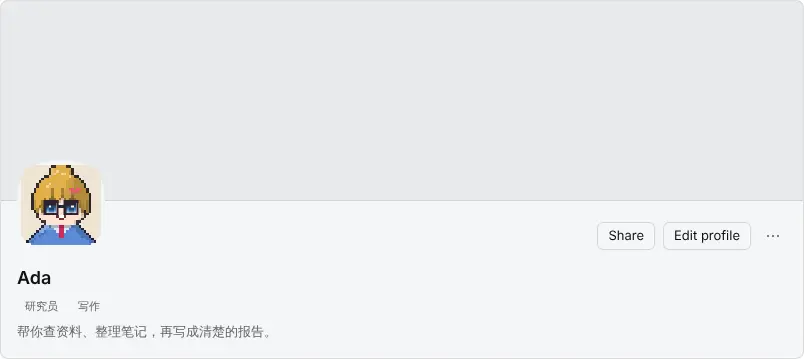
- Open the DM of the Bot you want to export and click the Bot's name at the top to open its profile.
- Click Share at the top right of the profile. You can also right-click the Bot in the sidebar's message list and choose Share.
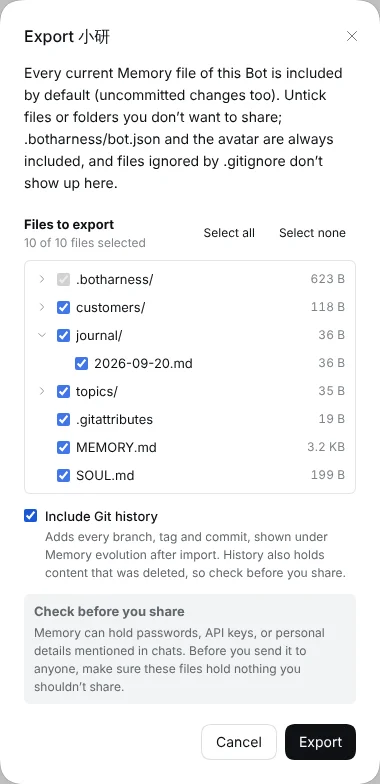
- In the export window, choose the files to put in the zip. Everything is ticked by default. Click the arrow in front of a folder to expand it, and untick files or whole folders you don't want to share, or use Select all and Select none.
.botharness/bot.json, the avatar and the banner are always included and can't be unticked. - To let the other person see how the Bot's memory changed over time, tick Include Git history.
- Click Export. Your browser downloads a zip named after the Bot.
Check before you share
Memory can hold passwords, API keys, personal details you told the Bot, or summaries of private conversations. Before sending it to anyone, look through each file in Bot DM → Channel sidebar → Memory files and untick the ones you don't want to give away.
Git history also keeps older content that was deleted or changed. That is why Include Git history is only available when every file is ticked: as soon as you untick any file it is greyed out, because the history would still show the files you left out. When in doubt, leave the history out.
Import
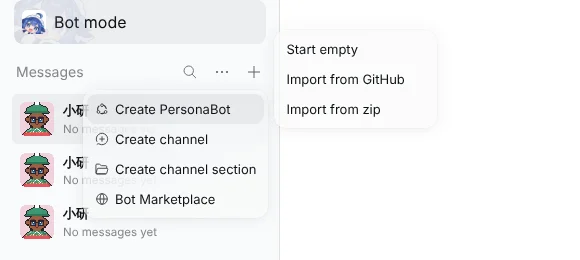
- Above the sidebar's message list, click + (New) → Create Bot → Import from zip.
- Click Choose zip file, pick the zip you received and click Import.
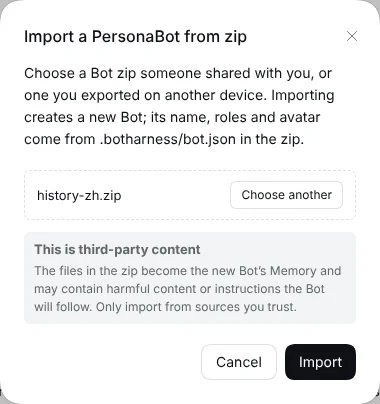
Importing creates a new Bot and opens its DM:
- Its name, tags, bio, avatar and banner come from
.botharness/bot.jsonin the zip;rolesin an older zip are imported as tags. Without that file, the zip's file name becomes the Bot's name. - A zip without Git history gives the new Bot's Memory a single initial commit.
- A zip with Git history keeps every branch, tag and commit and checks out the branch the Bot was on when exported; changes that were uncommitted then are still uncommitted. You can see them in Memory evolution.
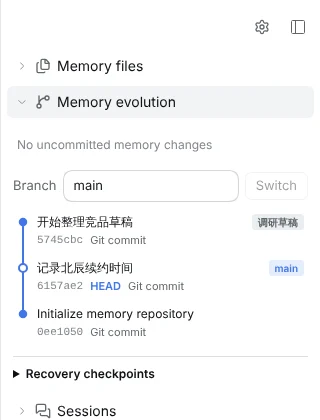
The imported Bot and the original are independent; later chats and memory on either side are not synced. Set up IM connections, Workspace grants and model settings again on the new Bot.
Only import zips you trust
The files in the zip become the new Bot's Memory and may contain harmful content, or text the Bot will follow as instructions. Make sure you trust where it came from, and look through Memory files after importing.
An unsafe or damaged zip is refused, and nothing is left behind:
| Message | Cause and next step |
|---|---|
| This is not a valid zip file, or it is damaged. | The download was incomplete or the zip was changed. Download it again, or ask for a new export. |
| The zip has unsafe paths … | A file tries to write outside the Bot's folder (such as ../) or is a symbolic link. Ask for a new export. |
| The zip is too large … | Over 100 MB or 20,000 files. Ask the sender to untick large files or leave the history out. |
| The zip has no files. | The wrong file was chosen, or the zip is empty. |
A folder zipped with your system's own compression tool can be imported too: if every file sits in one top-level folder, that folder is unwrapped, and __MACOSX and .DS_Store are skipped.
Related: Share a Bot to the Bot Marketplace, Memory files, Memory evolution.