
BlogTailscaleGuideAI workspaces
Remote AI Workspaces with Tailscale
Keep an always-on bot on a small VPS and run tasks in a Mac workspace. A real trial explains Codex SSH, T3 sessions, human approvals and new-device setup.
On this page
Many developers keep their bots running on a modest 2C4G cloud VPS (2 vCPUs and ~4 GiB RAM). A small instance is ideal for maintaining an always-on presence—listening for webhooks, receiving instructions, and coordinating events. But the moment tasks require real software engineering work, that low-spec server hits hard constraints: cloning large repositories strains storage, local compilation stalls on limited compute, and keeping toolchains and model credentials synchronized across machines is cumbersome. Meanwhile, your everyday workstation (such as a modern Mac) boasts ample processing power, full toolchains, and active local repositories, but cannot—and should not—expose public listening ports 24/7.
Trying to cram your entire development environment onto a remote server is not the only path forward. A cleaner architectural alternative is to let each machine focus on what it does best: the VPS maintains an always-on presence to receive and dispatch tasks, while your workstation executes them locally within a controlled workspace and returns the results to the VPS.
To examine how this workflow functions in practice, we conducted an empirical qualification run using a real 2-vCPU, ~4 GiB VPS and a Mac: the VPS scheduled a session, the Mac executed a strictly bounded read-only task inside an existing project repository, a human reviewed and approved commands through a web UI, and the VPS independently read back the completed run status.
Before exploring the setup, we must establish the factual boundaries: this was a CLI qualification experiment for session transport and security topology, not a released remote-execution feature in DeepSeekBot. The standard SSH pathway can be used independently today. The remote session pathway relies on an isolated T3 Nightly server and an experimental client facade. Crucially, this setup is designed for controlled cross-machine collaboration under human supervision; it does not claim faster execution, lower operational costs, or unrestricted access to your host machine.
Choose the route: SSH or remote sessions?
Before adjusting any configuration, clarify your architectural direction and trust boundaries. Tailscale provides secure peer-to-peer network reachability across a private tailnet, but network reachability does not automatically grant SSH logins, application permissions, or file execution rights.
Over that encrypted private network path, you can run conventional shell access or layer an application protocol with its own authentication. Each solves a distinct operational problem:
| Practical goal | Architectural route | Primary execution and authorization boundary |
|---|---|---|
| Let a local Codex or terminal session inspect a VPS or run maintenance commands | Standard OpenSSH forwarded over the private Tailscale network | The VPS operating system user account, SSH keys, and host permissions |
| Dispatch tasks from a VPS to run in a Mac workspace with human-in-the-loop approvals | Private HTTPS via Tailscale Serve to an isolated T3 MCP endpoint | The Mac T3 test service, application authorization scopes, and local executor |
| View active sessions, monitor tool calls, or review pending approvals from a mobile device | Mobile browser connecting to the authorized T3 service port | Mobile tailnet admission rules and an independent browser pairing grant |
A common point of confusion: if your goal is simply to let Codex manage a VPS over SSH, you do not need T3 at all. Furthermore, in our trial we used standard OpenSSH with public-key authentication, routing traffic over the Tailscale private IP; we did not enable Tailscale SSH. Tailscale SSH is an entirely separate, optional feature where Tailscale natively manages SSH certificates and node-level access policies. Just because a connection uses a Tailscale IP address or MagicDNS hostname does not mean Tailscale SSH is active.
Route one: let local Codex SSH to a VPS
In this outbound management pattern, Codex remains firmly anchored on your local development machine, invoking your local system terminal and ssh binary. Commands execute remotely inside the VPS shell, and their output flows back over the encrypted tunnel. Running an SSH command does not move the Codex process itself onto the server.
Local Codex
  → local ssh client
  → Tailscale encrypted mesh network
  → VPS sshd daemon
  → remote command output
The recommended setup and hardening flow:
- Network admission: Install and authenticate Tailscale on both machines, joining them to the same tailnet (or establishing an ACL route between them). If your organization enforces Device Approval, approve both nodes in the admin console first.
- Server-side hardening: Run the standard
sshddaemon on the VPS using a dedicated, unprivileged non-root user. Configure the host firewall and Tailscale ACLs so that the SSH port is reachable only by authorized tailnet clients. - Key generation: Generate a dedicated SSH keypair on your local machine and append its public key to
~/.ssh/authorized_keyson the VPS. Never copy existing private keys from other machines or production servers. - Host key verification: On the initial connection, verify the VPS host key fingerprint through an out-of-band trusted channel (such as your cloud provider’s web console), then persist it to
~/.ssh/known_hosts. Never disable host key verification just to streamline automation. - Human verification first: Verify interactive access in your local terminal as a human before handing the SSH alias to an automated agent.
Configure a clean alias in your local ~/.ssh/config:
Host bot-vps
    HostName <VPS_TAILSCALE_IP_OR_NAME>
    User <VPS_USER>
    IdentityFile ~/.ssh/id_ed25519
    IdentitiesOnly yes
Replace the bracketed placeholders with your actual Tailscale node address and VPS username, then run ssh bot-vps in your terminal. Once you have confirmed host key verification and verified that the key requires no interactive passphrase (or is loaded into your ssh-agent), validate the non-interactive path with a read-only command:
ssh -o BatchMode=yes -o StrictHostKeyChecking=yes bot-vps 'uname -s; pwd'
Once that command returns cleanly, you can prompt Codex: “Inspect the operating system and current working directory via ssh bot-vps; do not modify system configuration.” Codex still operates within its existing environment permissions; if your local harness requires approval for terminal or network access, review and approve as normal. Always keep least privilege in mind: remote commands execute with the full privileges of the remote SSH user, so never treat root as the default bot credential.
Route two: the VPS submits, the Mac executes
Our primary experiment targeted the inverse, high-leverage scenario: instead of a human manually logging into a server, an always-on VPS orchestrates tasks and delegates them to an active workspace on a local Mac.
The architecture:
Experimental CLI on the VPS
  → private HTTPS over Tailscale
  → Tailscale Serve on the Mac
  → isolated, loopback-only (127.0.0.1) T3 service /mcp
  → local executor bound to a real Mac project directory
  → human approval via web UI → local execution → VPS readback
A crucial architectural detail: this task pipeline does not SSH into the Mac. SSH was used solely for outbound administration of the VPS from our development machine to run the test client. The task dispatch and control loop ran strictly over application-level APIs and session protocols.
To safeguard our primary workstation environment, we kept the experiment strictly isolated: the Mac already hosted an active desktop T3 application used for daily work. Rather than upgrading or interrupting that installation, we left the desktop app untouched at version 0.0.45, and spun up a dedicated background test server with its own separate data directory and port. The experiment ran on v0.0.46-nightly.20261010.2935, pinned to commit 98beed1a. Session semantics and external authorization change across releases; features present on an unreleased development branch must not be assumed to exist in stable desktop packages.
For a local test server listening on loopback (e.g. 127.0.0.1:43864), standard Tailscale Serve commands expose it safely to your private tailnet (this configures an ingress endpoint, not the T3 service itself; verify port availability and inspect existing Serve bindings before executing):
tailscale serve status
tailscale serve --bg --https=8443 http://127.0.0.1:43864
tailscale serve status
Consult the official Tailscale Serve documentation for MagicDNS, HTTPS certificate issuance, and other prerequisites, adjusting port numbers as appropriate. Important warning: Tailscale Serve exposes an endpoint strictly within your private tailnet; never substitute it with the publicly accessible tailscale funnel! Additionally, avoid global commands like tailscale serve reset, which would disrupt unrelated services sharing the same device.
Once network reachability is established, four operational requirements must be satisfied:
- Minimal application authorization: Authorize the VPS client using dedicated OAuth scopes. We restricted permissions strictly to
orchestration:readandorchestration:operate, without extracting desktop tokens or copying model API keys across machines. - Local executor readiness: Confirm that the local executor launches cleanly on the Mac, that its
PATHincludes required developer tools, and that its model account has an active balance. Network reachability cannot overcome an exhausted model credit balance. - Real project directory binding: Register the authentic local project path on the Mac and verify the session binding before submission. A path on the VPS file system is meaningless in the context of the Mac workspace.
- Enforced human-in-the-loop approval: Keep
approval-requiredmode enabled, requiring a human operator to inspect and approve commands in the web UI. Allowing a remote client to enqueue a session is not a blank check to execute arbitrary commands on your computer.
Note that the client used in this test was an experimental CLI facade built for testing, not a shipped deepseekbot remote product command. Replicating this workflow requires implementing or adapting an appropriate client, managing authorization tokens, and building idempotency guards against duplicate submissions.
What did the trial prove?
To ensure reliable conclusions, we divided validation into two progressive stages:
Step 1: Minimal greeting task (submission and model response loop)
Before touching any actual project files, we dispatched a minimal sanity prompt from the VPS: instructing the executor to reply with “你好” (hello) without invoking any tools. This isolated the session creation, transport, model inference, and response transmission layers from local file system interactions.
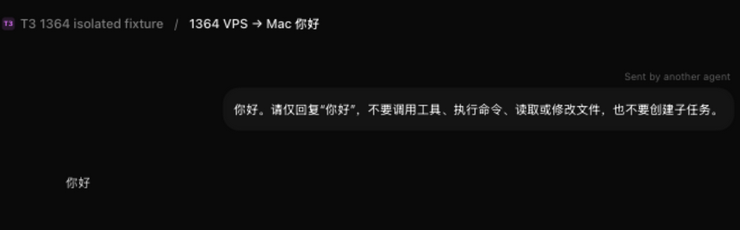
Figure 1: confirming that a remote task reaches the local executor and yields a model response before exposing real directory paths. All process screenshots were captured and sanitized from the original completed session records after the trial; we did not rerun the tasks or recreate historical approval dialogs.
While this test confirmed that the end-to-end communication channel functioned as designed, it did not demonstrate or prove permission to access workspace files.
Step 2: Supervised read-only workspace task (directory inspection and SHA-256 validation)
On October 11, 2026 (Japan Standard Time), we initiated a formal session from the VPS, explicitly binding it to an existing BotHarness repository on the Mac.
The prompt enforced strict operational guardrails: the executor was permitted only to verify the current working directory, confirm the underlying host operating system, inspect the root AGENTS.md file, and compute its exact byte size and SHA-256 hash. The executor was strictly forbidden from modifying files, installing dependencies, running test suites, or inspecting any other project documents.
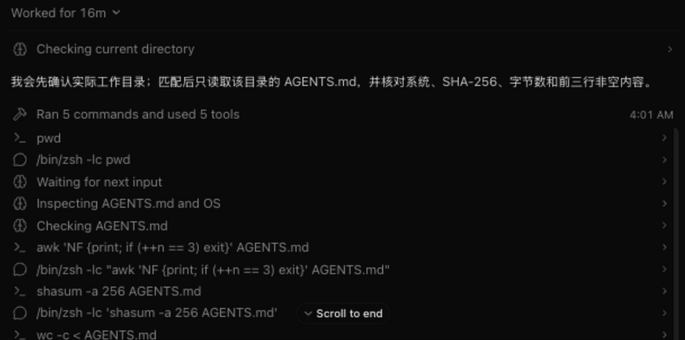
Figure 2: expanded tool execution history from the original session, detailing the sequential invocation of pwd and file inspection commands. The “Waiting for next input” entry records a historical event during task execution; it does not indicate a pending approval at the time the capture was taken, nor does it serve as standalone proof of the approval modal itself.
Upon task launch, the Mac web UI surfaced an approval prompt for the initial pwd command. Once approved by the human operator, the executor completed its assigned inspection: reporting the host platform as Darwin 25.6.0 arm64, matching the expected repository directory, verifying the file size at 16,687 bytes, and outputting a SHA-256 hash identical to our pre-recorded local baseline.
Simultaneously, the VPS client polled its separate backend API, independently confirming completion with status: completed, runCount: 1, and pendingRequestCount: 0. The Mac web interface displayed the corresponding final model output.
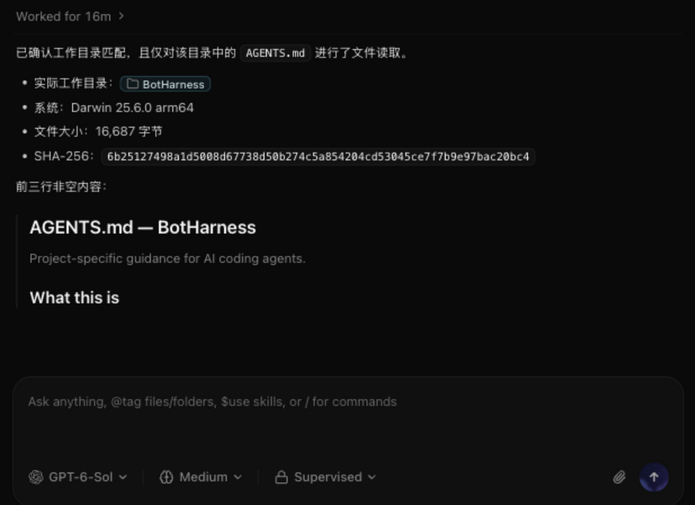
Figure 3: final file inspection output and active Supervised mode in the original session. Full local filesystem paths have been cropped for privacy, preserving the project identifier, OS platform, file size, and verification hash. The VPS completion state was verified via out-of-band API readback, not inferred from this visual interface.
Following execution, we audited the repository’s Git status and verified that tracked file diffs were entirely clean. Crucially, this was a bounded repository audit, not proof that zero file system changes occurred across the entire operating system. The complete sanitized trial record is documented in qualification issue #1364.
Explicit boundaries and unverified scenarios
This empirical qualification established an end-to-end execution loop: remote task submission → local execution in a real workspace → human approval of commands → remote verification of completed results.
Equally important is recognizing what this trial did not verify:
- Production Bot integration: We did not wire this pipeline into live DeepSeekBot conversational channels or multi-tenant production dispatchers.
- Arbitrary file modifications: We did not test file-writing tasks, multi-file code refactors, or automated rollback on failed builds.
- Desktop application session synchronization: The isolated service maintains its own state store; sessions do not automatically appear in the primary desktop app.
- Physical mobile hardware validation: We did not validate full end-to-end usability, session handling, or approval workflows on physical Android devices.
Claims of “zero risk,” “complete automation,” “universal device compatibility,” or “production readiness” are completely unsubstantiated by these results.
Four traps worth knowing
Setting up cross-machine orchestration across multiple abstraction layers involves several subtle pitfalls:
“Invalid OAuth state” is not necessarily a user error
During early iterations of our experimental client, we encountered recurring Invalid OAuth state failures. The root cause was not user error during authorization, but rather an orphaned callback listener from a prior process. When a new login flow initiated, it wrote a fresh pending state to memory, only to find that it could not bind the occupied callback port. As a result, the listening process receiving the redirect did not match the newly issued state.
The reliable fix is to ensure the local callback listener successfully binds its port before writing the pending state to storage, while immediately clearing pending timers if port binding fails. When troubleshooting, check for lingering background processes, verify port availability, and ensure the redirect URL corresponds to the current login attempt. Repeatedly clicking the authorization button will not resolve the issue, and disabling state validation opens a severe security vulnerability.
Pairing link expiration and existing browser sessions
Cross-device pairing links are time-limited. When a link expires, generate a fresh pairing token for that specific client rather than attempting to reuse stale credentials. Furthermore, in the version tested, navigating directly to a bare /pair path in a browser that already had an active session simply returned to the application; refreshing or replacing that browser’s pairing grant required using the full, dedicated pairing URL.
Because pairing URLs may encapsulate one-time credentials, never paste them into public chat channels, documentation, or screenshots. Always open them directly on the intended destination device. Because routing and credential handling evolve across releases, consult your specific version’s documentation rather than assuming static URL patterns.
Viewing a session is not the same as approval authority
In our initial configuration, we accessed the web UI using a browser identity that possessed only a read-only grant (read-only). While the interface rendered pending tool calls in real time, the Approve button remained disabled. The button became active only after granting the browser explicit operate permissions (operate).
This demonstrates an important distinction: the authorization granted to the VPS client to submit tasks is entirely separate from the authorization granted to the browser to approve commands. Access tokens must not be commingled, and the ability to observe an active session must never be conflated with the authority to execute commands.
Isolated web sessions will not appear in your desktop app
As highlighted earlier, the background testing service on the Mac ran with its own dedicated state directory and database. While both services resided on the same physical computer, their underlying storage was completely isolated.
Consequently, sessions dispatched by the VPS appeared exclusively in the web UI served by the test instance. Waiting for the primary desktop client to refresh or investigating “missing records” was a dead end. We did not upgrade the primary desktop application, nor did we execute database migrations or background synchronization between stores.
What does a new device need?
When integrating new hardware into this hybrid architecture, configure permissions strictly according to each device’s operational role:
| Device role | Required configuration | What you should NOT copy over |
|---|---|---|
| New Codex workstation (needs SSH access to manage VPS) | Tailscale access, locally generated SSH keypair, VPS user account with public key, verified host fingerprint | T3 server environment, workstation model credentials |
| Task execution host (Mac / workstation running local jobs) | Tailscale access, compatible local test service, local executor login, explicit project path bindings, dedicated app authorization scopes | Private keys from other hosts, paths from other machines, legacy service databases |
| Mobile client (e.g. Android phone for monitoring and approvals) | Mobile Tailscale client, authorized browser, dedicated browser pairing grant | SSH daemons, private keys, Codex CLI toolchains |
Consider physical machine availability: mobile workflows represent a natural next step for this architecture, not an already qualified physical-device capability. Furthermore, if the host workstation is sleeping, suspended, powered down, or disconnected from the network, the VPS cannot conjure local compute out of thin air. Before committing to long-term operational use, thoroughly evaluate host sleep management, network keepalive and reconnect behavior, recovery from interrupted runs, credential revocation procedures, and cleanup routines for background services.
Keep the authorization layers separate
When designing multi-node AI workflows, the primary engineering objective is not merely making connections succeed, but keeping security boundaries crisp, defensible, and modular. Enforce four distinct defensive layers:
- Network and device admission: Enforced by your Tailscale tailnet and ACL rules. Only verified devices can establish encrypted handshakes; unauthorized probes are dropped before reaching application ports.
- Service and application authentication: Enforced by standard OpenSSH keys or application-level OAuth tokens. Network connectivity provides only the transport pipe; valid cryptographic credentials are required to initiate sessions.
- Workspace filesystem boundaries: Enforced by executor settings and explicitly bound directory paths. Restrict tool execution to designated repositories, guarding against directory traversal into sensitive system folders.
- Runtime command oversight: Enforced by mandatory human-in-the-loop approvals. Even with active operation grants, potentially impactful system commands require interactive human confirmation before execution.
From a software design perspective, long-running dispatch clients must cleanly distinguish between “a submission that failed to reach the server” and “a task that began execution locally while the network connection dropped before reading the result.” Blind retry loops risk creating duplicate executions and colliding filesystem states. Keep SSH private keys and session tokens isolated on their respective machines. When revoking access, act with surgical precision: know whether you need to adjust a tailnet ACL, remove an SSH public key from the VPS, or revoke an OAuth grant in the application service.
Where should you start?
The most practical way to adopt these patterns is through a phased, incremental approach:
- If your immediate objective is simply to manage a cloud VPS using Codex on your workstation: start with the standard OpenSSH pathway. Using Tailscale private networking, a dedicated non-root user, and verified key authentication gives you a robust, time-tested foundation without introducing unnecessary middleware.
- If your workflow demands remote task dispatch, local workspace execution, real-time observability, and human command oversight: evaluate application-level session protocols within an isolated test port and sandbox directory first. Never experiment directly inside your primary production desktop setup until you have validated full error recovery and revocation workflows.
If you are already building with DeepSeekBot, review the capabilities guide and installation guide to distinguish current production capabilities from this exploratory experiment. A lightweight VPS and a powerful local workstation make a compelling pairing, but connecting this remote workspace pattern to a production bot requires dedicated integration and reliability qualification.